Overview
OSGi devices registered in RM are placed in a hierarchical tree according to the system administrator's needs or preferences. For example, devices can be sorted by location, OS, functions, etc. Some of the advantages that this arrangement brings are:
- The load of managing a large number of devices registered in the system can be distributed among a set of management servers, each responsible for its own branch of the tree.
- Searching for a particular device is much easier.
- You can define management scripts and tasks over a whole set of devices that are forming a separate branch of the tree.
General Description of the Device Tree
After a successful registration of an OSGi device, a device node associated with the device is created. It may be seen in the console Device Management dashboard view – to open it click the  button, or from the navigation bar go to Dashboard and select Device Management there.
On selecting a component from the devices tree, the right pane shows different information, depending on whether you have selected a group, a device or a specific functional node of the device. The properties of an item from the devices tree and the operations executable on this item are further described in the sections below.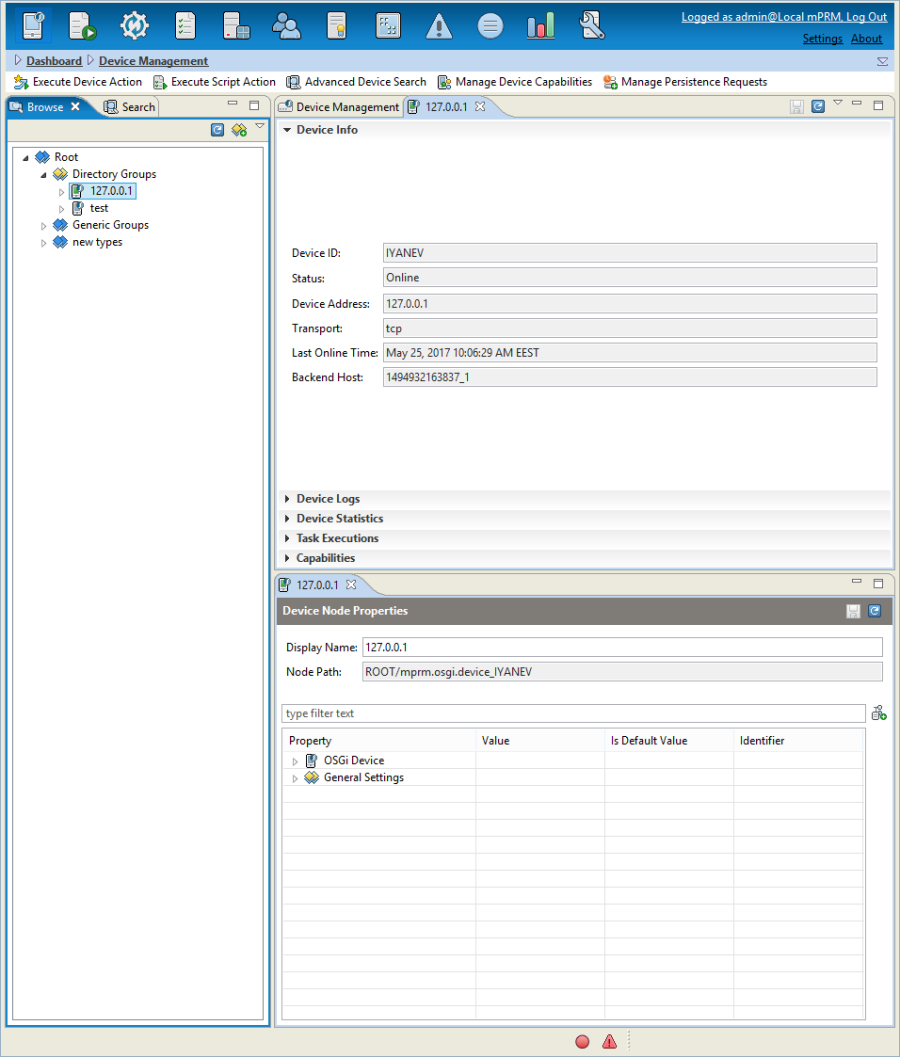
A Device's Node Description
For each device, which has connected to RM at least once, the console provides a user-friendly representation of the device components showing the following basic nodes:
- OSGi Policy – Allows controlling the permissions set on the OSGi device. See the Managing Permissions on OSGi Devices document for more information about the commands available for assigning permissions.
- Services – Lists all the services available on the managed device framework. See Managing Bundles and Services on OSGi Devices document.
- Bundles – Holds the bundles installed on the device framework. For detailed information about managing services and bundles refer to Managing Bundles and Services on OSGi Devices document of the current documentation.
- Configurations – Contains list of device configurations currently exported in the OSGi Framework of the OSGi devices. See the Managing Configurations on OSGi Devices document for more information about the commands available for bundle configurations.
- Initial Provisioning Properties – For the "defined" devices, these are the properties specified at the time of device registration. In case the device has already been connected to the RM, these are the device properties recorded in the provisioning dictionary.
More information about the initial provisioning properties can be found in the "Initial Provisioning Properties" paragraph of the Registering New OSGi Devices document.
- System Properties – The system properties of an OSGi device. Details can be found in the System Properties document.
Device Status and Properties
On selecting an OSGi-enabled device, its status and properties appear on the right under Device Info and Device Node Properties.
- Device Info
- Device ID – The device identification known by the RM backend.
- Status – The current status of the device. An OSGi device can be in one of the following status:
- Online – Connected to the management server, responsible for its management.
- Offline – Not currently connected, but it was previously connected.
- Defined – Not initially connected to any management server.
For each type of device status, the console GUI provides an appropriate icon.
- Devices Address – The address of the device. This information is available if the device has connected to RM at least once.
- Transport – The type of transport, used for the communication between the RM and the managed device.
- Last Online Time – The last time when the device has connected to RM.
- Device Node Properties
- Display Name – The user-friendly name under which the device appears in the devices tree. By default, a device is displayed with its ID. If you have modified the Display Name, click the Save button to save it persistently.
- Node Path – The path of the selected device node in the devices tree.
- Node Settings – Settings used in the communication between the backend and the managed device.
In the form of expandable sections, the console also shows the Alert Board, Retrieving Logs from OSGi Devices, Preferences, pending operations and capabilities of the device.
Commands over a Single Device
Registering a New Device
A comprehensive description for how to register new OSGi device through the console GUI can be found in the Registering New OSGi Devices document.
Synchronizing Device State
Synchronizing an OSGi device means requesting explicit update of the information about the state of all its components and properties (running bundles, exported packages and services, platform properties, system properties, etc.). Normally, you don't need to request synchronization in order to get up-to-date information about the device because RM takes care of synchronizing the information stored on the RM backend with the real state of the device. The only exception to this rule is the information record about the device's system properties. This information is updated only when you request explicit synchronization.
To request synchronization of a device:
- Right-click a device from the management tree.
- Select the Synchronize Device State command from popup menu.
Performing the Synchronize command on any device child node, will synchronize all the child nodes of this device, respectively all the device parameters will be synchronized.
Executing a Console Command
Console commands can only be fired to the OSGi framework of the OSGi SDKs!
- Select a target OSGi device.
- Invoke the Console Command command from popup menu. The Console Command dialog appears.
- Type the console command in the Command Line field.
- When ready, click OK.
A simple example of executing a console command is shown below. It is the stop command, that deactivates a bundle with a given ID.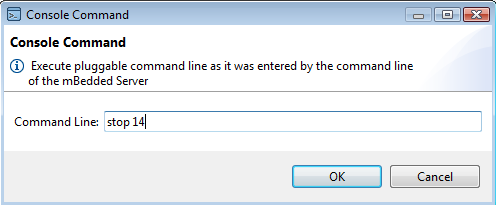
As a result the console GUI will act accordingly by changing the icon to a stopped bundle: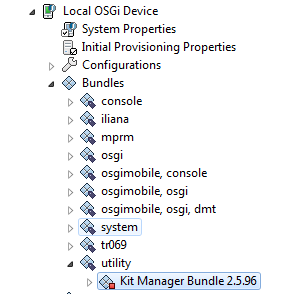
Defining the Start Level
To specify the start level of a bundle/framework:
- Right-click on a device root and use one of the commands available in the Start Level group of the popup menu:
- Set Framework Start Level – Changes the active start level value of the framework. Only bundles that have a start level less or equal to this active start level will be active. Refer to the OSGi Start Level Service Specification for more details.
- Set Initial Bundle Start Level – Modify the initial start level of the newly-installed bundles.
- Set Start Level – Sets a new value for the start level of a bundle.
- For the Set Start Level option. Specify the bundles whose start level you want to change and click Next.
- Enter the new start level. To skip the process of defining additional execution settings for the resulting operation, click Finish button, otherwise click the Next button.
If the device is not connected to a management server, your changes on the start level properties won't be preserved. Such changes are applied only if the device is online.
Deleting a Device from the Devices Tree
To unregister a device from RM in order to clear the devices tree from devices which will no longer be used in the system:
- From the Devices node of the Device Management dashboard view, right-click the device root node or a subnode from the device's tree.
- Select the Unregister command from the the popup menu.
As a result, the device will be removed from the device tree.
Commands over a Device Group
Besides on a single device, RM enables you to execute commands on a group of devices.
For device groups, RM provides almost the entire set of commands available for a single device, that is, install and uninstall bundles, set permissions, setting system properties etc.
In the console, a command on a selected group is called by right clicking over the group and selecting the command from the relevant popup menu group.j