Bundles
Bundle Properties
When selecting a bundle, its properties will be displayed on the right in the OSGi Bundle Properties pane. The pane provides information such as bundle name, version, vendor, dependencies etc. Most of the information is extracted from the bundle's manifest, but there is additional information as well.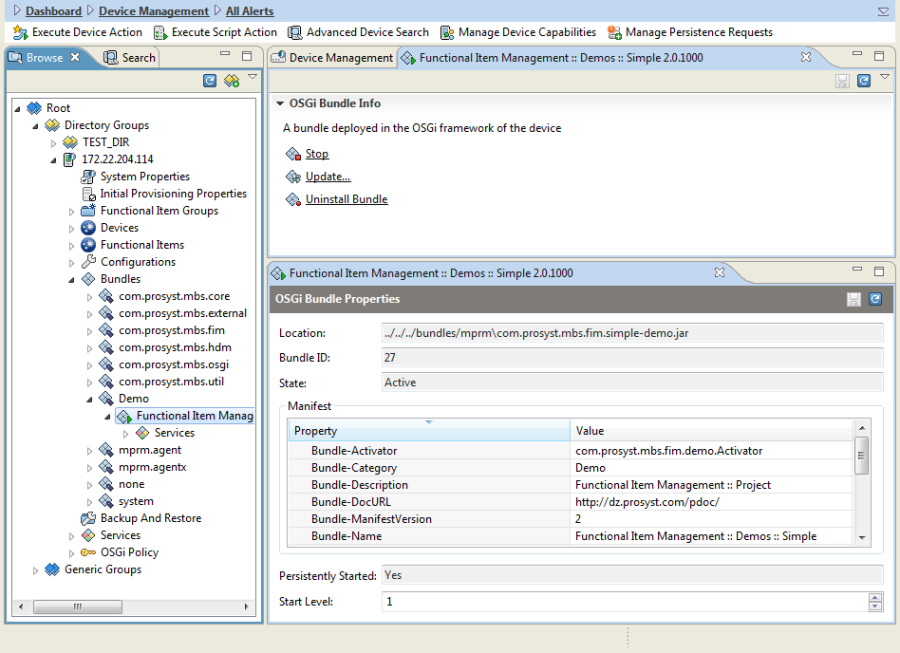
Bundle Commands
You can issue bundle commands over:
- OSGi Device groups – In such case, the bundle command will be executed over the specified bundle(s) on all devices in the current group and its subnodes. If you want to execute a command over an entire group, select the group node from the device management tree and invoke the corresponding command from the OSGi Device menus, toolbar, popup or use the corresponding keyboard shortcut.
- Individual OSGi devices- In such case, the bundle command will be executed over the specified bundle(s) running on the current device only. To execute a command over individual devices, select the device from the tree (multiple selection is not allowed here) and issue the desired bundle command in the same way as with device groups
- Device bundles – In this case, the bundle command will be executed over the selected bundle only, and on the current device only. To execute a command over individual bundles, select the target device from the tree. Select the desired bundle and invoke the desired command from the menu, toolbar, popup or use the corresponding keyboard shortcut.
If preferred you can issue bundle commands by using the RM Components Tracker. More explanations about the advantages delivered by Components Tracker can be found in Component Tracker section of Device Management System Architecture. The Tracked OSGi Components provides additional information about the specifics of tracking OSGi compliant devices.
Installing Bundles
You can install bundles from the Software Repository. The install operation has two modes: normal and smart. In normal mode, only the indicated bundle is installed. In smart mode, the system checks the bundle's dependencies and if some packages or services it requires are missing, bundles offering these packages and services are found in the software repository and are installed along with the selected bundle.
Unlike the other bundle operations, the "Install Bundle" command allows you to install more than one bundle at a time by multiple bundle selection from the list or you can specify a whole bundle group or a bundle category instead.
To install a bundle or a set of bundles:
- Select the Bundles node of the device sub-tree.
- Click the Install Bundle action on the right, or invoke the Install Bundle command from the popup menu. A dialog containing all bundles and groups available in the Software Repository appears. If you unfold a bundle, you can see the bundle editions it contains. Note, however, that the displayed editions are shown only for informative purposes because you can not select a particular edition. When you select a bundle, the system will automatically select the best matching edition for the specified device.
You can also type the URL/Location of a bundle you want to install in the filed under "Location" pane and finish the process.
- Select the bundle or group you want to install. To enable smart install, check the Smart Install option.
- Check the Start option, to enable starting the given bundle immediate after installing it. In case you prefer, you are allowed to finish with the installation process – just press the Finish button, otherwise press Next button.
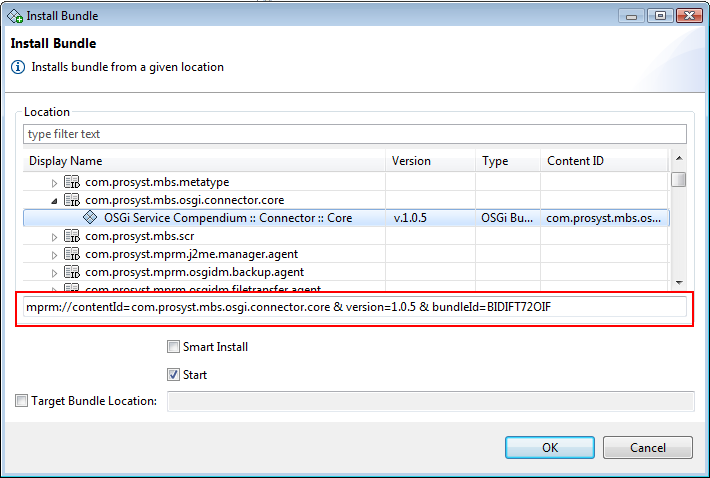
- Click OK to launch the install.
In case you will install a bundle over a group of devices:
- Right-click the group and select Bundles -> Install Bundles from the popup menu.
- Select the bundle/s you want to install.
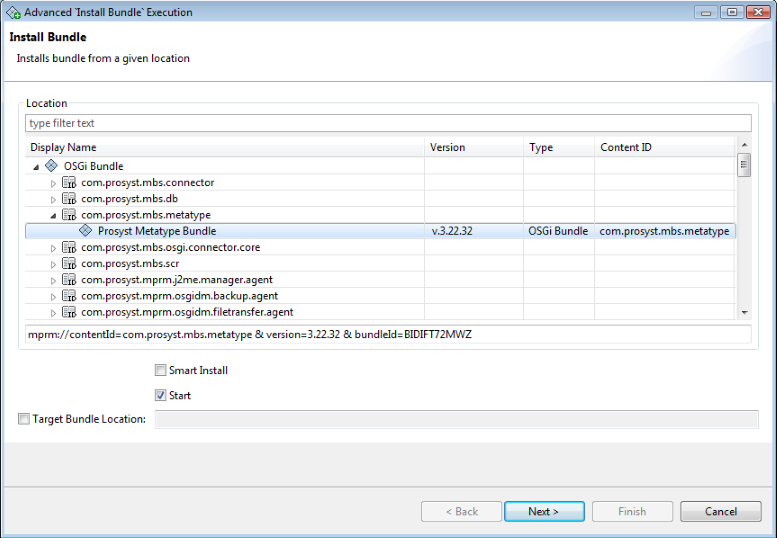
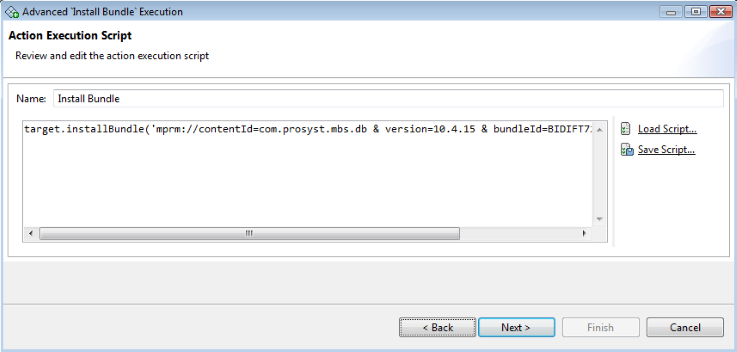
- Review and edit the action execution script if needed.
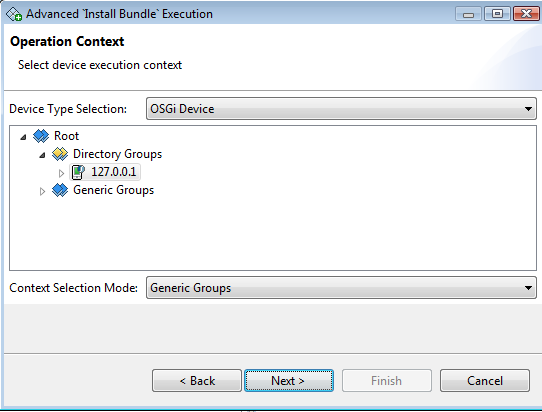
- Select the device execution context – From the device browser select the device or group of devices on which the bundle will be installed.
- Configure Triggers – either manual or event-based
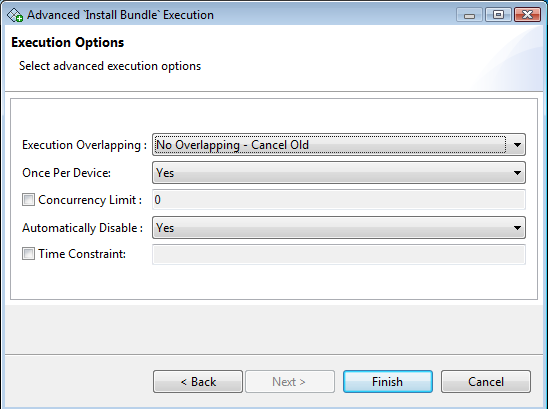
- If needed, in the last dialog specify advanced execution options such as schedule the operation, make it periodic, execute it on each newly-registered device, etc.
If successfully installed, a bundle will appear as a child node of the Bundles parent node.
Updating Bundles
To update a bundle: Right-click the bundle to be updated in the device's sub-tree and select the Update command from the popup menu. The Update Bundle dialog box will open.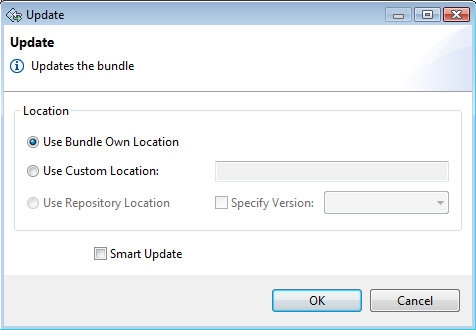
You can update the bundle from its current location or specify a new URL. If you want to do this from a new URL, submit it in the Use Custom Location field. You can also update a bundle with a specific version from the Software Repository.
There are two modes of updating a bundle: "smart" and "normal". In normal mode, only the selected bundle's JAR is updated with the operation. In smart mode, the system checks the updated bundle's dependencies, and if some of the bundles exporting packages or services to it are missing, the exporter bundles are installed too.
If you want to enable smart update, check the Smart Update option.
Starting Bundles
To start a bundle:
- In the device's sub-tree right-click the bundle over which you want to execute the Start bundle command.
- Select the Start Bundle command from the popup menu.
Uninstalling Bundles
The "Uninstall" operation is entirely analogous of Starting Bundles. Select the desired bundle, right click the mouse over it and select the Uninstall Bundle command.
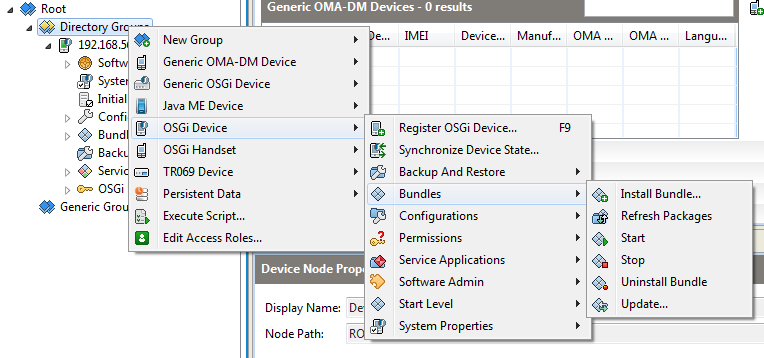
All the commands could be executed over a device group. From the context menu of the group choose OSGi Device -> Bundles.
Services
The services exported by the bundles of the managed devices are displayed as child nodes of the Services node of the console OSGi device management tree. In addition, each of device bundles provides information about the exported services.
Service Properties
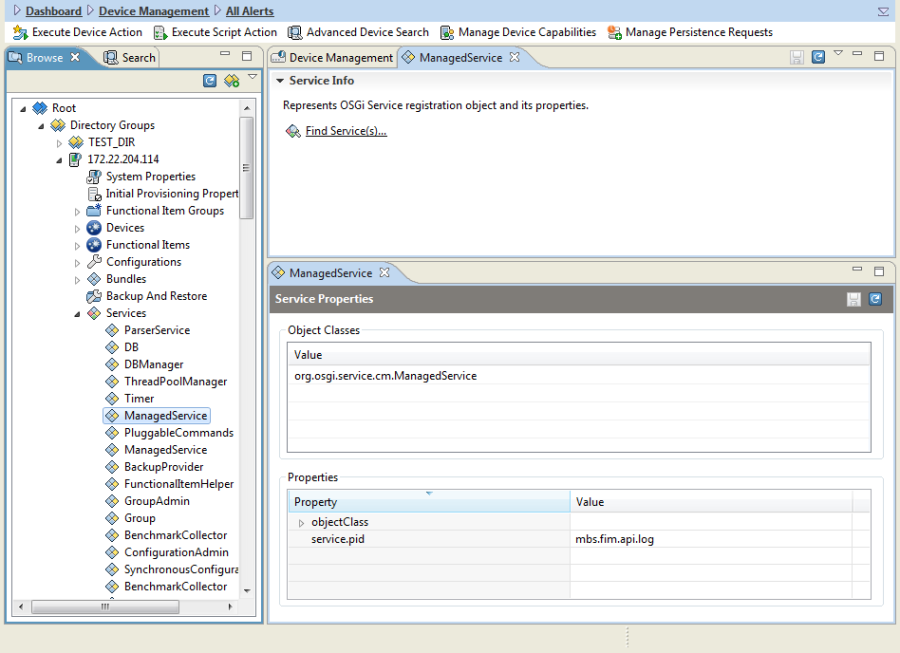
To view the properties of a service, select it from the Services node. The properties of a selected service appear on the right pane as shown.
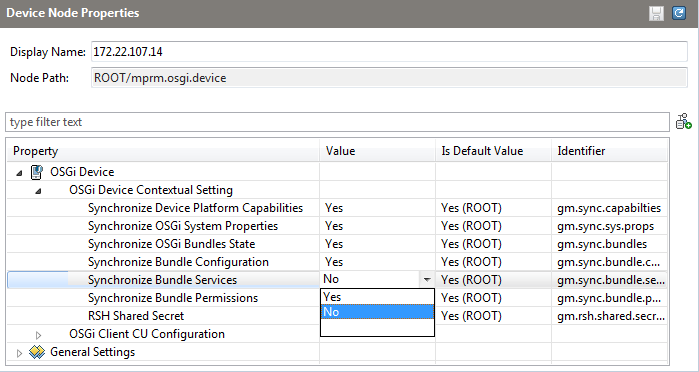
Services are not visible by default. They are visible only if the "Synchronize Bundle Services" property (OSGi Device -> OSGi Device Contextual Setting -> Synchronize Bundle Services) is set to "Yes".
Searching Service(s)
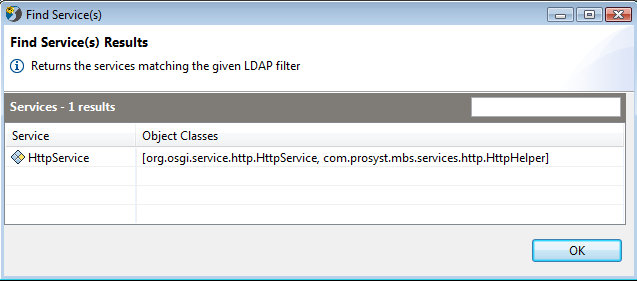
The console allows you to search for service(s) matching a given LDAP filter. To initiate the search, right-click the Services node and select the Find Service(s) command from the popup menu, or select the same action from the action list on the right. The Find Service(s) dialog appears:
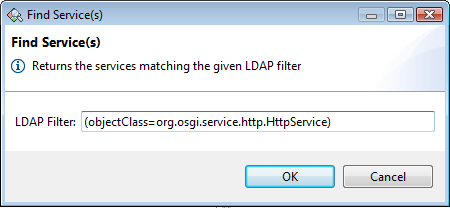
Type the service filter (LDAP syntax must be used) and then press OK. If there is such a service, it will be displayed in the "Find Services" dialog.