Provides information on retrieving logs remotely from OSGi Devices through the console.
Getting device-generated log files means downloading the log files created by the Log Service running on the selected OSGi device. These files store the log messages generated by local bundles and the local OSGi framework.
To be able to get the log entries created in the OSGi Log Service on an OSGi device, you must have the Log Agent bundle on the device. Refer to the OSGi Device Remote Log Service conceptual guide.
Viewing the Logs related to the Device
The Device Logs expandable section from the right pane allows you to view, filter and sort logs related to the device including device-generated and backend-generated ones.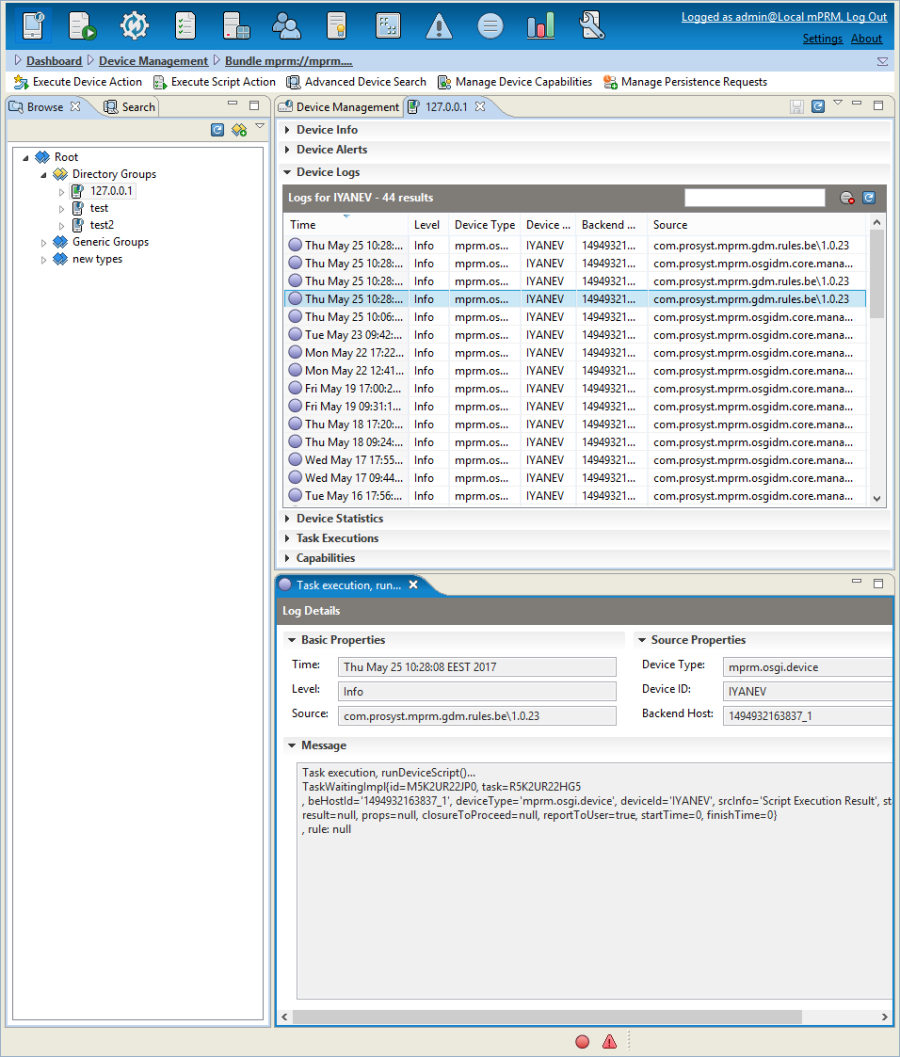
A log entry has the following attributes:
- Time – The moment of log entry's creation.
- Level – The severity level. Log entries have different severity levels depending on the type of event they notify. There are four types of severity levels: ERROR, WARNING, INFO and DEBUG.
- Source – The bundle that have created the log entry.
- Device Type – The device type for which the log entry is dedicated.
- Device ID – The ID of the device related to the generated the log entry.
- Backend Host – The ID of the backend host, which has generated the log entry.
- Message -The message of the log entry.
Retrieving Device Log Files
Getting device log files is possible only for devices which have the Log Service and the Remote Log Extension Service running. See the OSGi Device Remote Log Service document from Conceptual Guide for more details.
To get device-generated log files:
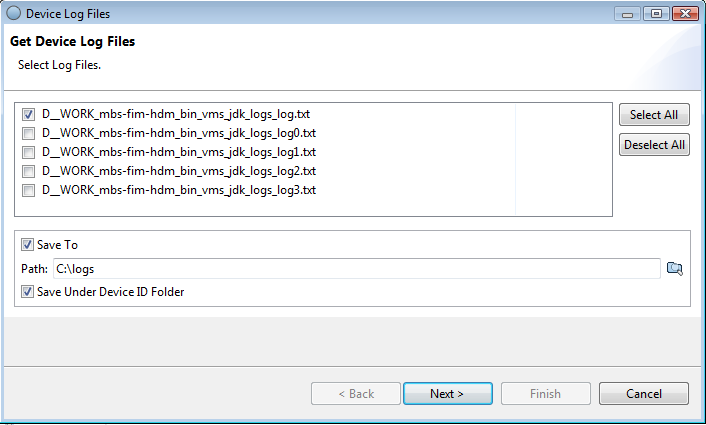
- Right-click the target OSGi device from the list of registered devices and select the Get Log Files option from the popup menu. The Device Logs Files wizard appears.
- In the Get Device Logs Files dialog, specify which files to get and where to save them. If you check the Save Under Device ID Folder option, RM will create a folder in the specified path with name corresponding to the device's unique ID, and the log files will be placed there. If you don't check this option, the files will be placed directly in the specified path. When ready, click Next.
- The View Log Files dialog will appear. It contains the downloaded log files in the left pane. If you select a log file, you can see its contents in the right pane. Click Finish to save the files.
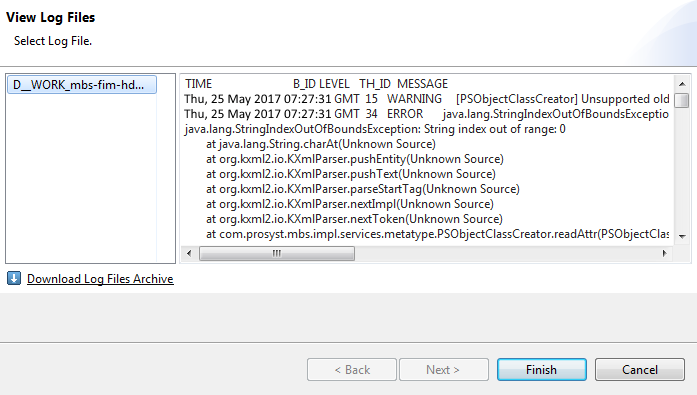
You can also see the contents of the downloaded files by opening them directly in a text editor from the local file system.