Overview
The RM allows remotely viewing and modifying of the exported OSGi-compliant configurations properties. In addition, it can be used to create configuration instances from configuration factories and singleton instances which are not loaded by default.
The configurations available on a connected OSGi device are placed within the Configurations node of the corresponding device tree. Configuration factories and the configuration instances originated from them are shown with the factories as nodes and the associated configuration instances as leaves.
Additionally, the console shows the bundle configurations as its sub-nodes within the Bundles device sub-tree.
Setting Configuration Properties
To modify the properties of a configuration, exported by an OSGi device:
- From the Configurations node of the device tree, select the configuration you want to edit. In the case of a configuration generated from a configuration factory, unfold the node of the factory and locate the configuration. As a result, on the right the configuration properties will be displayed within the Configuration Properties pane.
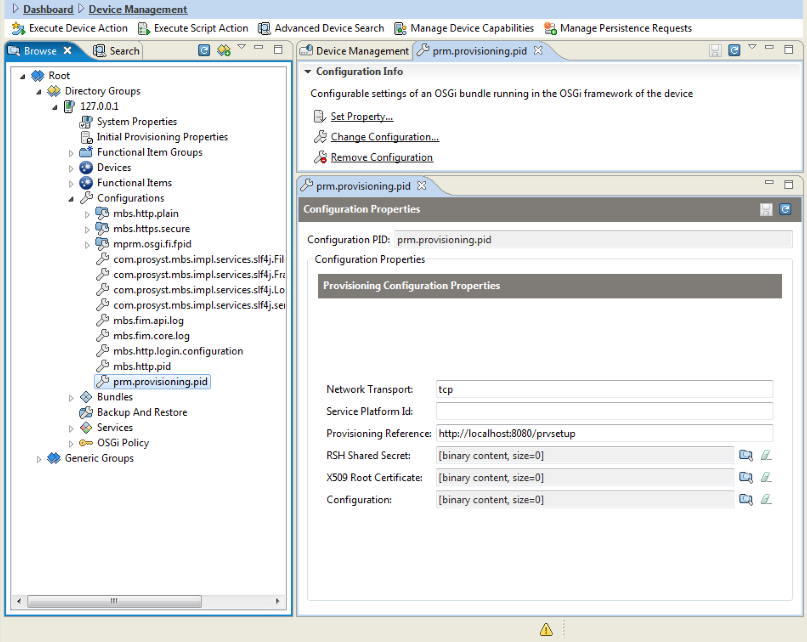
- Edit the configuration properties in either of the following ways:
- Directly in the Configuration Properties pane on the right:
- To edit a property of the selected configuration, specify its new value or key (if needed). For a boolean property, select Yes (equal to true) or No (equal to false) from the combo box that the console displays for this property. To specify and order the elements of an array or a Vector, use the Add and Remove buttons.
- To save the changes you have made on the configuration, click the Save button.
- By using a special command:
- Use the Set Property command from the popup menu.
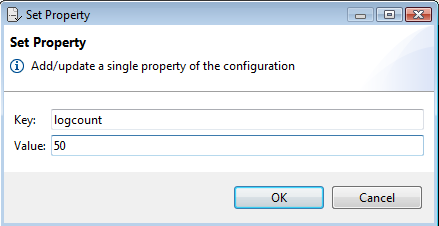
- In the displayed Set Property dialog, type the property key in the Key field and the property value in the Value field and click OK to confirm.
The property id is available in the tool tip text of the correspondent property in the Configuration Properties pane.
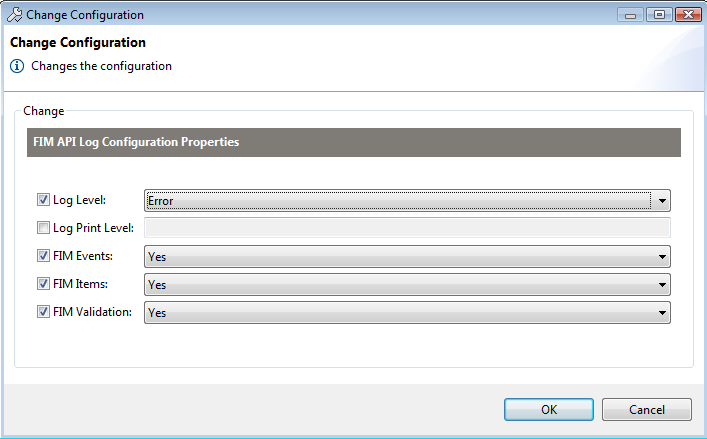
- Use the Change Configuration command. Use the property editor of the Change Configuration dialog to edit the properties value.
For a single offline OSGi device a connection initiation will be tried and the action will be launched as an operation for the first device connect with RM.
Creating a Configuration Instance from a Factory
To create a configuration instance from a configuration factory:
- Select the configuration factory from the Configurations node, and invoke the Create Factory Configuration action from the Configuration Factory Info pane on the right or from the popup menu.
- In the Create Configuration dialog, populate the initial values of the configuration properties.
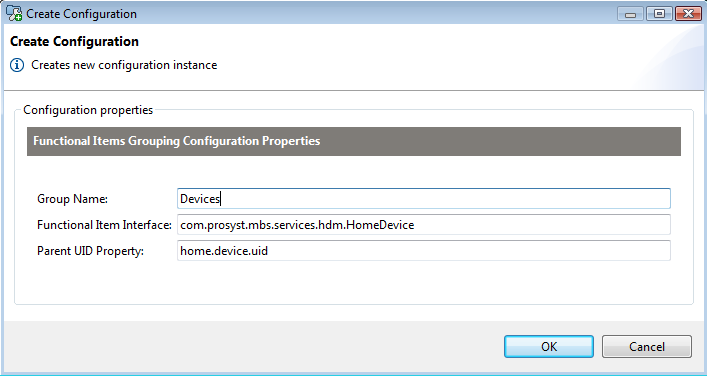
- Click OK to generate the configuration.
As a result, the configuration instance appears in the device's tree within the node of its parent configuration factory under a PID assigned internally on the OSGi Framework of the device.
Removing a Configuration
To remove a configuration, right-click it from the Configurations node and use the Remove Configuration command from the popup menu.
Configuration Group Commands
The RM provides commands for configuration management applicable to a group of devices. These commands are:
- Set property
- Create configuration
- Change configuration
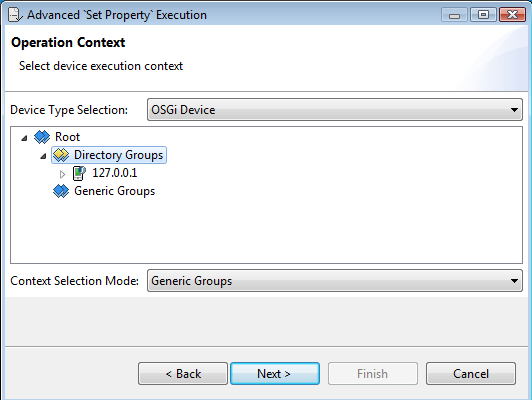
From the Devices node, right-click the group to whose member devices you want to set/create/change a specific configuration property and then invoke the correspondent menu command from the OSGi Device -> Configuration group. Generally, the commands are used in the same way as described in the paragraphs above, but first you have to specify the target configurations set.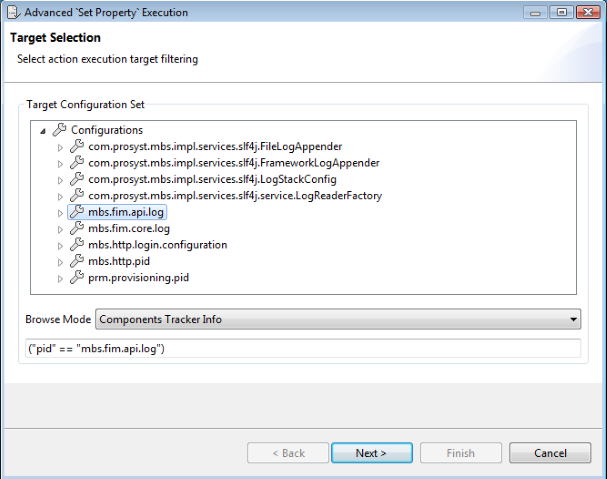
You have to define the target device group as well, and then following the wizard to perform the desired operation.