The System Properties node of an OSGi device allows you to view, edit or remove system properties of a OSGi device.
Viewing System Properties
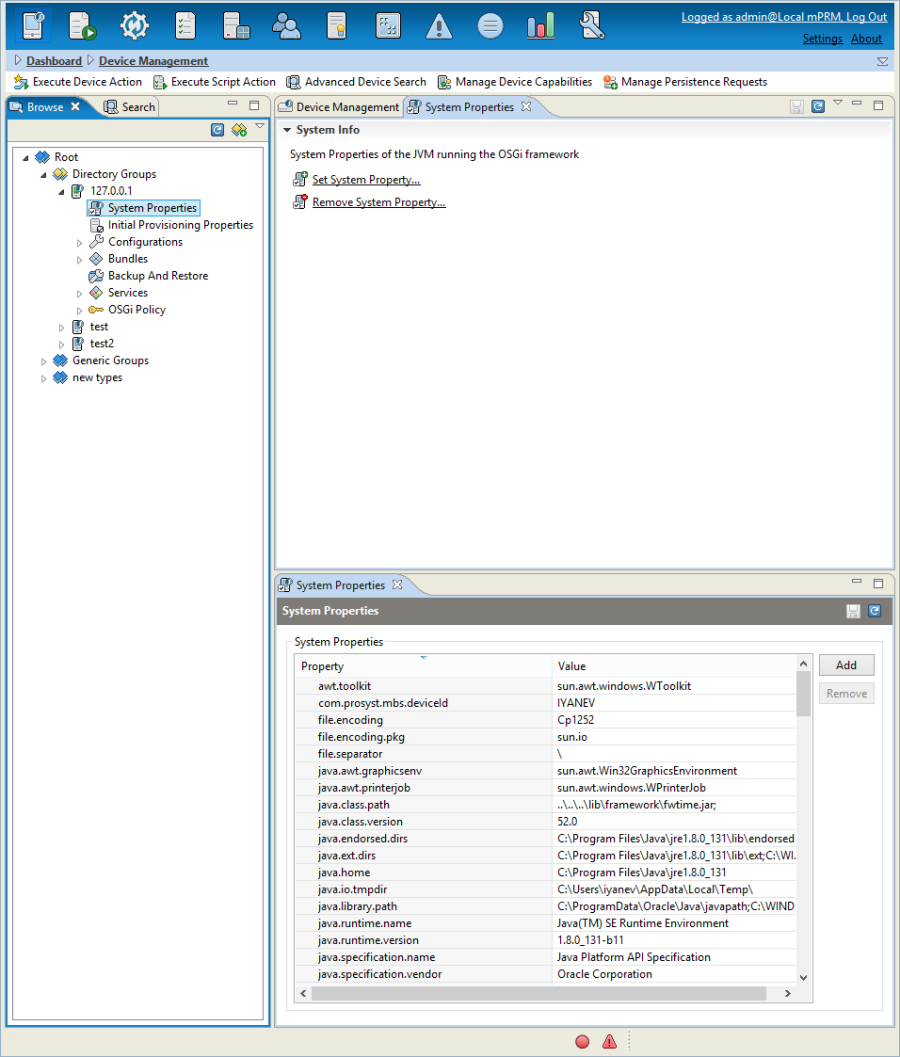
To view the system properties of an OSGi device, expand the device node and choose the System Properties child node.
On the right of the device management tree the System Properties pane appears, which lists the device system properties and their current values.
Editing OSGi Device System Properties
There are two ways to add/remove a system property or change the values of an existing one:
- Using the System Properties pane:
Click the Add button and in the empty row at the bottom of the list and enter the preferred data in the Property and Value fields.
To change a system property entry, perform double click on its value.
Repeat these operations until you have submitted all system properties to be set/changed/removed.
To apply the changes, click the Save button.
- Using an appropriate command:
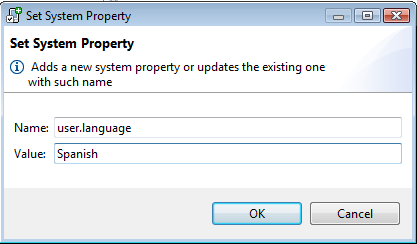
To add/change a system property, right-click the System Properties node. Select the Set System Property command.
Also this action could be selected from the System Info pane (refer to figure in Viewing System Properties section above). The Set System Property dialog appears where you can enter the data needed.
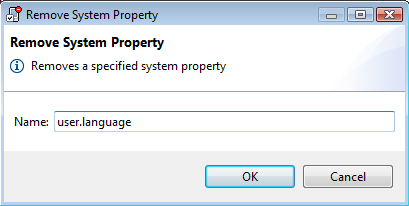
To remove a system property, right-click the System Properties node and select the Remove System Property command, or select this action from the System Info pane.