Provides information on managing network configurations.
Overview
The RM Console offers access to the currently defined networks as well as to their filters, hosts and host URLs from the Networks tab of the System Configuration dashboard view in runtime mode and of the RM System Configuration dialog in system configuration mode. Through this user interface system administrators can modify the set of defined networks and their components.
For more information about the general usage of the console System Configuration dashboard view, refer to General Issues for System Configuration.
RM network configuration allows: definition of networks, distribution of backend hosts among them and assignment of network-specific host URLs. By this feature RM introduces enhanced control over host connection attributes and improves system performance. You can find more details about network configuration features in RM in Basic Concepts.
General Description of the Networks Tab
The Networks tab offers a user-friendly interface for viewing and modifying the network configuration of an RM system. On the Networks tab, the console shows the networks currently defined in RM. For each network you can view its filters in the Filters subtab and its hosts and host URLs in the Hosts subtab.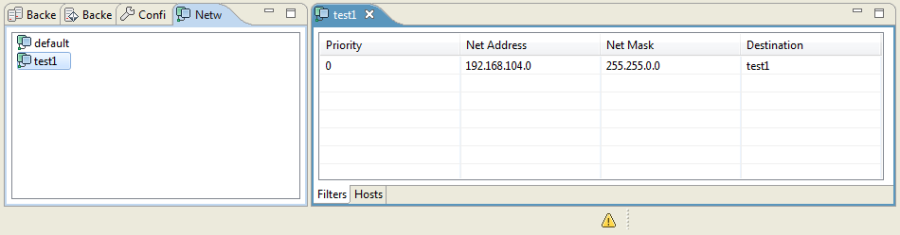
Adding and Removing Networks
Modifying the set of specified networks is allowed only in system configuration mode of the console (activate it by using the Configure button from the toolbar at the top).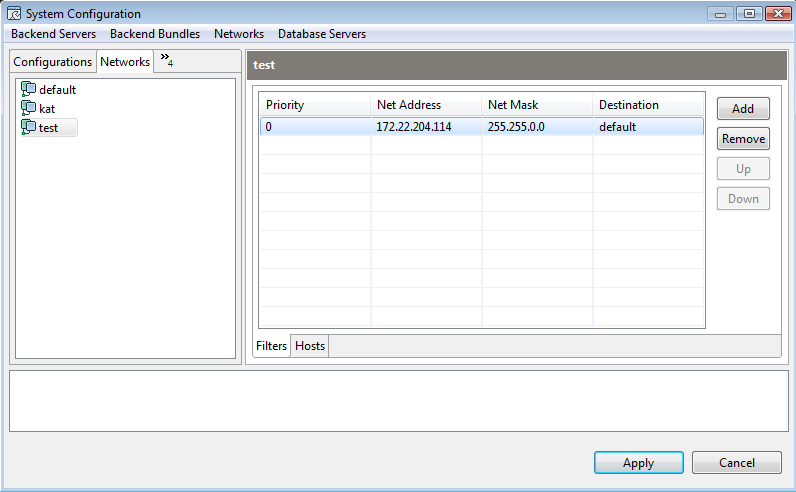
To add a new network, follow these instructions in the opened System Configuration dialog:
1. Select New Network from the Networks menu.
A prompt in the list is created for you to type the network name.
2. Type the network name and press ENTER to save it.
To remove a network, select it and use Remove from the Networks menu. Note that you cannot remove the default network as the system uses host URLs defined for it in the configuration process.
Managing Network Filters
Viewing Network Filters
You can view the persistently stored filters of a selected network in runtime mode (Figure 1). The console shows filter's ID, destination network, priority, net address and net mask.
Adding and Removing Network Filters
Adding and removing network filters is possible in system configuration mode.
To add a filter for a selected network:
1. In the Filters tab click the Add button next to the filters list.
An Add New Filter for Source Network dialog appears prompting you to enter the filter attributes.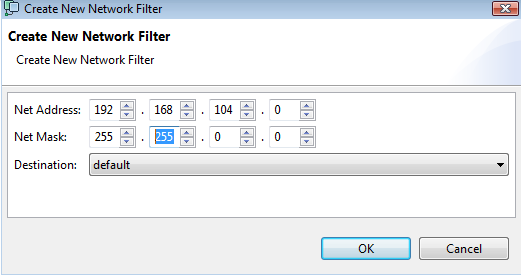
2. In the Add New Filter for Source Network dialog specify the filter attributes:
-
- Set the destination network of the filter from the defined ones.
- Specify the network IP address, which represents the address under which the destination network is accessible in the source network.
- Specify the subnet mask, which will be applied to the IP address of a host in order to determine the host's home network.
3. Press OK to confirm, or cancel.
On success the filters appears in the Filters tab. Filters' priority are automatically recalculated if the new filter having priority 0.
If you specify two filters for the same destination network without explicitly assigned priority, the one added last is set higher priority and will be checked first.
Managing Network Hosts and URLs
Viewing Network Hosts and URLs
In runtime mode to view the backend hosts participating in a specific network and the host URLs set for it, select the network in the Networks tab and go to the Hosts sub-tab.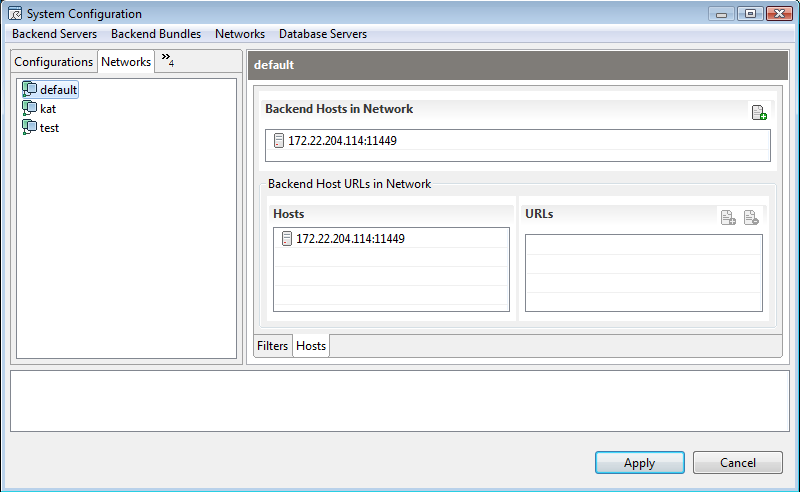
On Backend Hosts in Network field the console shows the hosts participating in the selected network. On Backend Host URLs in Network filed - the hosts, which have URLs for the selected network. Initially, for the default network there are predefined host URLs standing for the connection URLs of the RM backend hosts.
You can choose between a tree view (Figure 4) - where RM backend hosts are displayed in a tree similar to the Backend Host Configuration backend servers tree of the Backend Servers tab and a list view - where hosts are shown as a flat structure with no regard to their roles in the system. To toggle between the tree view and list view, for Backend Hosts in Network use the Hosts Tree View/Hosts List View command from the Networks menu or the hosts popup menu and for Backend Host URLs in Network - URLs Tree View/URLs List View.
Adding and Removing Network Hosts
RM supports adding and moving a host to a network only in system configuration mode. To be able to add/move a host to a network, you must be in system configuration mode.
1. Select the target network and go to its Hosts section.
2. For a network different from default, configure a network URL for the host you are going to add in the Backend Hosts URL in Network pane (see the "Adding and Removing Network-Specific Host URLs"chapter).
3. To add the host, click the  button at the top of the Backend Hosts in Network pane.
The Backend Hosts dialog appears showing the hosts, not included in the network.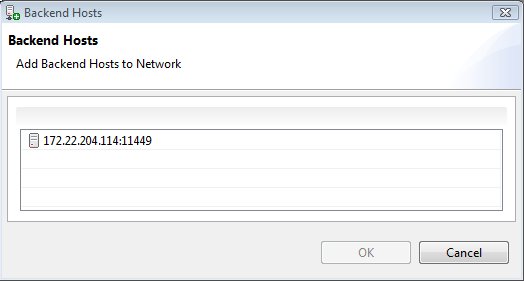
4. In the Backend Hosts dialog select a host and click OK to confirm.
The host is displayed in the Backend Hosts in Network pane.
Adding and Removing Network-Specific Host URLs
To define a network URL for a host, in system configuration mode execute the following steps:
- In the System Configuration dialog, switch to the Networks configuration tab, select the network and go to the Hosts section.
- Select the host from the Backend Host URLs in Network pane.
- In the URLs list for the host, click the
 button at the top of the Backend Host URLs in Network pane. An empty row is added to the URLs list.
 - Enter the network URL in the format
<scheme>://<host>:<port>
Currently, it is recommended to use URLs based on the socket and ssl schemes (see Backend Server Host Configuration for more information on RM communication schemes).
On success, the URL appears in the Backend Host URLs in Network list.
As the URLs in the default network represent connection URLs of the corresponding hosts, modifying a URL of a host in the default network in the Networks tab results in modifying the respective host connection URL in the Backend Servers tab and vise versa.
To remove a host URL, select it from the URLs pane in the network-specific Hosts tab and click Remove.
In the default network you cannot remove the "socket" URL of a host or duplicate the scheme of two URLs.