Describes the operations for configuring backend server hosts in an RM system through the console.
Overview
The RM backend consists of various types of hosts which build up the rich functionality of the system. One physical host can be configured to function in one or more of the following roles:
- Control center - The central point for distributing configuration changes over the whole system. In an RM system only one host can have the control center role.
- Remote access server - A point for connection to the system from a remote application.
- Management server - A node that is in charge of a separate group of devices.
RM gives the system administrator full control over the configuration of physical hosts and host roles other than the control center.
More information about backend server hosts is available in Backend Server Host Configuration.
Viewing Backend Hosts
In the console, backend hosts can be configured from the Backend Servers tab of the System Configuration dashboard view. The tab holds the backend servers tree, which shows the server nodes in the backend.
As the System Configuration node has two modes - runtime and system configuration, defined by different sets of possible administration operations (see General Issues for System Configuration), in each view there are different options for the configuration of hosts .
The following figure shows the general look of the Backend Servers tab: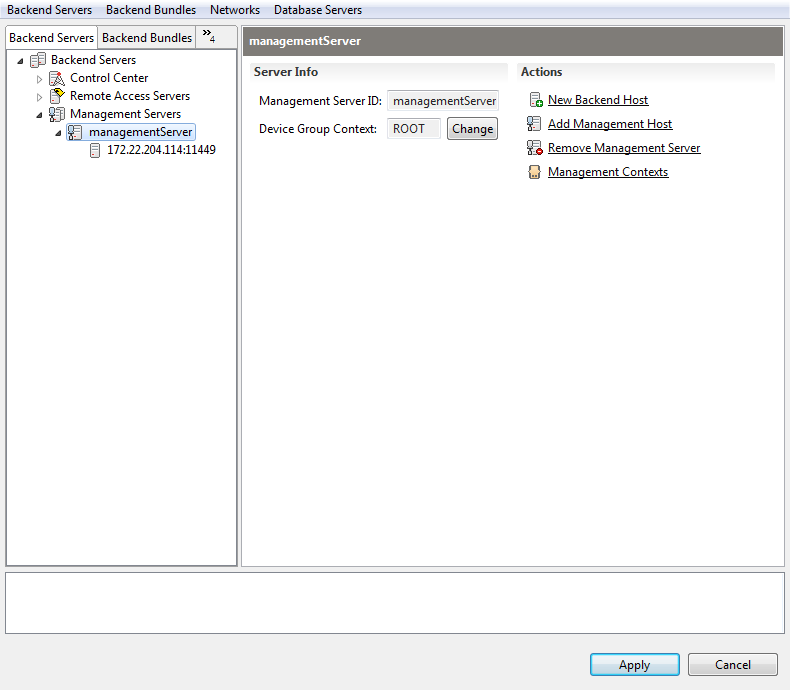
General Description of the Backend Servers Tree
The backend servers tree provides user friendly navigation through the backend server hosts of an RM system and through all host-related data. The root of the backend servers tree is the Backend Servers node, which represents the entire RM system, and the tree's subnodes stand for the host roles and for the individual hosts. Additional nodes, named after the MS ID, wrap the management host sub-nodes. Therefore, both the properties of the management server and of the single hosts participating in it are accessible.
You can also explore the bundles running on each host.
The properties associated with a role or host node are loaded on the right. You can get detailed information about what properties are available for each specific type of node in the chapters coming next.
Backend Server Views
The backend servers tree offers two views: tree view (default), which arranges backend hosts first by role and then by host, and list view, which provides a flat uncategorized view of all backend hosts. Use the To List View/ To Tree View pop-up menu command to switch from tree to list view and vice versa.
Host
Host Properties
In both system configuration modes, for a single backend host (represented by its address and port in the backend servers tree), you can see its host ID, state, address, connection port (the socket connection port of the RM Connection Framework, which is 11449 by default), assigned roles, and connection URLs.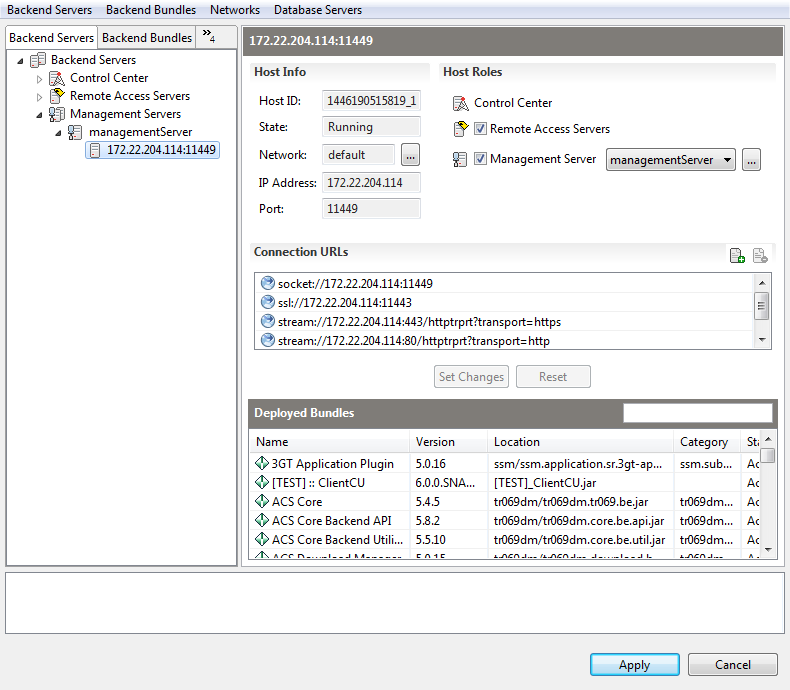
Adding a New Backend Host
You can add a new backend host only in system configuration mode of the RM Console System Configuration dashboard view (use the  Configure toolbar button). After the RM System Configuration dialog appears, follow these instructions:
1. Choose New Backend Host from the pop-up or the Backend Servers menu. The Add Backend Host dialog appears, prompting you to specify the attributes of the new host.
2. Specify the connection properties and roles of the host:
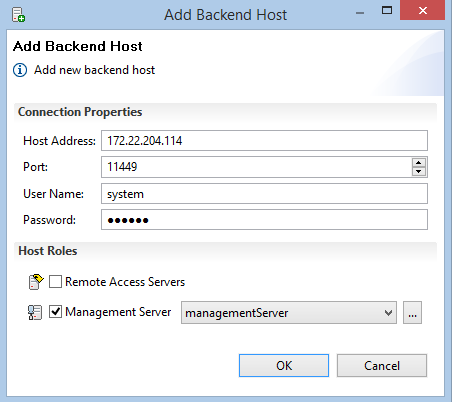
- Connection Properties includes the properties necessary to contact the remote host - DNS name or IP address, the port allocated for the RM Connection Framework (11449 by default), the user name of the system administrator (it is always system) , and the password that goes with the user name (system by default).
- Host Roles contains the roles of the new host (see Basic Concepts for more information about host roles):
- Remote Access Server - The host will be a remote access server.
- Management Server ID - The host will be/participate in the management server with the specified ID. You can set the ID of an existing management server or create a new one.
To assign an MS ID to the host, select one from the combo box, or click the ... button and in the displayed dialog select the desired ID or create a new one with the pop-up menu. See "Adding a New Management Server" below for more information about creating new MSs.
It is mandatory that you define at least one role for the new backend host. Otherwise, you won't be allowed to add the host and apply the configuration.
3. Click OK to confirm. Otherwise, Cancel.
Removing a Backend Server Host
To remove a backend server host from the RM system, select the host from the backend servers tree and use the Remove Backend Host command from the Backend Servers menu or from the pop-up menu.
Modifying Host Roles
Again in system configuration mode, you can modify the roles of a host - select the host from the backend servers tree and change its roles on the right. Click Set Changes to save the host roles.
You cannot remove the control center role of a host.
Enabling the management server role is not only an on/off operation - it allows you to change the MS the host participates in. This operation is similar to adding a new host to a management server as shown below.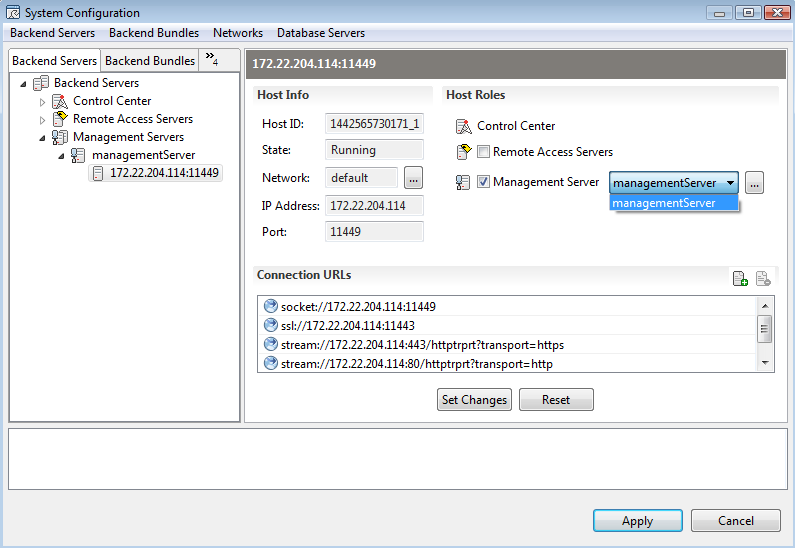
Setting Host Connection URLs
In system configuration mode, for a selected host you can specify the connection URLs on which it can be contacted through the RM Connection Framework. See Basic Concepts for more details about host connection URLs.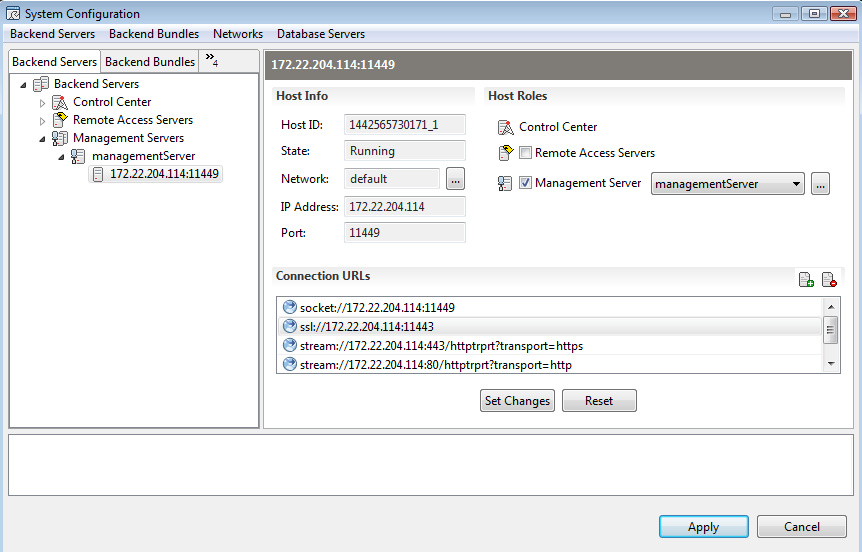
To add a new connection URL for a selected host:
1. Click the  button. An empty editable row will appear in the Connection URLs list.
2. Enter a URL in compliance with the connection type to use:
- For plain Backend RPC communication (pre-added) - socket://<host_ip_address>:11449
- For SSL-enabled Backend RPC communication - ssl://<host_ip_address>:11443
- For HTTP communication - stream://<host_ip_address>:/?transport=http
- For HTTPS communication - stream://<host_ip_address>:/?transport=https
The connection URLs stream:// :/?transport=http and stream:// :/?transport=https are used for incoming connections over HTTP and HTTPS, respectively. You cannot modify the ports for this communication by using host connection URLs. Instead, you should configure RM 's HTTP server by using its exported configuration objects in the Configurations tab of the System Configuration dashboard view - Http Plain Server Configuration and Http Secure Server Configuration.
3. To confirm, use Set Changes.
To edit a connection URL, select it and double-click it. Confirm with Set Changes.
To remove a selected host connection URL, use the Remove button and confirm with Set Changes.
Use the Reset button to load the persistently set host connection URL(s).
Remote Access Servers
This chapter discusses the operations provided by the RM Console for the configuration of remote access servers.
Adding a Remote Access Server
To make a backend host a remote access server, i.e. assign the RAS role to the host, in system configuration mode:
- Click the Remote Access Servers node from the backend servers tree.
- Call the Add Remote Access Host command from the Backend Servers or pop-up menu.
- In the Add Remote Access Host dialog select the desired host from the ones registered in the backend and click OK to confirm.
You can use the dialog's toolbar to add/remove backend hosts.
As a result, the host will be added to the Remote Access Servers node of the backend servers tree and will become a part of the RAS cluster.
Another way to make a backend host a RAS is by changing its roles.
Removing a Remote Access Server
To remove a remote access server, select its host from the backend server tree and use the Remove Remote Access Role from the Backend Servers menu or from the pop-up menu.
Management Servers
This chapter describes the options for configuring management servers through the console. Briefly, a management server is responsible for governing a number of devices.
The device context of a management server determines the scope of devices the server handles. RM arranges device in a tree - the device management tree, and a management server context is equivalent to a node (a device group) from that tree. All devices that are subnodes of the context will be managed by the corresponding management server.
In system configuration mode, from the backend servers tree you can change the hosts participating in a management server as well as modify its context.
More details about the properties of management servers are available in Basic Concepts.
Management Server Properties
In runtime mode, the properties of a management server include its ID and supervised device context.
Adding a New Management Server
A management server is identified by its unique ID. The hosts of the management server can be registered in the system beforehand or you can create the server first and add hosts later.
Adding a new management server is supported in system configuration mode of the RM Console System Configuration dashboard view. To add a new management server to an RM system, call New Management Server from the Backend Servers menu or from the popup menu.
In the Add Management Server dialog specify: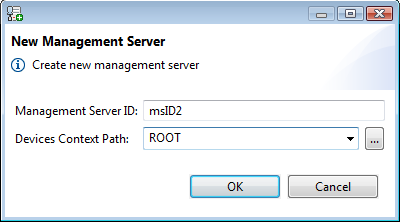
- The ID of the new management server at Management Server ID.
- The device context, which the management server will handle, at Device Context Path.
You can type the full path to the context node, starting from the root of the device management tree (called ROOT); select it from the combo box; or use the ... button, which loads a user friendly view of the tree.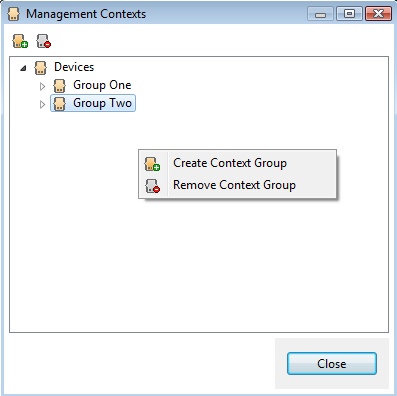
In the Management Context dialog you can select an existing device group or create a new one with the help of the popup menu or the buttons at the top.
There cannot be two management servers with overlapping device contexts.
Removing a Management Server
To remove a management server from the RM system, in system configuration mode select the management server from the backend servers tree and use the Remove Management Server command from the Backend Servers or popup menu.
Adding a Host to a Management Server
You can add one or more backend hosts to a management server. The hosts will execute the actual functions of device management (see Basic concepts). To do this:
- Select the desired management server and call Add Management Host from the pop-up menu or from the Backend Servers menu.
- In the Add Management Host dialog select a host from the ones registered in the backend and click OK to confirm.
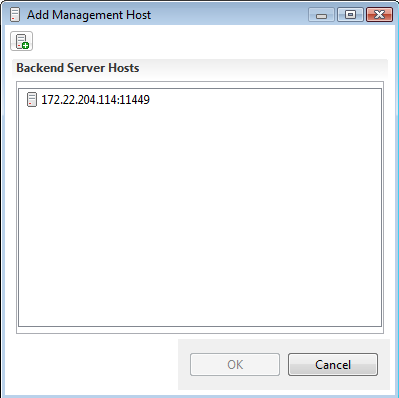
The host is added under the corresponding management server ID in the backend servers tree.
One host cannot be a member of more than one management server.
There is another way to attach a backend host to a management server - when adding a host to the system.
Removing a Management Server Host
To remove a host from a management server, select the host in the backend servers tree and call the Remove Management Role command from the Backend Servers or popup menu.
Viewing/Adding/Removing Device Contexts
In system configuration mode the Management Contexts dialog holds the RM device management tree, and you can use this dialog to create and remove device contexts. You can set the tree's nodes as device contexts of management servers.
To display the Management Contexts dialog, select a management server and choose Management Contexts from the popup menu or from the Backend Servers menu, or click the Management Contexts action on the right. Observed contexts are displayed with the  icon and unobserved ones - with the
  icon.
icon.
To add or remove a device group, use the pop-up menu commands or the toolbar buttons.
Changing the Context of a Management Server
In system configuration mode of the RM Console System Configuration dashboard view you can change the device context of a management server. Just select the MS from the backend servers tree and click the Change button next to the Device Group Context field. As a result, the Management Contexts dialog (see "Viewing/Adding/Removing Device Contexts" above) appears in which you can choose from the existing device groups or create a new one.
Host Bundles
You can browse and control the bundles on each host participating in the RM system. RM Console shows them as sub-nodes of the host classified by bundle category.
The administration of bundles on a single host provides options for modifying bundle runtime states, as bundles on each separate backend host may be in different states from the initially defined ones. The bundles running on the host sorted by bundle category. The information available for a single host is runtime, while all other role-related information is static and is taken from the system database.
You can view and managed backend bundles and packages in a more advanced way with regard to host roles and activation persistence from the Backend Bundles tab of the System Configuration dashboard as described in the Backend Bundles Configuration guide.
Bundle Properties
The properties of a selected backend host bundle show up on the right in the Bundle Info information area. They include location, category, state, friendly description and manifest content.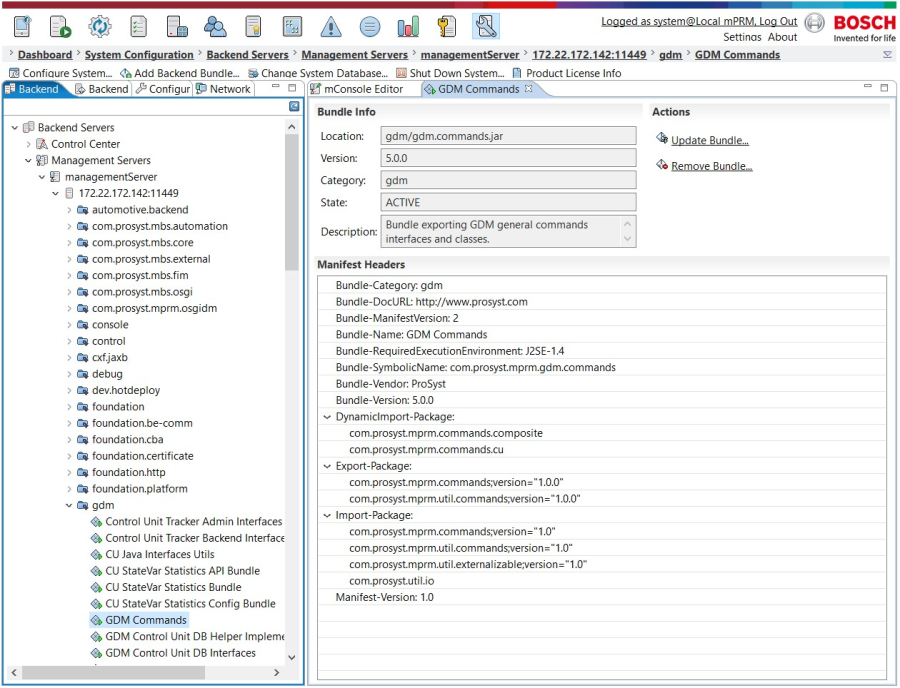
Starting/Stopping Bundles on a Single Host
Select the host from the backend servers tree. In the loaded backend bundles tree, select the bundle and choose Start Bundle/Stop Bundle or Restart Bundle from the pop-up menu.
In addition, the RM Console can show a bundle diagram reflecting the Java package dependencies of the selected single host bundle.
Console Commands for Backend Bundles Configuration
You can also use commands in a backend host's text console to manage individual host bundles and configurations. The following console command groups provide functionality relevant to backend bundle management:
- fw - The standard framework commands of the Gateway Software OSGi runtime contained in the fw group allow you to install, start, stop, update, or uninstall any bundle.
However, to install or update a bundle, you need a valid bundle location. The location of the bundle points to a reproducible source, which can easily provide the bundle data on demand - for example, a file on the local disk. Backend bundles do not have valid source locations, since they are loaded using a more sophisticated mechanism (from the system database) and installed with locations having only informational value. For that reason, you cannot install or update backend bundles with the standard framework commands.
- config - You can make runtime changes to the configurations of backend bundles though the commands of the config group.
However, the changes will be valid only runtime. They will not persist over a host restart, and will be overwritten by any changes made through the RM configuration manager - for example, through the RM Console.
For more details on the usage of the above command groups, call the help information for the corresponding group and its commands from the host's console command interface.