The current document provides details about tracking control units that represent managed OSGi devices.
The RM Components Tracker keeps track of all the control units that have defined and registered com.prosyst.mprm.backend.cutracker.ControlUnitTrackDefinition.
Each registered OSGi device is represented as a set of control units. For details see Representing OSGi Devices as Control Units chapter.
Examples of the tracked control units are provided in the table.
Tracked Control Units | Track Interface | Foreign State Variables |
|---|---|---|
mprm.generic.osgi.bundle | manifest | location |
mprm.generic.osgi.configuration | pid | null |
mprm.generic.osgi.config.factory | factory.pid | null |
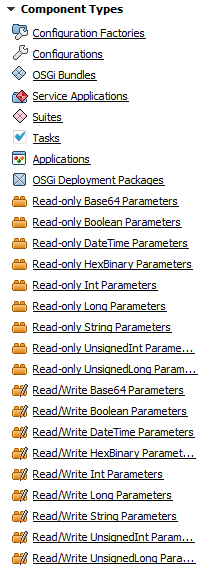
Currently the following control units are tracked (they could be pre-defined in case of extending/customizing the system):
Tracking OSGi Bundle Control Units
The RM system "remembers" all bundles known to it. This includes: bundles from the Software Repository and bundles available on the managed device framework. When an OSGi device is registered, RM extracts the information about all bundles available on it and stores it in the RM database. A system administrator has the opportunity of performing many operations with those bundles. He/she can start, stop, update or uninstall them, or change their configurations on any manage OSGi device.
To view the OSGi bundles list:
- Click the
 button to go to the Device Components dashboard view.
To enable the Device Components on your dashboard, go to System Configuration , Configurations tab. Find Management Console UI Configuration from the available configurations list and click on it. On the "Properties" pane on right are listed all the "perspectives". On " Hide Device Components Tracker Perspective", choose "No" from the drop-down menu.
- Locate tracked OSGi bundles:
- Choose the OSGi Bundles component type directly from the Component Types quick view shortcut.
- Select Generic OSGi Devices from the Device Types quick view shortcut and select the OSGi Bundles node on the right.
The bundles list appears on the right. If a bundle is available in more than one variants (versions), they will be listed below the bundle's name. If you select a bundle from the list, its manifest content and location will appear underneath.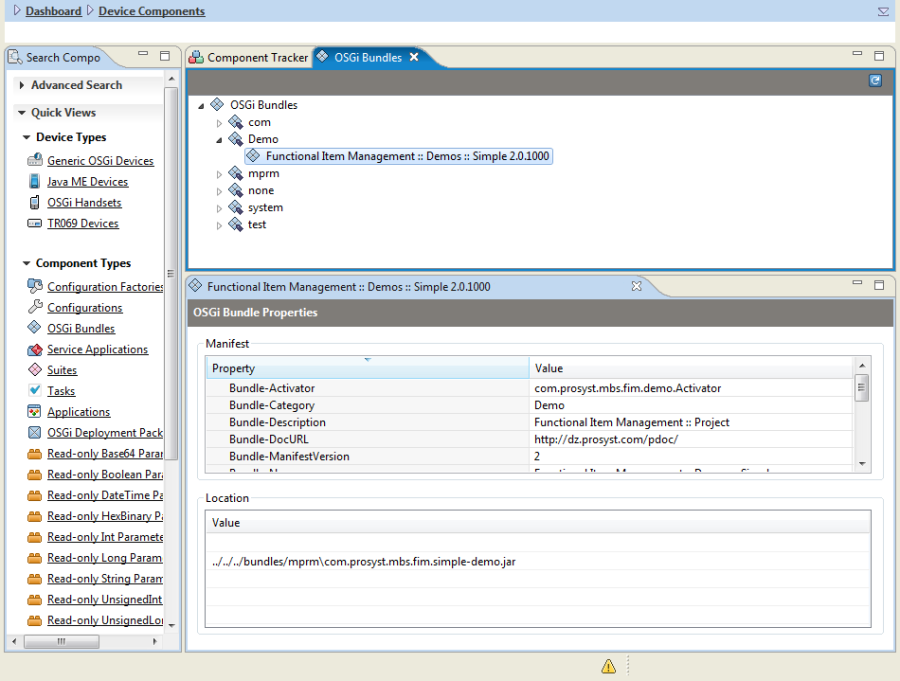
Executing Bundle Commands
You can execute the following bundle commands through the Device Components dashboard view: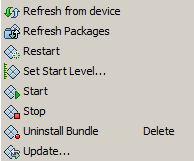
To execute a command over a bundle:
- Right-click the bundle and choosing one of the options of the popup menu.
As a result, a wizard with title <command_name> will appears prompting you to specify a control unit filter for the resulting action execution.
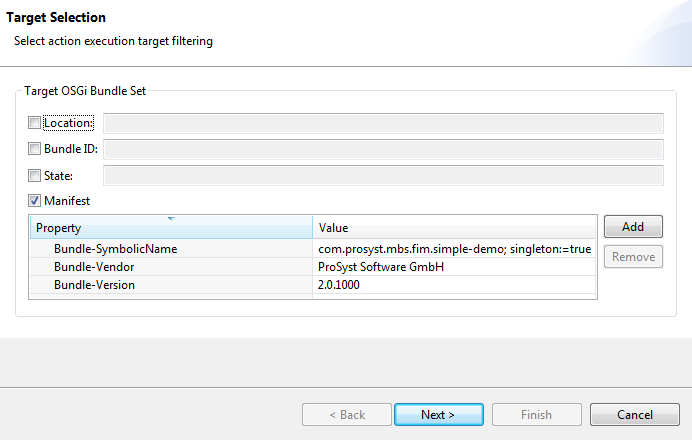
- In the command execution wizard, change if needed the control unit (OSGi Bundle) filter. You can edit a condition by changing its matched value. To include/exclude a new state variable condition, check/uncheck the box in front of the variable. Click the Next button to proceed.
- For bundle update only. Specify the location of the update – the original bundle location on the device (the update has overwrite the original bundle JAR file), a location on a Web server, or, in case the Software Repository keeps the update, a location generated for the bundle in the repository.
- As a result, the console will generate a text command following the RM management script rules. Click the Next button to proceed by specifying special execution options, or click Finish to launch the action with default execution settings.
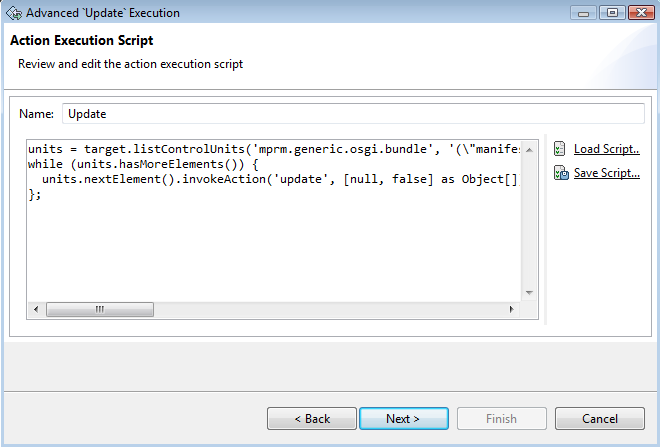
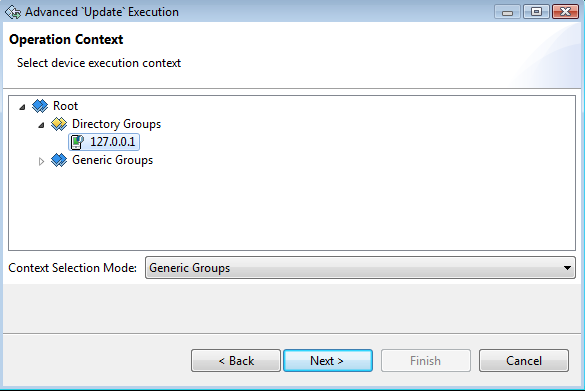
- In the next dialog, specify the devices to execute the action on. Click Next to check the resulting management script or click Finish to start the command execution.
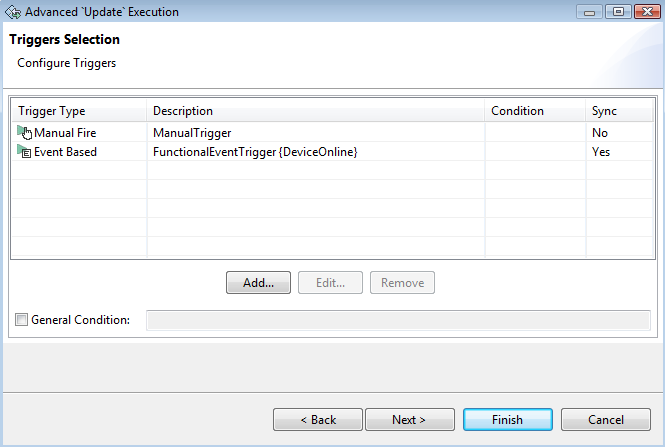
- In the "Triggers Selection" dialog select the action execution trigger.
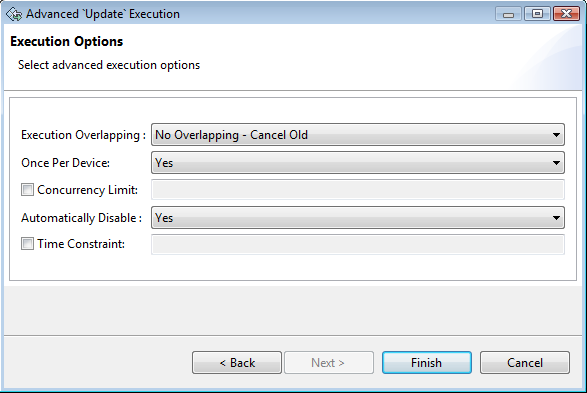
- Finally, if needed turn on advanced execution settings and click Finish to perform the command.
Tracking Configurations and Configuration Factories CUs
Configurations and configuration factories are listed in the Configurations and respectively in the Configuration Factories component types of the Device Components dashboard view. Configurations are tracked by their PID (Factory PID for Configuration Factories).
To view the configurations/configuration factories list:
- Click the button to go to the Device Components dashboard view.
- Locate tracked configurations/configuration factories and their instances:
- From the Component Types quick view shortcut choose Configurations or Configuration Factories.
- Select Generic OSGi Devices from the Device Types quick view shortcut and select the Configurations or Configuration Factories node.
The configuration list appears on the right.
By using the Component Tracker you can execute the following actions:
- On configurations:
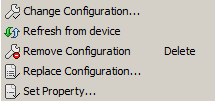
- On configuration factories:
- Create Configuration
To invoke the desired command, choose the corespondent option from the popup menu.
Next, the <command_name> wizard will appears, and you have to act in the same way as described in the "Executing Bundle Commands" section above.