Scripting Tasks are an essential part of the rule-based automation of the Remote Manager (RM) system.
Tasks
Script executions are called Scripting Tasks. Once a script is launched it will be turned into a Task.
A Scripting Task can be started out of a:
Action
Scope
Execution Options (optional)
Task Action
Task Action is the main and crucial part of the Task (that contains the Groovy script) that is meant to be executed. For details on how to write groovy scripts over the RM system, please refer to Scripting in Remote Manager.
Task Scope
The Task Scope options are:
Device Scope – defines a set of Devices for which the Task Action will be executed. This scope is suitable when the Task Action is a device-management operation like software update, configuration change or arbitrary device management action.
System Scope – defines a set of backend RM hosts that need to execute the Task Action. This scope is suitable when the Task Action is not targeted to managed devices, but is addressed to the RM backend system itself. For instance: adding a log into the system Log Service, raising/dropping of system Alerts, checking the backend system status, etc.
The Device Scope defines sets of Devices, whereas the System Scope defines sets of backend server hosts. The main technical difference between those two is that the Task Action of an executed Task will be run:
once for each device defined by a Device Scope, and
once for each backend server host defined by a System Scope.
System Scope
System Scope is defined by users with the following structure:
list of backend host roles. Here the user can specify:
Control Center (CC)
Remote Access Servers (RAS)
Management Servers (MS)
ID of a specific Management Server
These are backend system roles as specified by the RM infrastructure terms: "Backend Server Hosts" described in the System Package Backend Infrastructure conceptual guide.
single host per role Boolean flag
This flag specifies whether single or all hosts having the specified role should be involved into the execution. Note the RM system supports clustering, thus multiple backend hosts may have the same role or could be part of the same Management Server ID, "MS and RAS Clusters", "Deployment Scenarios", described in System Package Backend Infrastructure conceptual guide.
Examples:
A system scope defined by:
Roles: CC, RAS
Single host per Role: false
In this case all RM hosts with role CC and/or RAS will execute the launched Task Action. This means that there will be separate script executions (of the groovy script within the Task Action) for each involved backend server hosts. All these executions will be consolidated and summarized in the Task monitoring status.
A system scope defined by:
Roles:
MyManagementServerId(id of a management server)Single host per Role: false
In this example just one of the hosts participating in the Management Server with id
"MyManagementServerId"will be chosen to execute the Task Action.
Device Scope
Device Scope could be defined in several ways:
Providing {device type, group id, device filter}
The most trivial one is using the triple {device type, group id, device filter}:
device type – this is the type of devices the Task should be executed on, for instance:
OSGi Device,
TR069 Device,
OMA-DM Device.
group id – this is the id of the device group on which the Task should be executed. That means Device Scope can address subset of devices, participating in a certain Device Group, a single device (when group id is the node path of a concrete device) or potentially all devices within RM System.
device filter – a filter in the form of Control Unit Filters for additional more-dynamic filtering of the devices subset.
Providing the Device Scope in this way means that the Task shall be executed on devices of type device type that are members of the group group id and satisfy the filter condition device filter.
Providing {device type, group id, is member script}
Instead of providing device filter, the user can ‘program’ alone the filtering of devices. This could be done by providing a dedicated groovy script (different from the Task Action) that is meant to decide whether a given device is member of the subset of target devices, i.e., if it satisfies the custom user condition or not. This groovy script is called is member script, and should be a groovy code that:
has the target device bound as "target"
must return true or false.
For instance:
returntarget.getId().startsWith(‘mydevice-’)In this example devices with ids of the kind: mydevice-1, mydevice-2, mydevice-3, etc. will satisfy the is member script condition, while device ids of the kind: SN123456, M5K29A2715D will not.
Providing the Device Scope in this way means that the Task shall be executed on devices of type device type that are members of the group group id and the is member script execution for each them is evaluated to true.
Providing {custom listing script, is member script}
Instead of defining the initial set of devices using device type and device group id, the user can ‘program’ alone the generation of this target set. This could be done by providing a dedicated groovy script (different from the Task Action) that is meant to return Enumerator object for listing of the target devices. All listed devices must be represented by objects that simply have methods:
{getDeviceType()andgetDeviceId()}orgetControlUnitID(). During the execution of the Task, the Task Action will be run once for each object from the Enumerator set, while having this very object bound as target within the executed script.For example, the user may use an existing method from the GDM Script Service for listing devices, therefore a custom listing script may look as follows:
deviceManager.listOSGiDevices(null,null)Providing the Device Scope in this way means that the Task shall be executed on devices returned by the custom listing script, for each of which the is member script execution evaluates to true.
Technical Difference between Device Scope and System Scope
As mentioned, the main difference between those two is that Task Action of an executed Task will be run:
once for each device defined by a Devices Scope, and
once for each backend server host defined by a System Scope.
Respectively, the Task Action (Groovy script) of the System Scope Tasks is run once or few times as there are usually one or several backend server hosts, while for Device Scope Tasks the Groovy script is run potentially thousands/millions of times as long there are as many devices involved.
For instance, a typical osgi bundle installation over OSGi Devices would normally be done with a Task like the following:
Scope: Device Scope{device type: OSGi Device,device group id: ROOT/,device filter: (transport == "ssltcp")}Action:target.installBundle('mprm://contentId=mprm.osgidm.osop', false, true, null);Launching of this Task will cause the Rule Engine to list all devices specified by the Scope and run the Action script for each of them, therefore installing a bundle on those devices.
The same effect could be achieved by defining the Device Scope in a custom way – using custom listing script and is member script:
Scope: System Scope {custom listing script: deviceManager.listOSGiDevices(null),is member script: return target.transport.equals(‘ssltcp’)}Action:target.installBundle('mprm://contentId=mprm.osgidm.osop', false, true, null);This could also be accomplished, but highly not recommended, via a system-scope Task. The script could be run just once, and it will be responsibility of the script itself to list the whole set of devices:
Scope: System Scope{list of backend host roles: MS,single host per role: true}Action:devices = dm.listOSGiDevices('ROOT/', filter) while (devices.hasMoreElements()) { d = devices.nextElemet() d.installBundle('mprm://contentId=mprm.osgidm.osop', false, true, null)}The difference between the system-scope and device-scope variants:
Device Scope – The Rule Engine lists the OSGi devices and for each device it executes the script with the bind device with variable "target". Then it creates statistics for the involved/finished devices (see "Tasks LifeCycle and Monitoring" section below).
System Scope – The Rule Engine runs the script just once. The script would list the OSGi Devices and execute the action on them. The Rule Engine will not create statistics for the involved/finished devices (see "Tasks LifeCycle and Monitoring" section below).
installBundle would be called N times. This would lead to N x N executions of installBundle (e.g. N times for each device).The best practice is to use System Scope Tasks to perform actions related to backend-related activities, NOT for management of devices.
System Task examples:
alert.raiseAlert(Alert.CRITICAL_LEVEL, ‘RM CPU is high’)or
logService.info(‘New bundle imported into Software Repository.’);Task Execution Options
The Execution Options might be used to define some specific behavior of the Task Executions supported by the Rule Engine. The following options are defined:
Execution Option | Value Type | Description |
|---|---|---|
concurrency-limit | Integer | Defines maximum number of devices per RM Backend Host (RM might be configured as multi-host [clustered] system) that may concurrently execute the Task . This options is applicable for Device-Scope Tasks. The Rule Engine will launch the groovy script (Task Action) to no more than "concurrency-limit" (multiplied by backend host numbers) number of devices simultaneously. When some of these devices finish the execution, then the script will be launched on next portion of devices, keeping the concurrent number of executing devices up to the specified limit. |
time-constraint | Cron Expression | Defines at what time-schedule it is permitted for the Task to act. Long-running tasks might need to interrupt and resume at certain time-schedules. For instance users could require updates to run only during the night, but due to the long number of devices, the update process normally takes more than one night (so it is not enough if the task is just launched in the evening). The time-constraint is provided as Cron Expression that should define time periods in which the Task is allowed to run. For instance, the following time-constraint defines that Task may run from 12pm to 14 pm every day: * * 12-13 * * ? Cron Expressions by design define series of events in time, which is a slightly different purpose than our time-scheduling of Tasks that requires uninterrupted periods. To adapt and re-use the Cron concept for our purpose, we define that time-constraints Cron expressions Must define series of events each second within the desired period. In the example above, the Cron expression (in its general purpose design) defines triggering of events every second between 12-14 pm (note the '*' for seconds and minutes). The Rule Engine just needs the Cron to declare an active event each second within the active period. With the example above we have active events from 12:00:00 pm to 13.59:59 pm. To understand better the declaring of time-constraint option, note that a potential mistake for the example above would be to provide a Cron Expression with '0' for seconds and minutes, i.e. something like: 0 0 12-14 * * ?. This expression defines events exactly at: 12:00:00 pm, 13:00:00 pm and 14:00:00 pm, but in this way the active time for a Task would be in the following periods: 12:00:00- 12:00:01 13:00:00- 13:00:01 14:00:00- 14:00:01, which does not seem as a meaningful desirable working time of our executions. |
Tasks Life-Cycle and Monitoring
Scripting Tasks could be launched manually by users, or could be launched automatically by Rules (see Rule-Based Automation):
manual launch – the user is expected to provide all task properties: Scope, Action (Groovy Script Text) and Execution Options;
automatic launch – all properties are automatically taken by a Rule with respect to the actual trigger. Since a Rule may potentially produce multiple triggers, it could be said that multiple Tasks could be produced out of a single Rule.
The life-cycle of a task is presented in the following figure:
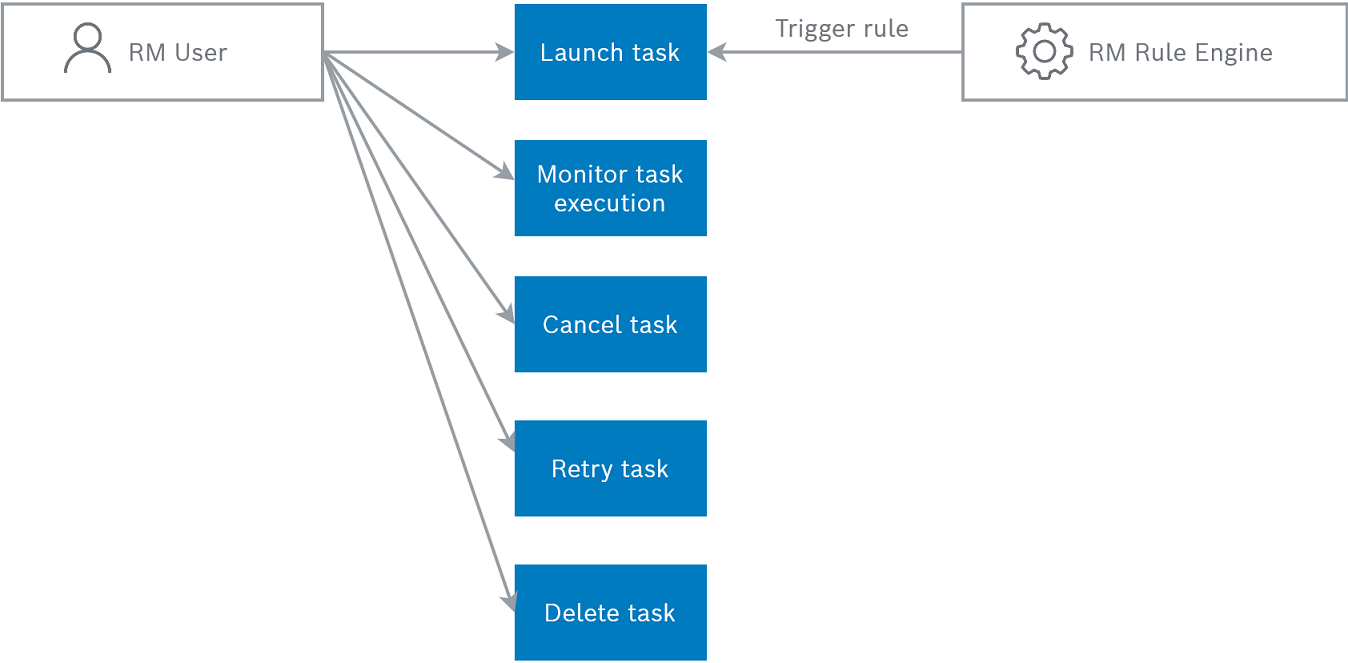
Once launched (whether manually or by Rule), a Task turns into state running. When the Task is complete (the mechanism of tracking completeness is explained further in this draft), it goes into state finished.
A Task can finish naturally - when all the involved devices execute and confirm the Task, or can be canceled manually by the User (see "Execution Canceling" section below).
The User can retry a Task on devices with given execution status , for instance to re-execute it on failed devices or to re-launch it on uncompleted ones (see "Retrying Tasks" below).
The User can also delete Tasks that are no more subject of interest. In case a deleted Task is in running state, it will automatically get canceled and then removed.
Task Monitoring Attributes
The Tasks execution can be monitored in details. A Task has the following attributes:
Display Name – The name of the execution.
Task ID – The unique ID of the Task, given by the Rule Engine.
Status – A Task can be in one of the following statuses:
RUNNING – when a Task is launched it is assigned this status and stays in it until its execution is completed.
FINISHED – A Task enters this status when its execution is completed. This could happen on two occasions: when the execution is explicitly canceled, or when the execution reaches its natural end (with or without errors).
FAILED_TO_LAUNCH – A Task enters this status on unsuccessful launching, for instance its Scope or Execution Options can not be evaluated or а system error occurs.
Status Description – Additional description about the status. This attribute is optional and may be provided by the Rule Engine if needed. It may contain the reason for FAILED_TO_LAUNCH status or information of how a Task has been canceled, or arbitrary extra explanation provided by the Rule Engine about the current status of the Task.
Origin – this attribute may be set optionally by the Rule Engine to give notion of how the task is launched – manually, or by automatic (event or timer-based) rule trigger.
Start Time – The time at which the operation is launched.
End Time – The time at which the Task has FINISHED.
Next Timed Activation – this attribute is applicable when a "time-constraint" property is specified. In case the Task is currently inactive, i.e. the current moment is not within the allowed working time of the Task, this attribute shows at what time it shall be active again.
Next Timed Deactivation – this attribute is applicable when a "time-constraint" property is specified. In case the Task is currently active, i.e. the current moment is within the allowed working time of the Task, this attribute shows at what time it shall be deactivated due to the time-constraint restriction.
Number of Involved Devices – The number of devices involved in this Task. This attribute is applicable after the Task launching for Device-Scope Tasks.
Number of Successfully Finished – The number of involved devices where the Task execution has been successful.
Number of Finished With Error – The number of involved devices where the Task execution has returned errors.
Number of Finished With Warning – The number of involved devices where the Task execution has returned warnings.
Number of Canceled Devices – The number of devices for which the execution is canceled.
Number of Running Devices – The number of devices for which the execution is still running.
Number of involved devices and number of finished devices (regardless of the result) are applicable only for Tasks with Device Scope.List of Device Task Statuses for each involved device – the Task also provides complete list of Execution Status entries for each involved device, so that detailed executions per device can be monitored separately. See "Device Task Status" below.
Scope, Action and Execution Options – the monitoring attributes also contain the initial launch properties for the Task.
Device Task Status
Each Device Task Status record has the following details:
Device Type and Device ID – identifying the device executing the Task.
Device Execution Status – the execution status of the device within the Task. This status could be one of the following (*):
FINISHED_SUCCESS
FINISHED_WARNING
FINISHED_ERROR
FINISHED_CANCELED
RUNNING
(*) Based on these statuses for each device, the Task calculates its statistics numbers reported by the attributes:
"Number of successfully finished",
"Number of Finished with Warning",
"Number of Finished with Error",
"Number of Canceled",
"Number of Running" devices.
Bunch of execution results – the execution of a Task over a given device usually produces one or several (partial) results that can be reported separately. The summary of the overall "Device Execution Status" within the task (success, error, etc.) is done on the basis of the produced partial results. Structure of each partial result is specified in the next chapter.
Execution Results
Launching a Groovy script may produce a bunch of partial results. Each of them is reported separately with the following attributes:
result source – this is informative message describing the origin the reported result. Results may come from three general sources:
The evaluation of Groovy script of the Task Action, in this case result source is "Script Execution Result".
The evaluation of a Script Service method, in this case result source describes the method name. Methods could be explicitly marked (by the Script Services that declare them) whether they should be reported or not as execution result. By default, all asynchronous methods are reported as partial results (for instance:
target.installBundle()) while synchronous methods are not (for instancetarget.getId())The evaluation of a Closures containing proceeding groovy code provided on asynchronous method calls.
partial result state– could be one of the following:FINISHED_SUCCESS – execution is finished with success.
FINISHED_WARNING – execution is finished with warning.
FINISHED_ERROR – execution is finished with an error.
FINISHED_CANCELED – execution has been canceled.
RUNNING_PENDING_EXECUTION – execution is pending to be triggered.
RUNNING_WAIT_CONFIRMATION – execution is triggered and its confirmation is waited.
RUNNING_SCHEDULED_FOR_FUTURE – execution is scheduled for future (due to Time Constraint options of the launched Task).
RUNNING_WAIT_CONCURRENCY – execution is not started waiting for other devices to complete (due to reached Concurrency Limit for the containing Task).
RUNNING_NOT_READY_TO_EXECUTE – execution can not be started at all since device is not online (or not ready to execute).
result value– return value object (possibly null) in case of success, or error description otherwise. For partial results corresponding to Groovy script executions like the Task Action or Closure invocations, the result value would be a value returned by the Groovy code (for instance return 'my-value'), while for partial results corresponding to method calls the method return value will be brought.start-time– when the execution of this partial execution (general action, method or closure) has been started.end-time– when the execution of this partial execution (general action, method or closure) has been completed.ID– system-assigned identification for designating the execution item.
Example:
A bunch of partial results from a single script evaluation would look like as follows:
Action: String location = "mprm://my-mprm.com/BIDIHYUBU6G" ; Closure postAction = {return 'installation completed!'} target.installBundle(location, postAction) return 'installation triggered...'Then, the result bunch considering the install bundle successful would be:
Result Source | Partial Status | Result Value |
|---|---|---|
| success | installation triggered... |
| success | mprm://mprm.osgidm.osop |
| success | installation completed! |
Summarizing the Partial Results Into the "Device Task Status"
To sum up, a Task execution report contains one "Device Task Status" record for each involved device within the Task. Every "Device Task Status" in turn, has a list of partial results providing details on what has been executed (or is still running) on the target device.
Finally, the overall status of the "Device Task Status" record for given device is produced as a summary from the list of the partial results as follows:
When:
at least one partial result is in some RUNNING_* state, then the whole Device Task Status has RUNNING status, i.e., device is considered to be still executing the Task.
else, if at least one partial result is in FINISHED_CANCELED state, then the whole Device Task Status has FINISHED_CANCELED status, i.e., device execution is considered to be canceled within the Task.
else, if at least one partial result is in FINISHED_ERROR state, then the whole Device Task Status has FINISHED_ERROR status, i.e., device execution is considered to be finished with error.
else, if at least one partial result is in FINISHED_WARNING state, then the whole Device Task Status has FINISHED_WARNING status, i.e., device execution is considered to be finished with warning.
else, all partial results are in state FINISHED_SUCCESS state, then respectively the whole Device Task Status is set to FINISHED_SUCCESS status, i.e., device execution is considered to be finished successfully.
Reportings for System-Scope Tasks
For System-Scope Tasks the statistic counts - Number of Involved, Number of successfully finished, etc., are always set to 0 as the Task Action is not triggered for some list of devices.
But since the Action Script is triggered once for each Backend Host defined in the System Scope, the Rule Engine reports this by providing one Device Task Status record for each Backend Host, on which the Script was run. A "Device Task Status" record for a Backend Host still brings a bunch of partial results as several such results again could be produced by different method calls or Closure invocations specified within the Script Action.
Execution Canceling
The user can cancel executions in two ways:
the execution of a whole Task can be canceled. In this case all devices that are still in status RUNNING for that Task will get into status FINISHED_CANCELED, while all devices that has been finished before canceling will keep their original finish status. The Task alone will go to FINISHED status.
the execution of a single device within a Task can be canceled. In this case only the canceled device will get into FINISHED_CANCELED state.
In any of the cases, when execution of Task over a device is canceled it depends on the Script Service implementation whether it shall interrupt any started actions underneath. The Rule Engine though can guarantee that no more additional partial executions will be initiated by the system itself, i.e., Script launching will not be done in case it is still pending (see: RUNNING_PENDING_EXECUTION, RUNNING_SCHEDULED_FOR_FUTURE) and no Closures supplied as proceeding code to asynchronous actions will be further invoked.
Retrying Executions
Device Task executions can be retried, i.e., the user can appoint some execution(s) to be repeated. This could be done in two ways:
in a Task-wide scope, all device executions matching a given status can be retried (see "Device Task Status" section above). In this way the user can retry all error device executions, all canceled or running ones or just could retry all device executions regardless of the status.
Only already involved devices could be retried; if there are newly added devices in the Task Scope after the initial Task launch, they will not be included.The user can also retry the execution for a particular device with a Task.
In any case, a retried device execution makes all previous monitoring execution data to be cleaned and the Task Action to be started again on the particular device(s).