Provides means for management and execution of tasks based on rules and scripting.
Rules and Automation
Generally Rules are administrative statements of what the System should do in specific situations. They define automatic executions of scripts to be triggered in a case of arbitrary functional states or events. This allows the System to automatically launch management actions (regarding self-management, device-management or other activity), which are in response to specific situations, therefore meeting particular business or maintenance use-case scenarios. For instance, the System can automatically notify users for offline devices or launch automatic updates when new software versions appear.
A Rule as a general (not just RM) concept has two basic parts – Condition and Action, meaning simply that when the Condition is satisfied, its Action should be executed.
The following terms are related to a Rule:
The Rules can be fired – Rule fire is the initiative for evaluating the Rule Condition leading to potential trigger.
The Rules can be triggered – Once a Rule has its Condition satisfied (evaluated to true), then its Action-part is launched for execution.
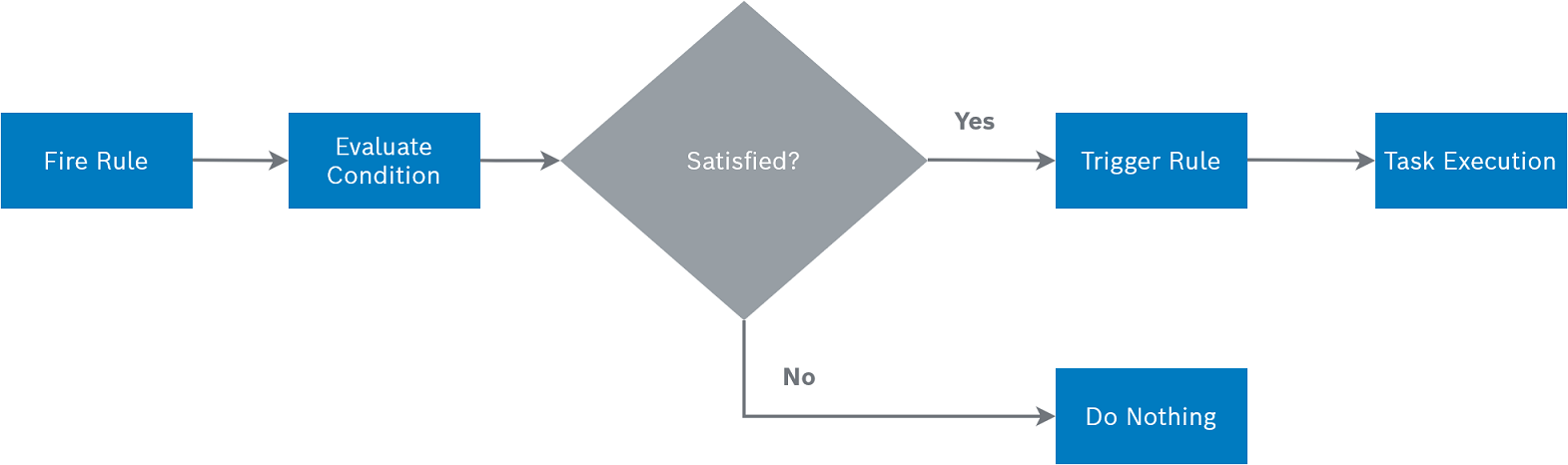
In RM, firing a Rule can happen in two ways:
manually – by users, potentially on a time schedule: once or periodically
automatically – by functional events
Rule Structure in RM
In RM, a Rule is build up from the following elements:
Action
Scope
Trigger
Execution Options (optional)
The Rule structure is very similar to the structure of Tasks with the difference that a Trigger-section is added. Also the Execution Options are more extended with respect to the Rule scenarios.
Rule Action
Just like the Action-part of Tasks, the Rule Action is the Groovy script to be executed on Rule triggering.
Rule Scope
The Scope of Rules is defined in the same way as the Scope of Tasks (see "Task Scope" section of Task Execution guide). Again, following the concept of Task Scopes, the Rules can be targeted to
managing the backend system itself by defining System Scope;
managing of devices by defining Device Scope for the Rules.
Rule Trigger
The Rule Trigger is a list of {Event, Condition, Sync-option} triples called Trigger Items, followed by a General Condition. It is this part of the Rule that defines when and under what Condition(s), the Action script is to be executed.
The Trigger structure is presented in the following table:
Trigger | Event | Condition | Sync-option |
|---|---|---|---|
Trigger Item 1 | Event 1 | Condition | Sync-option |
Trigger Item 2 | Event 2 | Condition | Sync-option |
... | ... | ... | ... |
Trigger Item n | Event n | ... | ... |
General Condition |
Each Event has a corresponding Condition that should be met in order the Rule to be triggered. The set of Events define what should happen, in order to evaluate the respective Rule Condition, i.e., the Events define when the Rule is fired (but not still triggered).
The System defines several general types of Events that can fire the Rule:
Manual Fire – Rules with this kind of Trigger Item(s) are fired externally by the User. Manual Fire is performed when the User explicitly calls "Fire Rule" to the Rule Engine.
Timer Fire – Rules with this kind of Trigger Item(s) are fired automatically under some predefined time-sequence declaration. These declarations are done via Cron Expressions for fixed-rate scheduling of automatic executions or with specific structure for fixed-delay scheduling.
Functional Event – Rules with this kind of Trigger Item(s) are fired automatically when certain event appears in the RM System. The declaration of Functional Event Trigger Items is defined by specifying certain event type (or event topic) of the functional event that initiates the "fire". The System provides a well-defined (extendable) set of Event Types that can be used in the Trigger Item part, for instance
"DeviceOnline"or"OSGiBundleAdded"events.
The Condition against each event can be provided as Groovy script that must be evaluated to true or false. Condition part is optional and when missing it is always considered as satisfied.
The Sync Option specifies whether the Rule Action (in case of satisfied condition) must be executed synchronously in the thread of the triggering event. The default value of this option is false, i.e., the Action Script is launched asynchronously.
The General Condition is a global condition for all Trigger Items. Therefore, for each Trigger Item there are two effective Conditions that must be satisfied in order a trigger to take place – the own Condition and the General one. The General Condition is also optional and can be skipped. It is placed for convenience in case the Rule needs the same condition for all its Trigger Items.
Mechanism of Rule Triggering
Once a Rule is fired, the respective Condition part is evaluated. The Condition is given as a Groovy script that should be evaluated to a Boolean value (true or false), indicating whether the trigger Condition is satisfied or not. Triggering of a Rule means that automatically the Action-part Script will be executed. Executing the Action part script leads to launching of a Task and can be monitored as such. This means many Tasks can be born out of a single Rule, as each Rule triggering creates a Task. The Task originated from a Rule is launched with the same Action and Execution Options taken by the Rule itself (see Task Execution). The Scope of the launched Task is dynamically determined:
System-Scope Rules always launch Tasks with the same System-Scope.
for Manual and Timer triggers, the Device-Scope of the launched Tasks is the same as the Rule's Scope.
for Functional Event triggers, the Device-Scope is determined by the event data of the triggering event. There are two possibilities:
The event might be related to a concrete device. In this case the Scope of the launched Task is reduced to involve this concrete device only. Therefore the launched Task will normally involve 1 device.
The event might not be related to a concrete device. Then the Scope is of the launched Task is the same as the Rule Scope.
Example:
The provided example illustrates a Rule with two Functional-event triggers. The first trigger is activated when a bundle is imported into the Software Repository. The trigger event is not related to a concrete device and the Task launched by this trigger bears the full scope defined within the Rule, i.e. the Task scope includes all devices. The second trigger is activated when a device comes online in RM. The trigger event is related to a concrete device and the Task launched by this trigger is scoped only over the concrete device for which the DeviceOnline event is about.
Rule Execution Options
The Execution Options of a Rule extend the set of Execution Options defined for a Task.
Execution Option | Value Type | Description |
|---|---|---|
once-per-device | Boolean | Defines whether the Rule can be executed multiple times on a given device, or should be executed only once, skipping subsequent triggers for that device. |
disable-automatically | Boolean | Defines whether the Rule should be automatically disabled once all targets from the Scope pass through the triggering conditions. The benefit of using this option is to know that no more executions are expected within a given Rule, it just gets disabled when all devices are evaluated and no more executions are expected. These options automatically enable the once-per-device option, too. |
overlapping | Enum | Defines whether multiple Tasks over the same device can be overlapped or should be replaced. Three possible options here:
|
The Execution Options extended from the Task Execution Options are described in the following table:
Execution Option | Value Type | Description |
|---|---|---|
concurrency-limit | Integer | Defines the maximum number of concurrent devices for all running Tasks launched by the Rule. |
time-constraint | Time-sequence | Defines at what time-schedule it is permitted for the executions to act. The option can be used Rule-wide. All Tasks launched by the Rule will have the same time constraint. |
Passing Information Between Scope, Trigger and Action
There are two system-bound variables that are used for passing context and information between Rule parts:
event: The event object that has fired the Rule will be bound when running the Groovy script in both - Condition and Action part. Therefore, the event object (bound as event) can participate in the reasoning and manipulation logic of the Rule. For instance in the Condition can be used: event.type == "connected", and the action could make references as: event.message within the script.
target: The script within the Action part will be run upon a certain device target. Therefore, when Rule Scope is targeted to devices, the target variable will be bound to concrete Device Control Unit object (in GDM terms). When Rule scope is targeted to system, then the target variable will be null.
Example:
Rule that is triggered on every new installation of the telnet bundle over managed OSGi devices and prints into the console info about the device and the installed bundle.
Rule: "Trigger on telnet installation"DeviceScope: {devices type = OSGi Device, groupId = ROOT/, filter = null}Trigger: {event = Functional Event (eventType = "OSGiBundleAdded"), condition = event.getOSGiBundleId() == '../../../bundles/com.prosyst.mbs.util.telnet.jar', sync=false}Exec Options: noneAction: println('Bundle ' + event.getOSGiBundleId() + ' was installed on device: ' + target.getId())How to Define Timer Triggers
Timer triggers are used for periodic tasks. There are two ways to define Timer Triggers:
fixed-rate – Execution mode for periodic tasks – using cron expression.
Example:
Creating a Rule that triggers each hour from 9:00 to 18:00 including: 0 0 9-18 * * ?
fixed-delay – defines a dedicated structure for declaring: start-time, end-time, period , and delay-tolerance.
Example for a Rule that triggers periodically at 1 hour using fixed-delay sequence would be:
start-time: 01.01.2016 00:00:00
end-time: 01.01.2017 00:00:00
period: 1 hour
delay tolerance: 30 minutes
Fixed-rate vs. fixed-delay: In fixed-rate execution, each execution is scheduled relative to the scheduled start time. If an execution is delayed for any reason (such as temporary stopping of the RM or the system is too busy), two or more executions will occur in rapid succession to "catch up." Fixed-rate execution is appropriate for recurring activities that are sensitive to absolute time, such as ringing a chime every hour on the hour, or running scheduled maintenance every day at a particular time. Fixed-rate execution is also appropriate for scheduling multiple repeating timer tasks that must remain synchronized with respect to one another.
Rule Life-cycle and Monitoring Properties
The Rule Life-cycle is presented in the following figure:
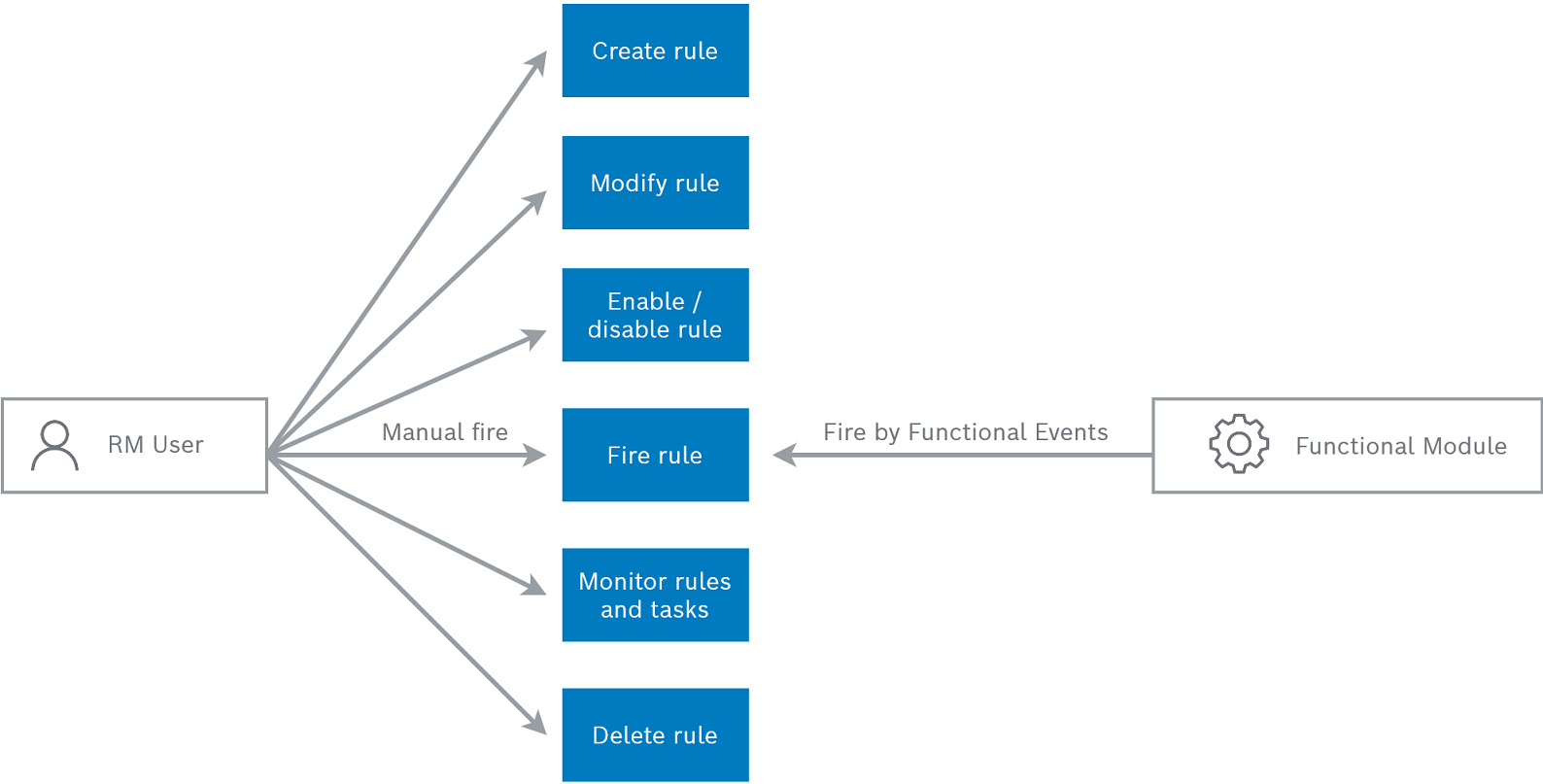
A Rule can be:
created: A user can create Rule by providing {Scope, Trigger, Action and Exec Options}. Initially the Rule is in state defined.
enabled: activating the Rule. At that point its state changes to enabled and it can already be fired. – whether manually, by timer, or by functional events.
disabled: deactivates the Rule. It turns into disabled state and cannot be fired. Important: When disabling, any Tasks launched by this Rule will be automatically canceled.
modified: In case a Rule needs adjustments, it can be edited. Only Rules not in enabled state can be modified. After modifying, any statistics and execution information from previous activations of the Rule are cleared and the Rule is reset to defined state as if has just been created from scratch.
fired: Rule having Manual Trigger, can be fired by the User. Rules with Timer trigger can be fired automatically on a time schedule. And Rules with Functional Event Triggers are fired by the Functional Modules within RM that fire the respective triggering event. When fired, the Rule state is not changed.
Only Rules in state "enabled" can be fired.deleted: the User can delete Rules that are no more subject of interest. Deleted Rules are automatically disabled.
monitored: Rule executions can be monitored in details (see next paragraph).
Rule Monitoring Attributes
A Rule has the following attributes:
Display Name – The Rule name.
Rule ID – The unique ID of the Rule given by the Rule Engine.
State – A Rule can be in one of the following states:
DEFINED – when the Rule is just created or modified.
ENABLED – the Rule is activated and can be fired.
DISABLED – the Rule is not active and no fire can take place.
FAILED_TO_ENABLE – A Rule enters this state on unsuccessful enabling, for instance its Scope or Execution Options can not be evaluated or а system error occurs.
State Description – Additional description about the Rule state. It may contain the reason for FAILED_TO_ENABLE status or arbitrary extra explanation provided by the Rule Engine related to the current state of the Rule.
Number of Involved Devices – The number of devices involved in this Rule.
Number of Successfully Finished – The number of devices for which the last execution of Rule is finished successfully.
Number of Finished With Error – The number of devices for which the last execution of the Rule is finished with errors.
Number of Finished With Warning – The number of devices for which the last execution of the Rule is finished with warnings.
Number of Canceled Devices – The number of devices for which the last execution of the Rule has been canceled.
Number of Running Devices – The number of devices for which the last execution of the Rule is still running.
Numbers of involved and finished (anyhow) devices are applicable only for Device-Scope Tasks.Triggers Count – tells how many times the Rule has been triggered. This number corresponds to the count of Tasks launched by the Rule.
List of Launched Tasks – all launched Task by a Rule can be retrieved and monitored in all details a Task Execution brings (see "Task Monitoring Attributes" section from Task Execution guide).
As all Task entries launched by the Rule can be retrieved, the User can also manage those Tasks in the usual way, including canceling, retrying and deleting of those tasks. Just have in mind that changes in the Tasks statistics automatically reflect in changed of the Rule statistics (numbers of involved, finished devices, etc..)List with "Device Rule Status" for each involved device – the Rule also provides complete list of Execution Status entries for each involved device, so that detailed executions per device can be monitored separately. See "The Device Rule Status" below.
Scope, Action, Trigger and Execution Options – the monitoring attributes contain the initial properties of the Rule, specified by the User.
Device Rule Status
Each Device Rule Status record has the following details:
Device Type and Device ID – identifying the device executing the Rule.
Device Execution Status – the execution status of the device within the Rule. This status could be one of the following:
FINISHED_SUCCESS
FINISHED_WARNING
FINISHED_ERROR
FINISHED_CANCELED
RUNNING
Based on these statuses for each device, the Rule calculates its statistics numbers reported by the attributes : "Number of successfully finished", "Number of Finished with Warning", "Number of Finished with Error", "Number of Canceled" and "Number of Running" devices. The summary of the overall "Device Execution Status" within the Rule (success, error, etc..) is taken from the last Task launched by the Rule that involves the given device.
list with "Device Task Status"-es: a device always executes a Rule within some of the Tasks launched by the Rule. Therefore, the Device Rule Status has a list with "Device Task Status"-es for each Task where it is involved. The Rule provides a full list of such "Device Task Status"-es, giving the User ability to retrieve and monitor all previous executions of the Rule over a device. See "Device Task Status" from the Task Execution guide for more details.