Overview
As RM backend hosts function on top of the OSGi framework model, their main functional units are the OSGi-compliant backend bundles.
A backend bundle has a deployment target, which indicates the host role(s) it is intended for. The system administrator can add/remove new bundles, manage their lifecycle as well as configure them in terms of the OSGi Configuration Admin Service Specification (see Backend Bundles Configuration).
Backend bundles, which together deliver a relatively independent functionality, can be assembled in a backend bundle package. The package can be then deployed, updated, or removed.
See the Backend Bundles Configuration from the Conceptual Guide for more details about the management of backend bundles.
General Description of the Backend Bundles Tree
In the backend bundles tree, situated in the Backend Bundles tab of the System Configuration dashboard view, you can view the following groups of bundles:
- All bundles stored in the backend bundle inventory.
- Bundles deployed for a host role and for a management server.
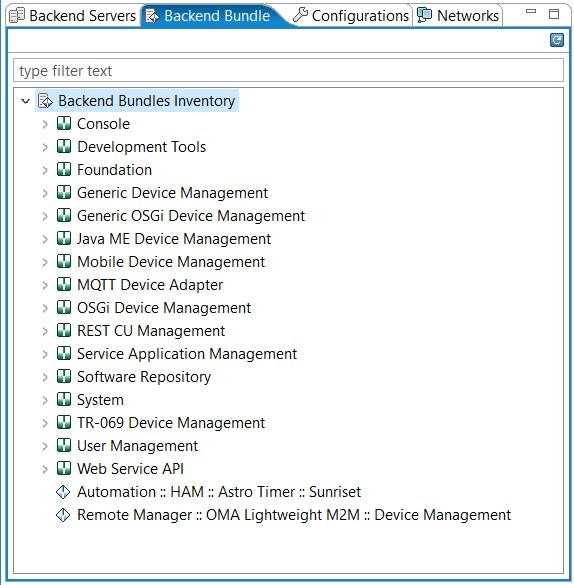
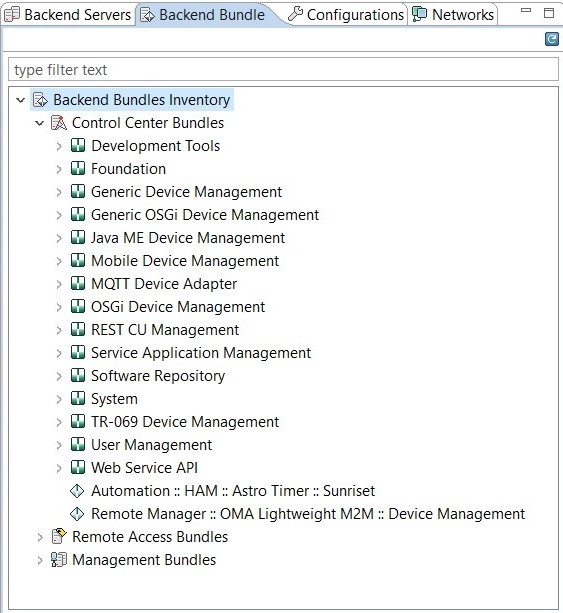
The backend bundles tree has only one root node, Backend Bundles Inventory, and has two views - list view (default) and roles view. According to the active view, the tree is organized in the following way:
- List View - Arranges the bundles first by package.
- Roles View - Classifies the bundles first by host role and by management server. Bundles for a selected role are placed within the <Role> Bundles node. Bundles can be then in packages or standalone. Packages are represented by special nodes succeeding the <Role> Bundles node and are arranged by startup order. To switch from list view to roles view, right click on any item on the list and select Roles View.
Packages
This section describes how to manage backend bundle packages.
A package is a collection of functionally related backend bundles which are treated as a single unit. You can install, update and remove an entire package instead of its bundles one by one. A package can declare dependencies on other packages in its package descriptor.
A bundle in a package is associated with a set of deployment targets, composed of the host roles defined in RM (control center, remote access server, management servers, managed device and the console). A package bundle can also be set as optional - its runtime deployment can be enabled and disabled. Optional bundles have the  icon when disabled and the
  icon when enabled.
You can add or update packages to the system from .pack package archive files, holding the package bundles and descriptor. A package can also be updated by using a patch (an archive with extension .patch), holding only those bundles that should be replaced in the currently deployed package.
For more information about packages, refer to Basic Concepts.
Viewing Deployed Packages
You can view deployed packages in both runtime and system configuration modes of the RM Console System Configuration view.
Viewing in the sense of browsing the available packages and all bundles in them is achieved when the list view of the Backend Bundles tab is active. The RM Console then shows the content of the entire backend bundle inventory sorting packages by their installation order. By clicking a package node, you can view its name, version, active state and dependencies.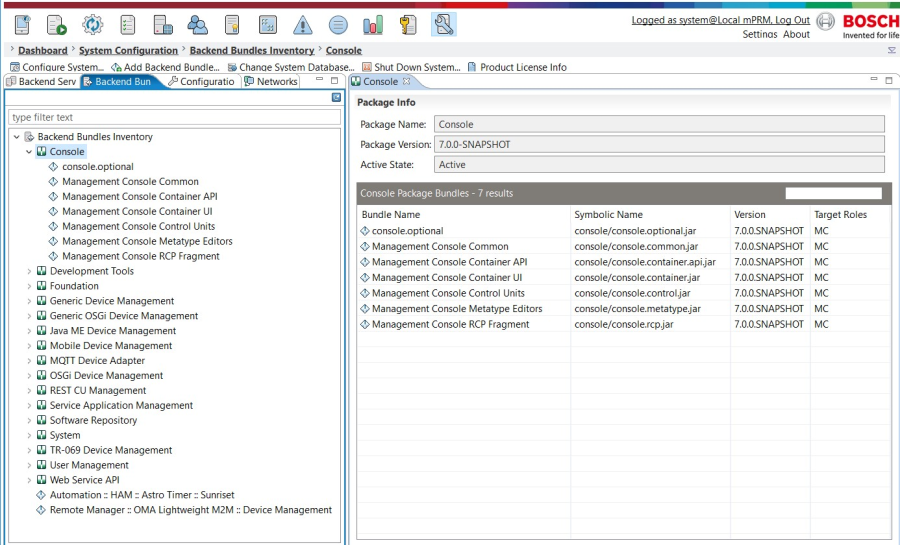
Deploying a New Package
This operation can be done only in system configuration mode of the RM Console System Configuration node.
- Go to the Backend Bundles tab of the System Configuration dialog.
- Select Add Package from the pop-up menu or from the Backend Bundles menu.
- In the displayed file chooser, locate the .pack file of the desired package.
- Click OK to confirm, otherwise Cancel.
As a result, the package is included in the backend bundles tree and its bundles will be deployed on the hosts with the corresponding target role(s).
Activating/Deactivating a Package
You can activate/deactivate a package in both runtime and system configuration modes of the Server Configuration node.
When a package is active, its bundles are running on the designated hosts. When a package is deactivated, its bundles won't be present in the system's runtime state. All packages depending on a deactivated one will be automatically deactivated as well.
In the backend bundles tree activated packages have the  icon, and deactivated ones - the
  icon.
icon.
To activate/deactivate a package, selected in the backend bundles tree:
- In runtime mode, right-click on the package and use the Backend Bundles -> Activate Package (Deactivate Package) command from the pop-up menu.
- In system configuration mode, use Activate Package (Deactivate Package) command from the Backend Bundles or pop-up menu, or click the Activate (Deactivate) button next to the Active State field in the properties pane on the right.
As a result, the package changes its state in the backend bundles tree.
You are not allowed to deactivate the System package, which represents the core of an RM system.
Updating a Package
To update a package, in system configuration mode select the package and call Update Package from the pop-up menu or from the Backend Bundles menu. Then locate the .pack or .patch file and confirm with OK.
Removing a Package
To remove a selected package, in system configuration mode call the Remove Package command from the pop-up menu or from the Backend Bundles menu.
When a package is removed, all packages depending on it are deactivated.
If an image of the package is present in the packages directory of the control center, the successful removal of the package requires both removing it through the RM Console and deleting the package XML descriptor (and optionally - package bundles) from the control center host. If the package is not removed from the CC, the configuration manager will locate and deploy it again while applying the new configuration.
You cannot remove the RM System package.
Bundles
Backend bundles either within a package or as standalone, have deployment targets, which denote the roles on which they are intended to run.
You can access the bundles:
- On the Backend Bundle Inventory level, which represents all bundles deployed in the system.
- Deployed on hosts with a specific role.
- Running on a single host from the Backend Host Configuration backend servers tree.
The administration of bundles on a single host provides options for modifying bundle runtime states, as bundles on each separate backend host may be in different states from the initially defined ones.
Every deployed bundle must have a unique name (Bundle-Name manifest header) - vendor (Bundle-Vendor manifest header) pair in the scope of an RM system.
In runtime mode, the system immediately applies to all hosts the modifications made to standalone bundles, optional package bundles, or bundle configurations.
Viewing Deployed Bundles
You can view the bundles deployed on RM from the backend bundles tree. For a selected bundle you can see its location, category, type (required or optional), its manifest and its deployment targets.
Deploying a Standalone Bundle
To deploy a standalone bundle in RM, in runtime or system configuration mode:
- Call the Add Bundle command from the pop-up menu or from the Backend Bundles menu (in system configuration mode only), or click the Add Backend Bundle button from the administrative toolbar (in runtime mode only).
- In the Target Roles dialog specify the deployment targets of the bundle and click OK.
- Browse to the location of the bundle JAR and click OK to confirm.
If the operation is successful, the bundle appears in the backend bundles tree.
Updating Standalone Bundles
To update a standalone bundle, select it in the backend bundles tree and use the Update Bundle command from the pop-up menu, or from the Backend Bundles menu (system configuration mode only). Next, locate the JAR holding the new bundle version.
Removing Standalone Bundles
To remove a selected standalone bundle, call Remove Bundle from the pop-up menu, or from the Backend Bundles menu (system configuration mode only). Confirm with OK or cancel with Cancel.
Changing the Deployment Targets of a Standalone Bundle
With the RM Console you can change the deployment targets of a selected standalone bundle.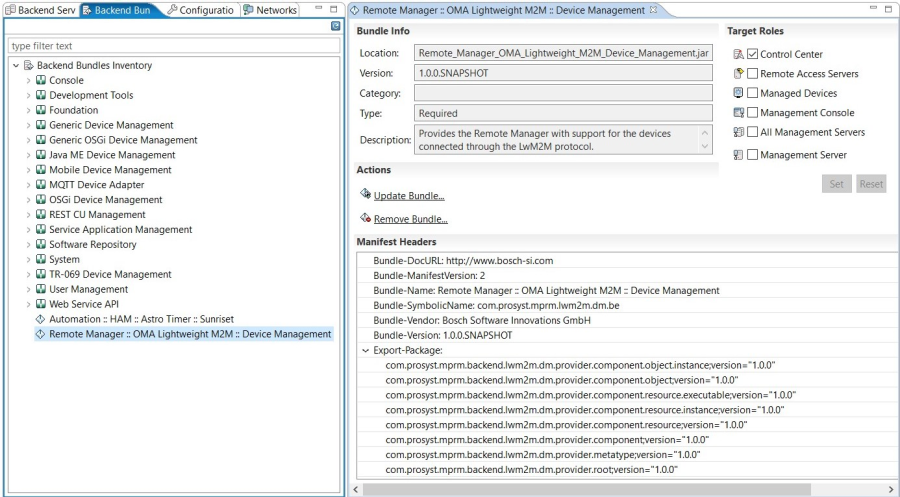
Check the host role(s) you want to deploy the bundle onto.
If you will deploy the bundle on a specific management server, check Management Server ID. Next, use the combo box, or click the ... button and in the displayed dialog select the management server.
To save the changes, use Set. To restore the bundle deployment targets persistently stored in the system, click Reset.
Starting/Stopping Bundles on a Single Host
In the scope of a single host, bundles can be managed in regard to their bundle lifecycle from the Backend Host Configuration backend servers tree.
Enabling/Disabling Optional Package Bundles
As it was previously mentioned, a package may contain optional bundles. When the package is deployed, each optional bundle is enabled or disabled depending on the value of the bundle's started flag in the package descriptor.
You can enable/disable an optional package bundle in both runtime and system configuration modes. Select the bundle and click the Enable/Disable button next to the Enabled field, or use the Enable Bundle/Disable Bundle pop-up menu command.
When an optional bundle is enabled/disabled runtime, the system attempts to install/uninstall the bundle on/from all hosts matching its targets.
Singleton Configurations
The properties of a selected singleton bundle configuration are displayed in the properties pane on the right.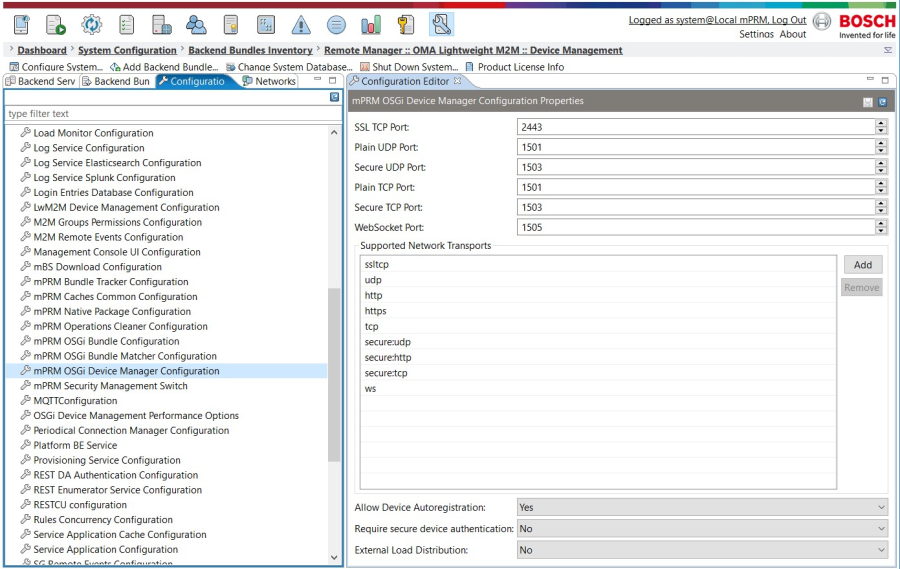
The RM Console represents configuration properties by their names. You can enter a property value in the text field next to the property name. Values of boolean properties are displayed as boxes with values Yes and No. Array values are represented as lists with Add and Remove buttons for changing the number and order of elements.
Below the list of available properties, there is a set of buttons for manipulating the displayed configuration:
- To save your changes, click the Save button at the top.
- To reload the original property values, click the Refresh button at the top.
- To restore the default property values from the configuration XML, click Defaults.
Factory Configurations
For a factory configuration the configuration instances, represented by their persistent identities (PIDs), appear as its sub-nodes. You can select a configuration instance and edit its properties. In the RM Console, the properties of a configuration instance generated from a factory configuration are edited in the same way as the ones of a singleton configuration.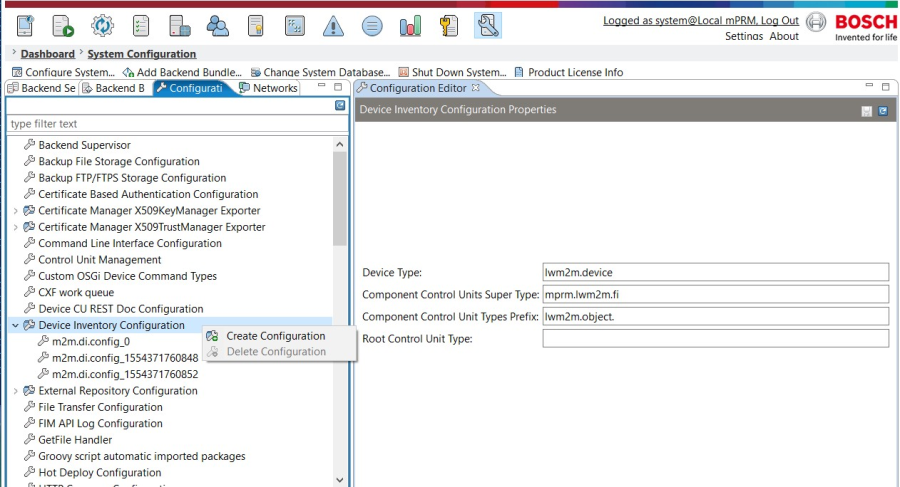
To create a new configuration out of a configuration factory, right click on the bundle and select Create Configuration. The newly created configuration will appear in the list and you can edit its properties in the main view area.