The Edge Device Management package allows an integration with Bosch IoT Rollouts, thanks to which Rollouts may act as a central software repository to multiple Remote Manager instances. In other words, the Edge Device Management package enables Bosch IoT Rollouts to be used to distribute new firmware or software artifacts to multiple on-premise deployments of Bosch IoT Remote Manager that are located on multiple customer sites. Each location has its own Remote Manager setup installed, through which many devices running Bosch IoT Edge, deployed at the particular location, can be managed.
In this page we will demonstrate how to execute firmware updates via the suscript of Bosch IoT Edge but we would recommend that you first go through our Integration with Bosch IoT Rollouts page to learn how the update flow works.
Prerequisites:
Instance of Bosch IoT Remote Manager
Booked Bosch IoT Rollouts service
Bosch IoT Edge agent deployed on a device
Successful integration between Rollouts and Remote Manager
Firmware update request
The Bosch IoT Rollouts service can distribute firmware updates to a number of Remote Manager instances, from where they can be further deployed on the edge devices. These Firmware Updates are in fact just requests to Bosch IoT Edge to install particular software through the SoftwareUpdatable 2.0.0 Vorto model. The request is handled by the suscript of Bosch IoT Edge. The artefact that you need to upload to Rollouts has to be a .zip file containing:
[name].sh - install script that will be the actual firmware update script
[metadata].prs - metadata file in the following format:
group=[group]
name=[name]
version=[version]
Prepare the update
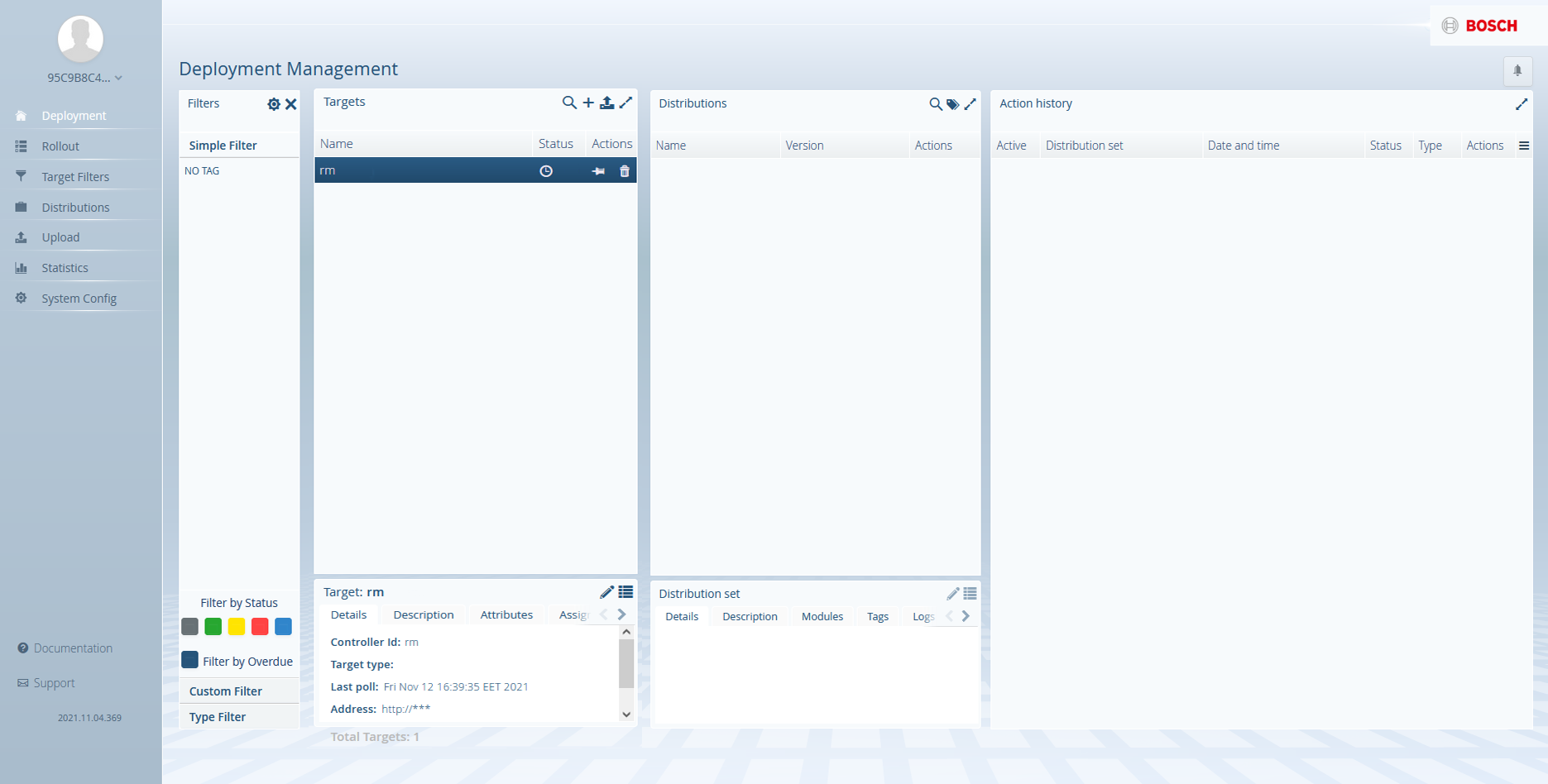
Open the Bosch IoT Rollouts UI. Go to Deployment Management to find the Remote Manager instance under Targets. For our convenience we've named our target rm. Now that we know our target is present we can start the preparation of our update.
How to create and trigger a software update via Bosch IoT Rollouts is explained in more detail in the Device Management documentation. For more information visit: https://docs.bosch-iot-suite.com/device-management/Deploy-a-software-update-on-your-devices.html
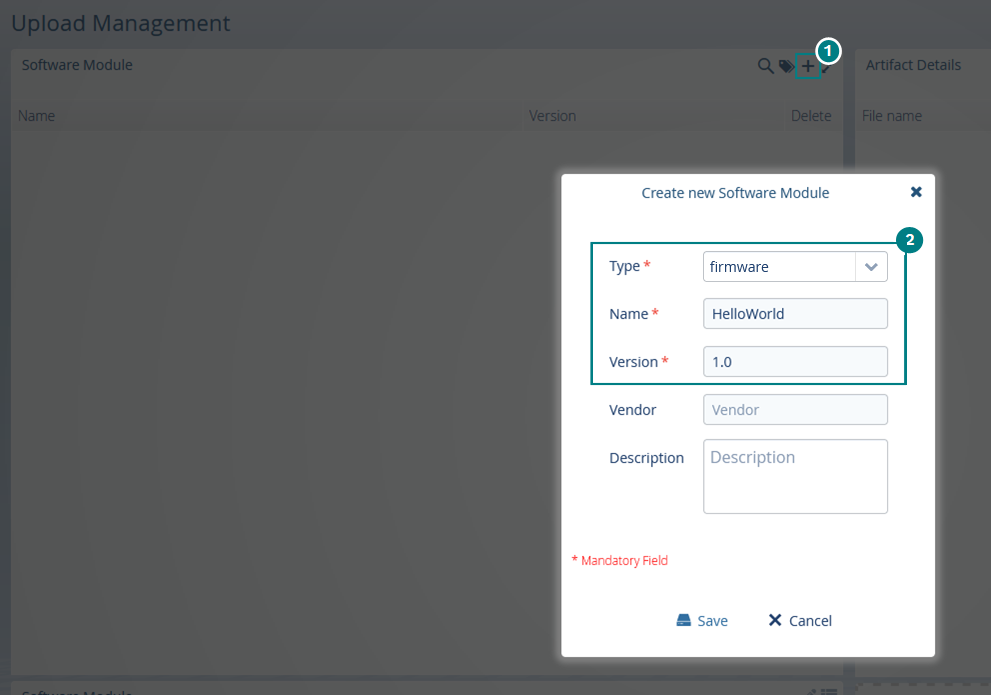
Go to the Upload Management perspective and click the + icon on the top right side of the Software Module section to Create a new Software Module.
Fill in the required fields.
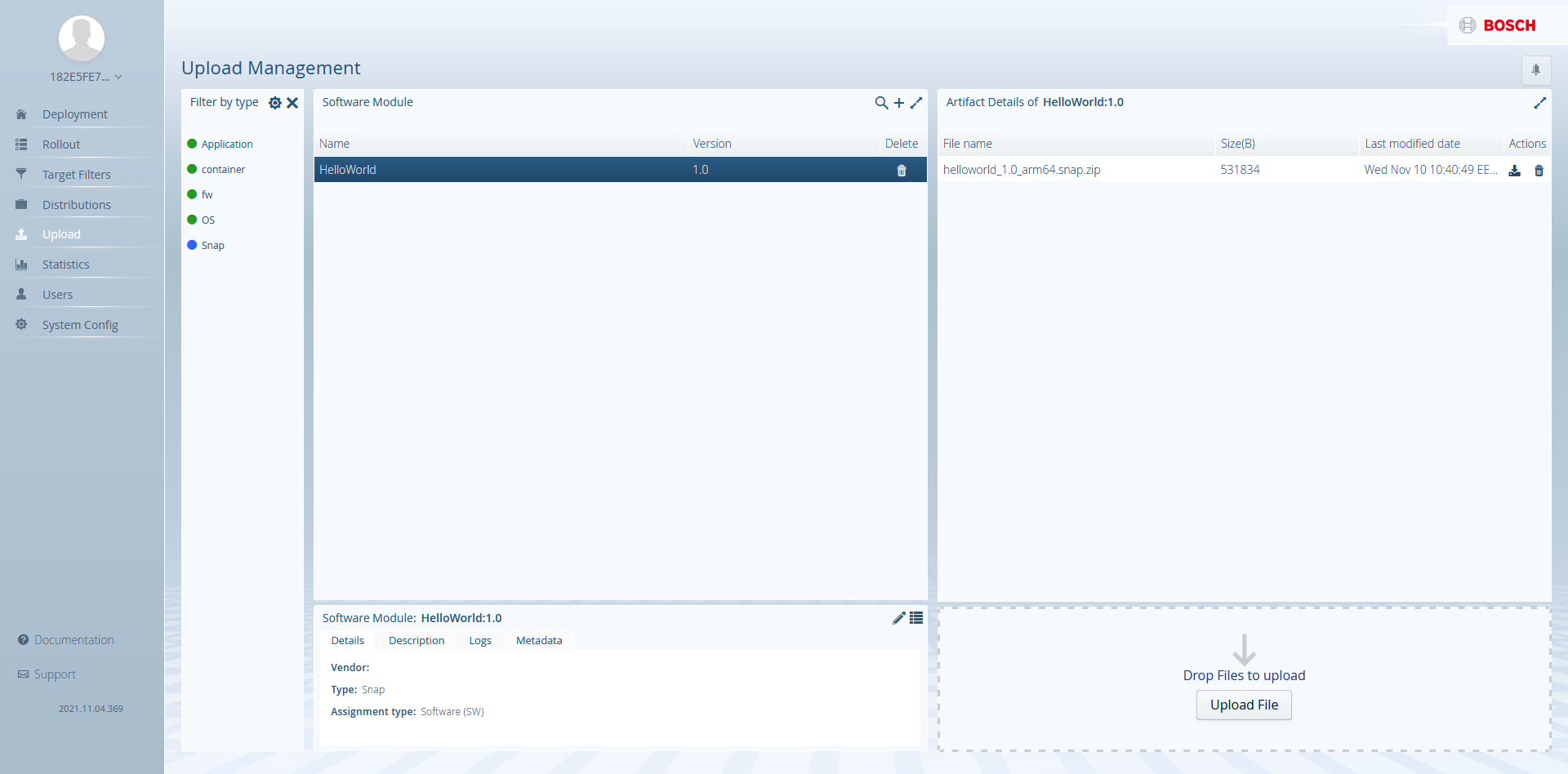
Upload the firmware update package by drag & dropping it into the Drop Files to upload field.
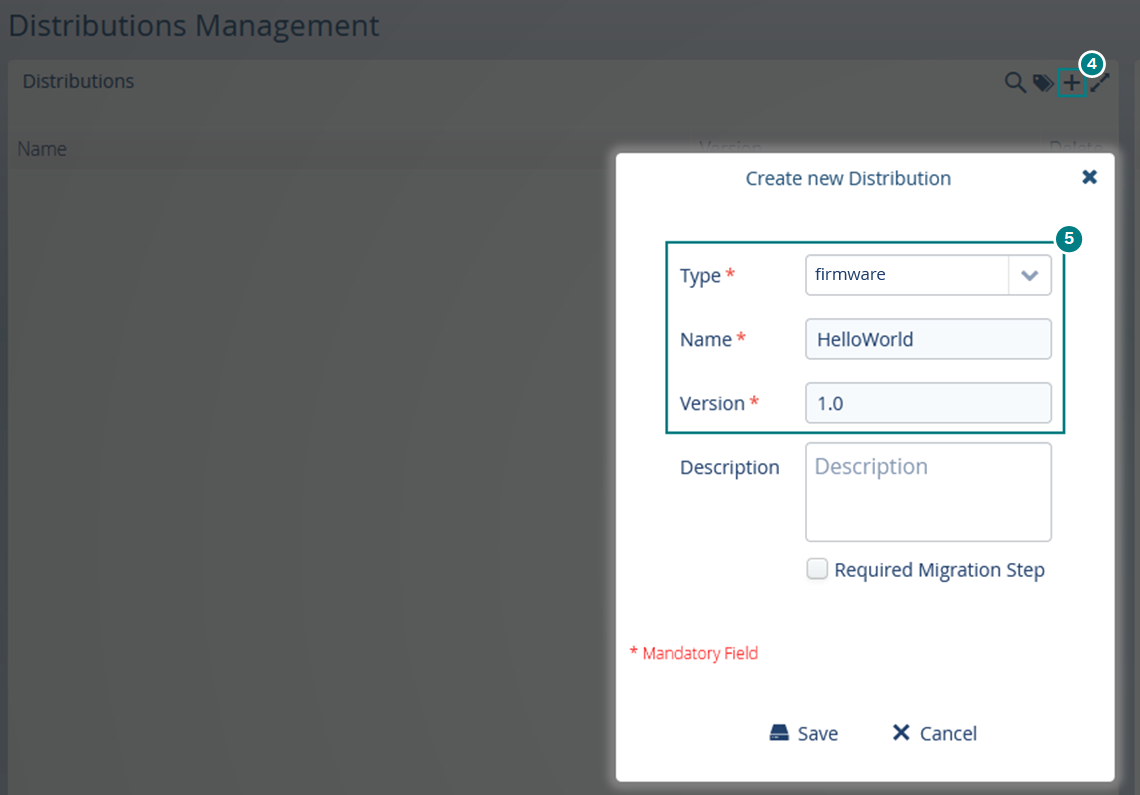
Go to the Distributions Management perspective and click the + icon on the top right side of the Distributions section to Create a new Distribution.
Fill in the required fields.
Drag and drop the software module on the newly created distribution and click OK on the Confirm Assignment prompt.
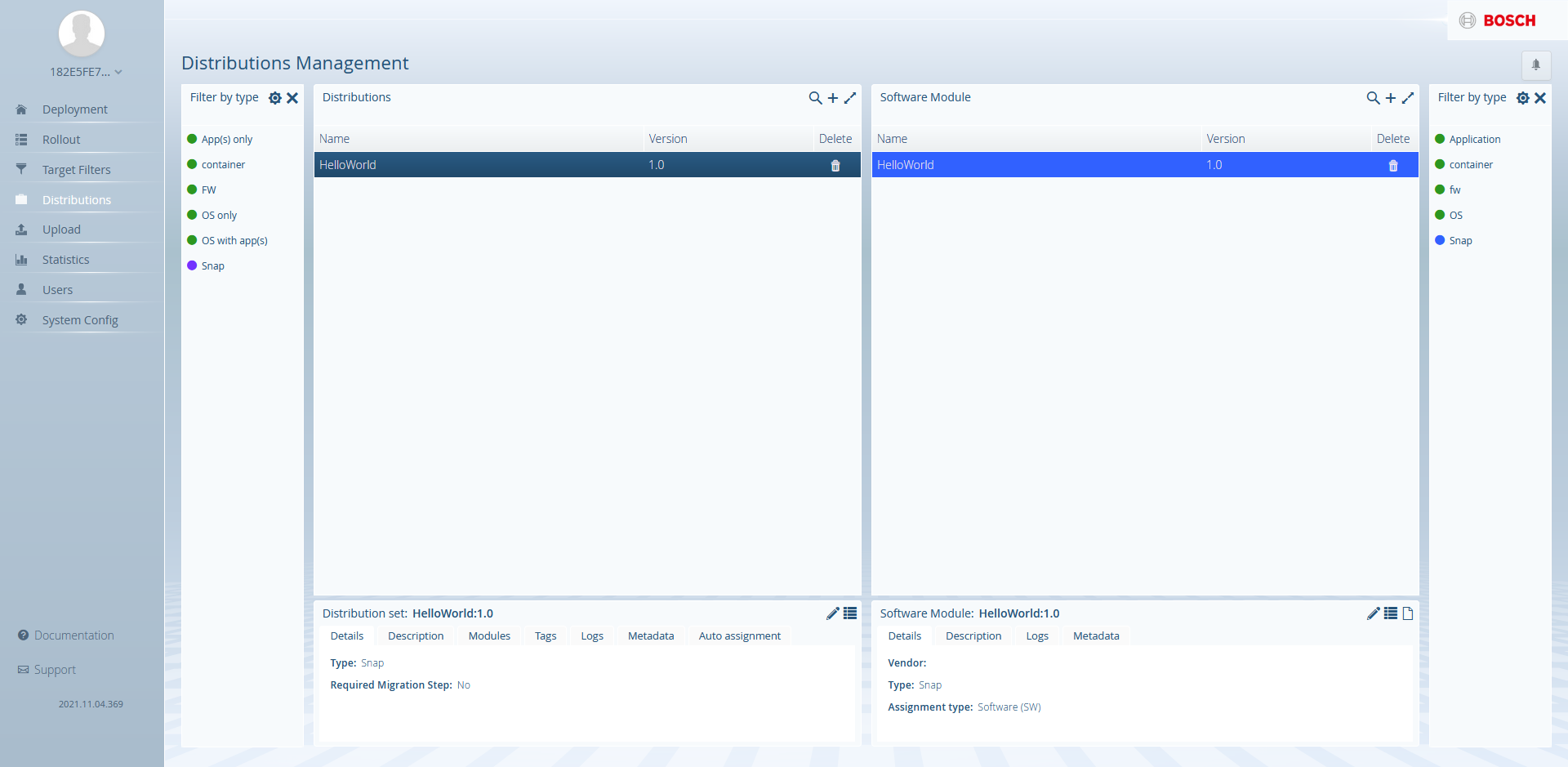
Trigger the update
Once the update is ready, triggering it is very easy:
Drag and drop the distribution to the Target.
Click OK on the Confirm Assignment prompt
What happend on the backend?
Remote Manager periodically asks whether there is an update coming from Rollouts and in a couple of second it pulls the firmware update.Once the artifact is sent from Rollouts to rm, its status will change to RECEIVED, and it will be visible in Remote Manager's Software Repository.
Enter the Software Repository perspective and filter by Edge firmware packages to see the actual package we sent from Rollouts.
The downloaded artifacts are stored on the file system and not on the DB as they can be very large. That way we prevent any unnecessary heavy load on the db.
Distribute the update to the edge devices
After the firmware package has been downloaded from Rollouts a rule will be also automatically created. This rule contains the script for installing the firmware update on all edge devices available in Remote Manager. For every downloaded update Remote Manager will create a separate rule:
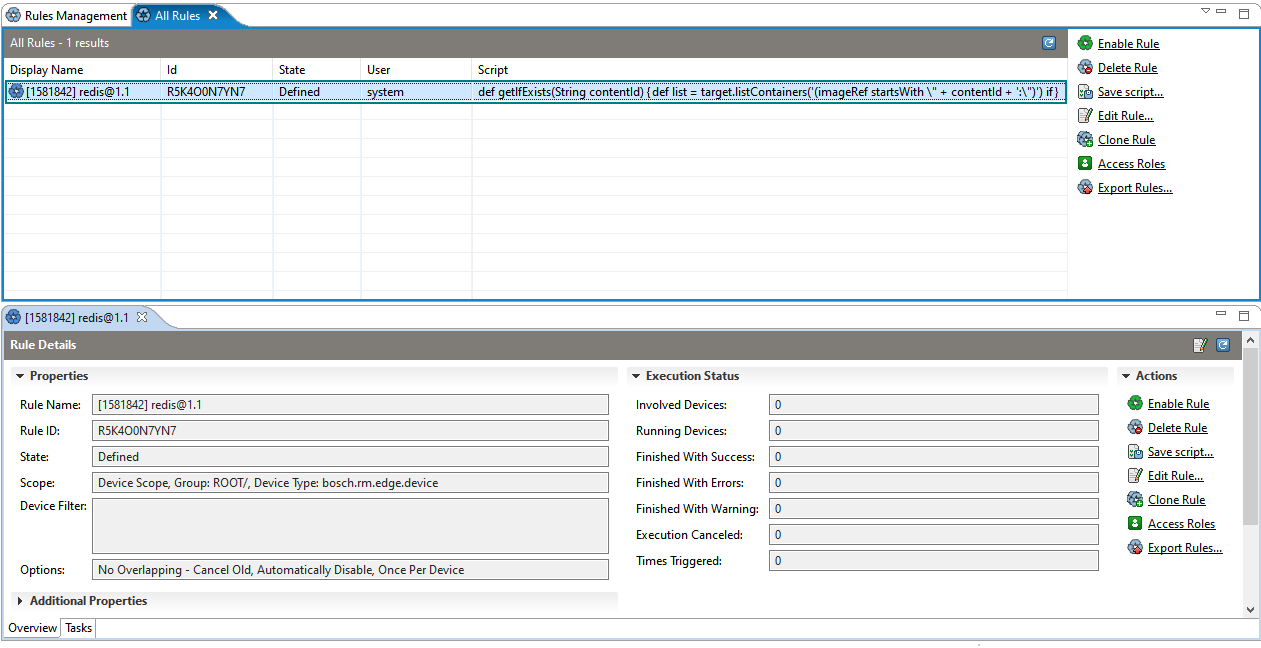
Triggering the rule will send and install the update to/on all involved devices.
All changes to the status of the rule will be sent as a response to the Rollouts operation.
Once the devices included in the rule report successful completion of the rule the status in Rollouts will change to green,
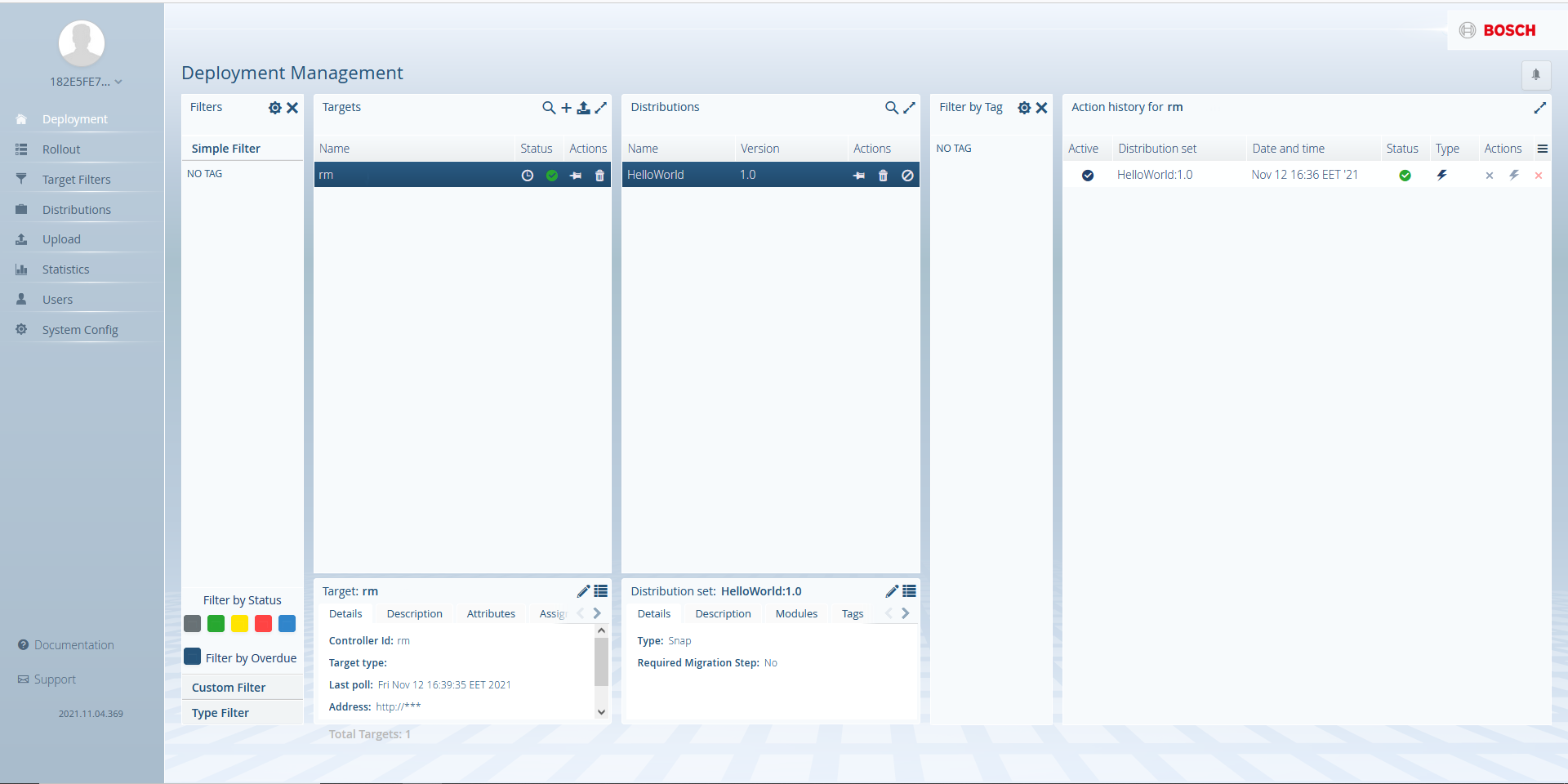
How to be aware of pending updates?
You will receive an alert in RM on the bottom right side of the screen as shown in the screenshot below. It will indicate that there is a pending update.
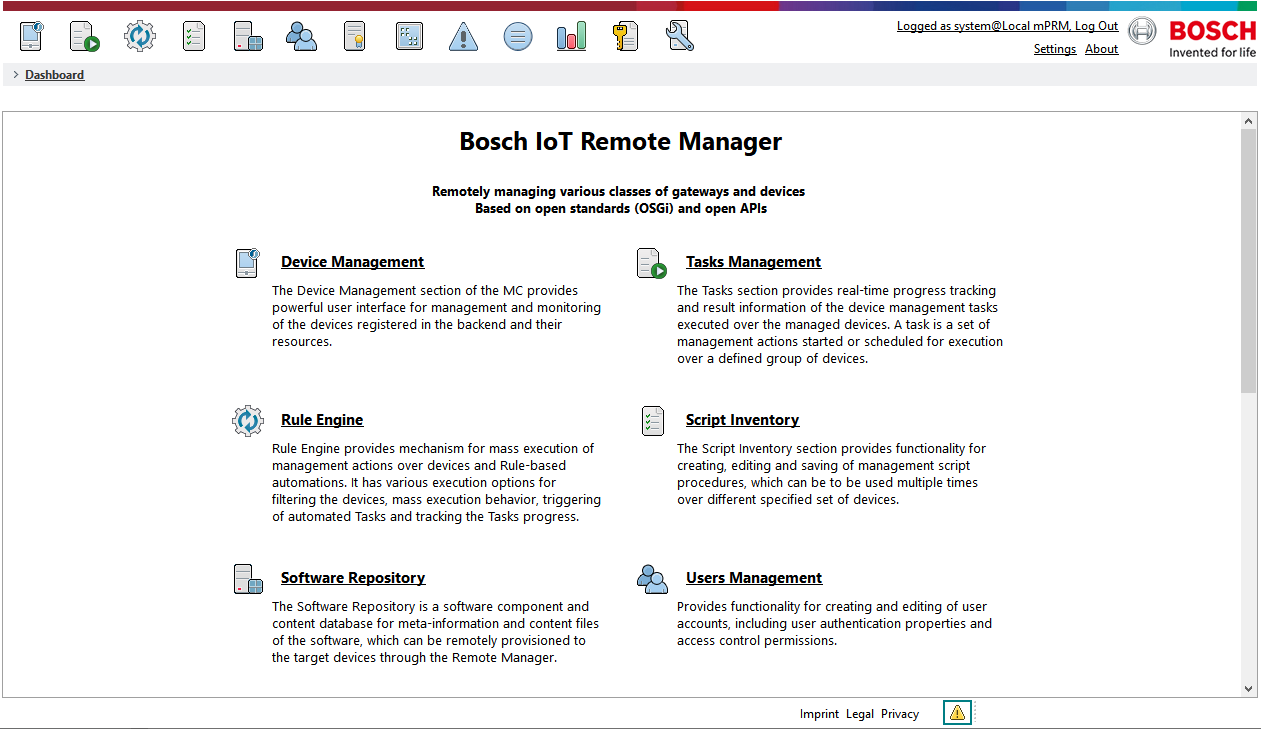
Clicking the alert will open the System Alerts perspective and dismiss the notification.