Overview
An OSGi device can be managed additionally through its control units, which are registered on it and called Client CUs (more information is provided in OSGi Client CU Agent). Once the device is successfully registered and selected, its OSGi Client CU Configuration can be found in the Device Node Properties pane at the right side of the console.
Client CU Configuration Properties
The Client CU configuration properties are found on the right pane of the console and can be changed as shown below. As an example the interval for skipping too frequent state variable events and receiving just a few of them is set to 3333 msec.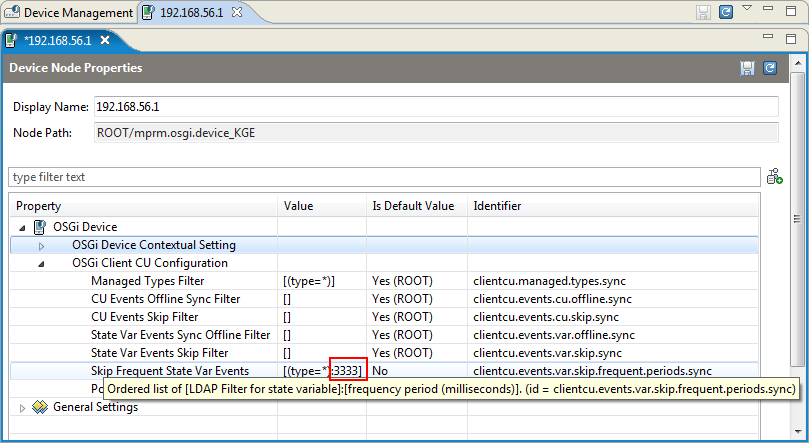
The state of the device, represented in the console, changes dynamically when the configuration is proper and the events are set on for the proper state variables.
Client CU Example
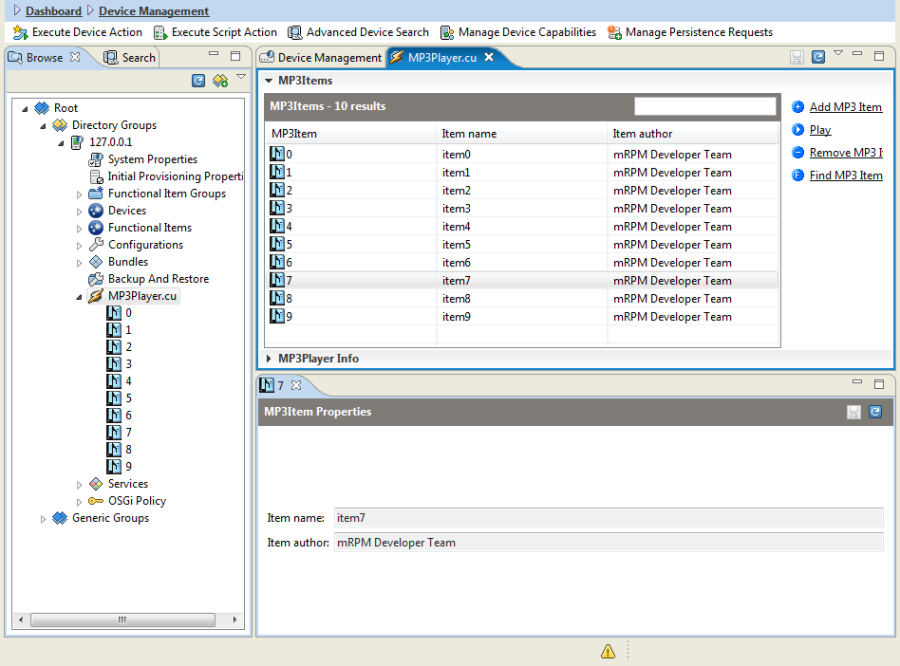
An MP3Player.cu is used for an example of a Client CU. A bundle is installed on the device to provide two control units types – MP3Player and MP3Item. When there are instances of CU types, they can be seen on the RM as a part of the OSGi Device tree. In this example the instance of the MP3Player type with ID MP3Player.cu appears as a node in the 127.0.0.1 OSGi device tree and under it there are ten instances of MP3Item control unit type with IDs from 0 to 9:
Client Control Unit Type and ID
Information about the Client CU type and ID is provided by the mouse over its Properties pane at the right side of the console:


Client Control Unit State
Client CU State is represented via state variables (see Control Units State Variable).
The current state of a Client Control Unit instance is represented via its state variables values.
MP3Player State Variables
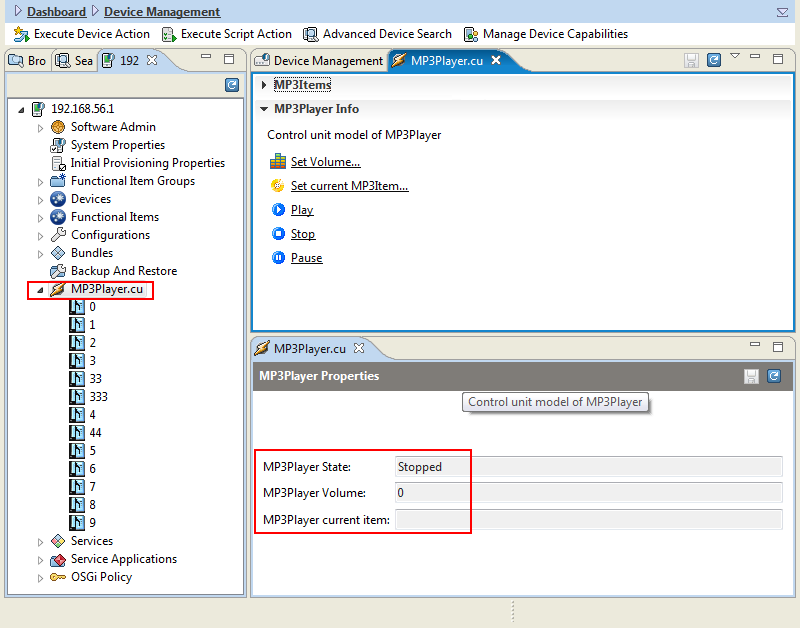
The State Variables for the MP3Player.cu are placed in the MP3Player Properties pane to the right side of the console. Their names are:
- MP3Player State
- MP3Player Volume
- MP3Player current item
MP3Item State Variable
The state variables for the instances of the second type CU – MP3Item, can be seen in their MP3Item Properties pane as shown in figure Client CU MP3Player example above. Their names are:
- Item name
- Item author
Client Control Unit Actions
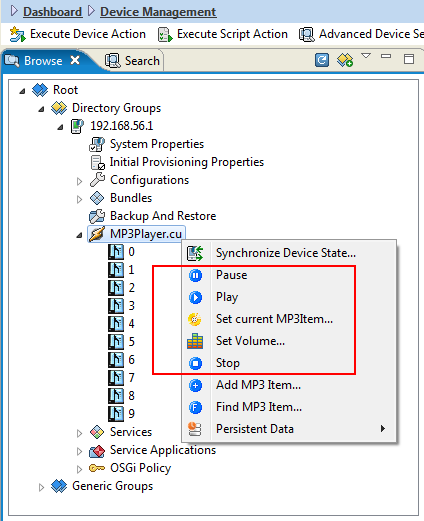
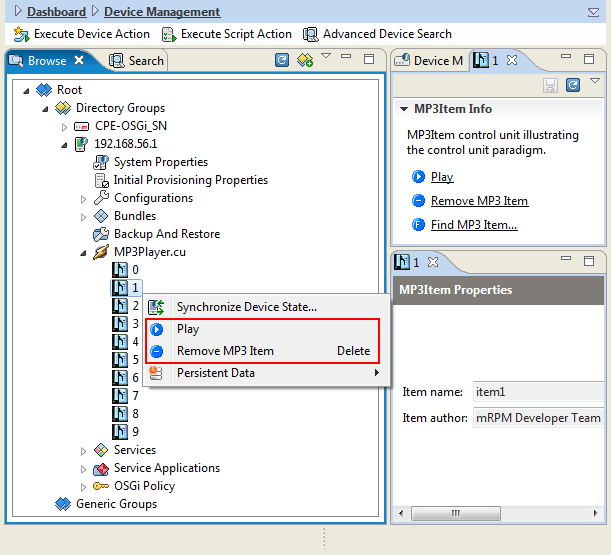
After a right click on the Client Control Unit, the context menu provides a list of actions to be invoked over this CU instance.
MP2Player.cu Client CU Actions
Together with the system actions – "Synchronize Device State" and "Persistent Data" and the actions provided by the the child control unit of type MP3Item, the actions to be executed on the CU instance of MP3Player type are:
- Pause
- Play
- Set current MP3Item
- Set Volume
- Stop
MP3Item Client CU Actions
The actions, that can be selected from the context menu of MP3Items type CU instances are:
- Play
- Remove MP3 Item
- Add MP3Item
- Find MP3Item
The Add MP3Item and Find MP3Item actions are available in the context menu of the parent CU – see them below the red square of the Actions context menu of a parent Client CU MP3Player.cu. figure.
When a device is online and synchronization is enabled, changes are shown into the console dynamically.