Management of ZIP packages is performed from within the OSGi environment by means of a special management agent as described in the ZIP Package Management Conceptual Guide.
Overview
You can view the ZIP Packages that are currently installed on an OSGi device by selecting the ZIP Packages node from the device tree: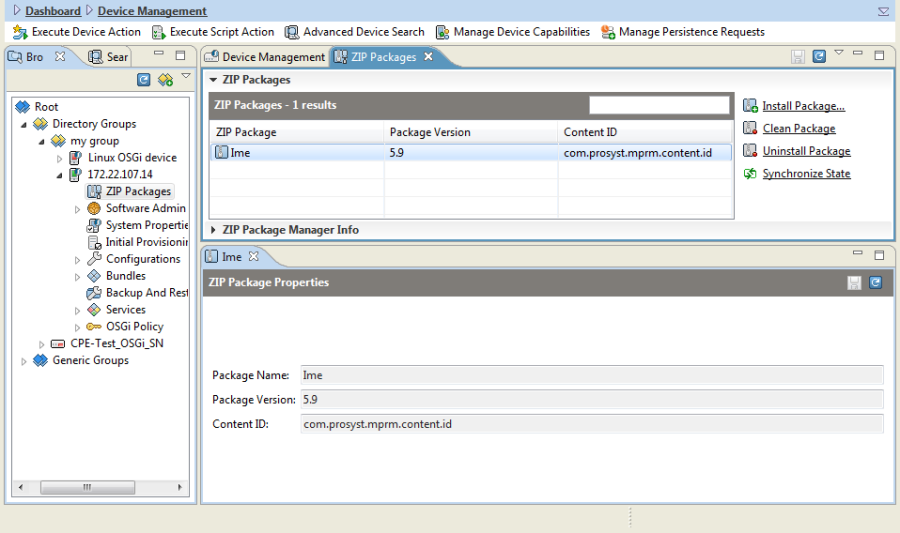
The following properties are shown for a selected ZIP Package:
- Package Name – The name of the ZIP Package.
- Version – The package version.
- Description – Free text describing the ZIP Package.
Use the Synchronize button update the list of ZIP Packages shown on the backend.
Installing ZIP Packages
To be able to install a ZIP Package, you have to add it to the Software Repository beforehand.
To install ZIP Packages to an OSGi device, select the ZIP Packages node from the device's tree, and then click the Install Packages command on the right. As a result, the following dialog will appear: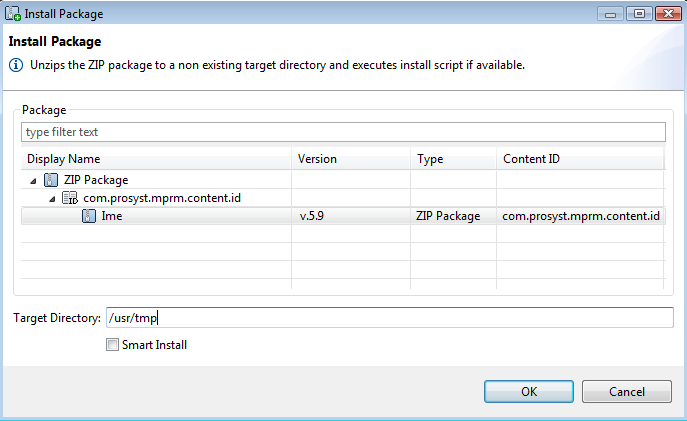
Select a ZIP Package from the Software Repository, specify the target directory to extract zipped content to. Use the Smart Install option to enable the smart install of the ZIP Packages. It will install the dependency packages of the currently installed ones if such are defined and available in the Software Repository.
Uninstalling ZIP Packages
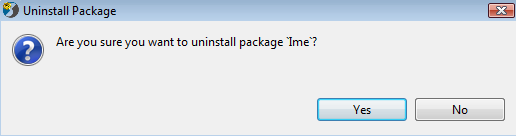
To uninstall ZIP Packages, select the package(s) from the ZIP Packages node and use the Uninstall Package command on the right. A dialog to confirm the de-installation of the package appears.
Cleaning ZIP Packages without Executing the Uninstall Scripts
If the execution of the uninstall script of a ZIP Package hangs during package uninstallation, you can still remove the package by using the Clean Package option.
Select the package(s) from the ZIP Packages table and use the Clean Package command. The package will be removed without executing its uninstall script.