General Description
The RM shows in a separate device sub-tree the software modules installed on a TR-069 device supporting SMM, part of TR-157 amendment 3 from the Broadband Forum, "Software Module Management using TR-069". In this way, RM offers a simplified and generic model of the software modules information on the device. By using its software modules management capabilities, you can handle the applications running on TR-069 devices with different characteristics in a unified way.
The root of the software modules tree is Software Modules and its sub-nodes are arranged by their execution environment as set up on the CPE, e.g. OSGi bundles are gathered under the EE (application/vnd.osgi.bundle) node and OSGi Deployment Packages - under EE (application/vnd.osgi.dp).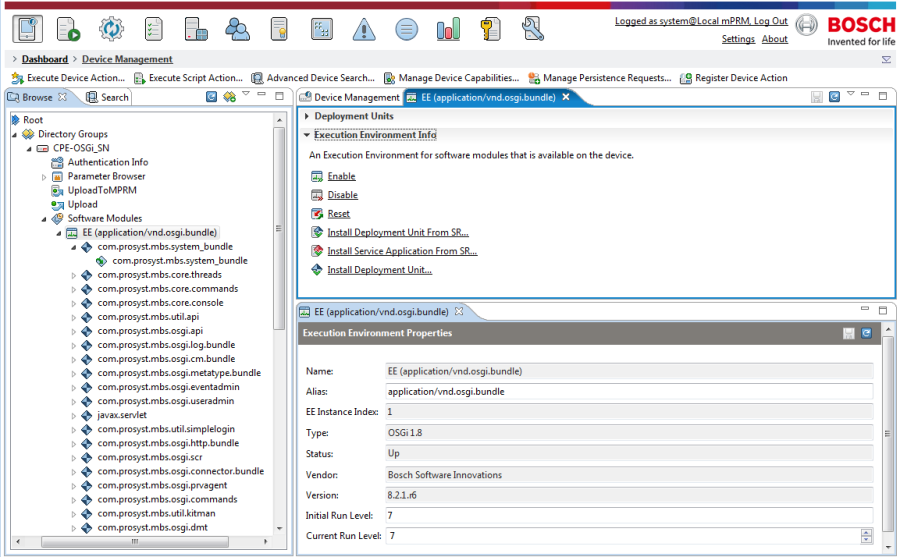
Figure 21: . Software modules tree.
Nodes of the Software Modules Tree
As previously described, the Software Modules tree is divided in the execution environments (EE) that the target device supports. EEs have the  icon. Each EE holds the deployment units (DUs) running in it. They are represented with the
  icon. Finally, each DU contains a set of execution units (EUs) represented by the
  icon.
icon.
The Console shows the properties of all component types within the software modules tree. Select a component and its attributes will appear on the right lower area:
- For an EE you can view its name, alias, instance index, type, status, vendor, version, specification version and initial and current run levels.
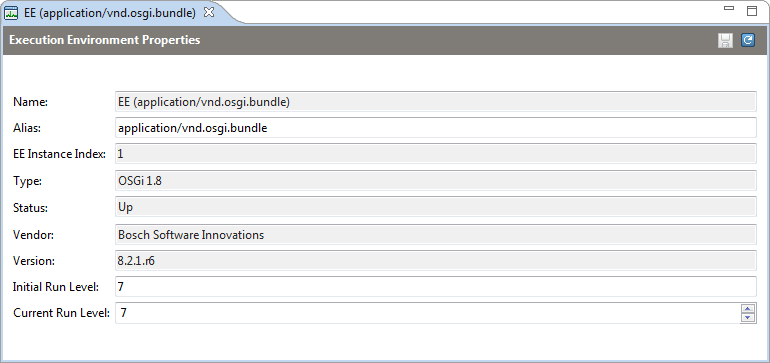
Figure 22: . The properties of an execution environment.
- For a DU the console shows its IDs, name, vendor, version, status, resolved state, the mapped EE tree node and EU ones, etc.
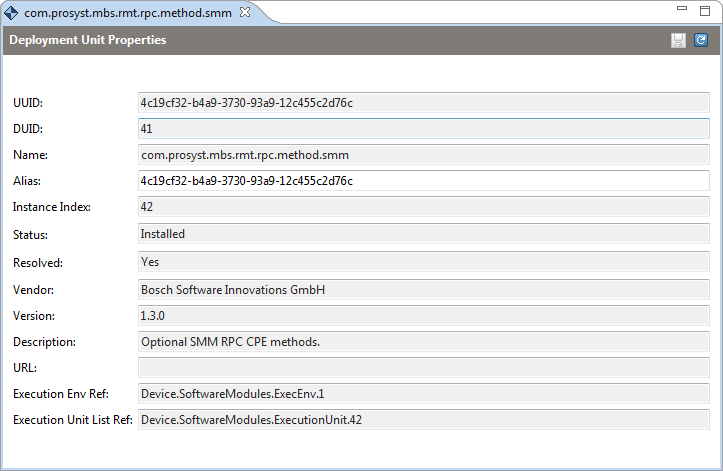
Figure 23: . The properties of a Deployment Unit.
- For an EU you can see its ID, name, alias, vendor, version, run level, auto start flag, mapped EE tree node, etc.
Figure 24: . The properties of an execution environment.
Managing Execution Environments
Enabling/Disabling an EE
To Enable an execution environment, right-click on it within the Software Modules tree and use the Enable command from the popup menu.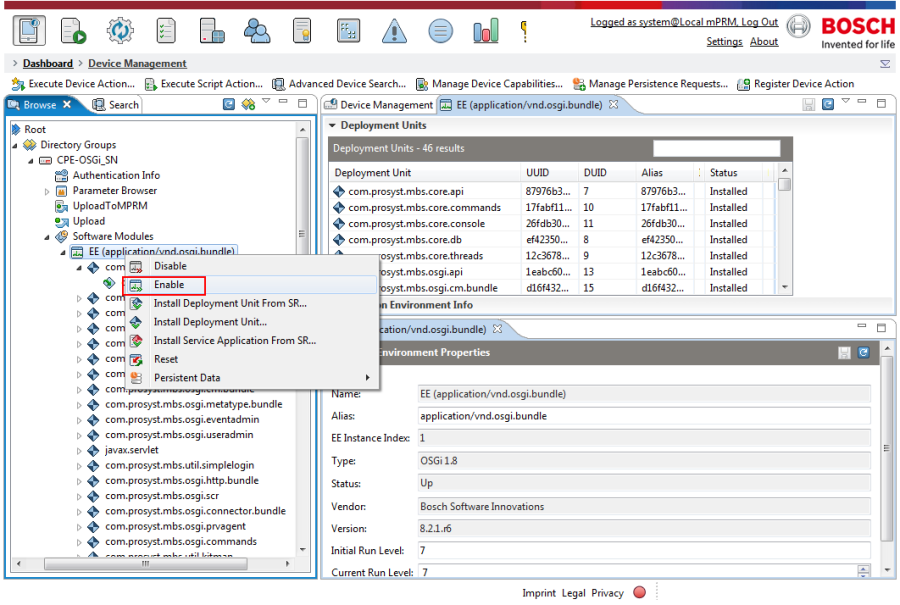
Figure 25: . Enable EE command.
To Disable an execution environment and transition its execution units to idle, right-click on it within the Software Modules tree and use the Disable command from the popup menu.
Changing the Run Level
The run level of an execution environment dictates which EUs will be started. Only those of them whose run level is equal to or smaller than the EE one will become active.
To change the run level of an EE, right-click on its node within the Software Modules tree and select the Change Run Level option from the popup menu. Enter the new level and confirm with OK.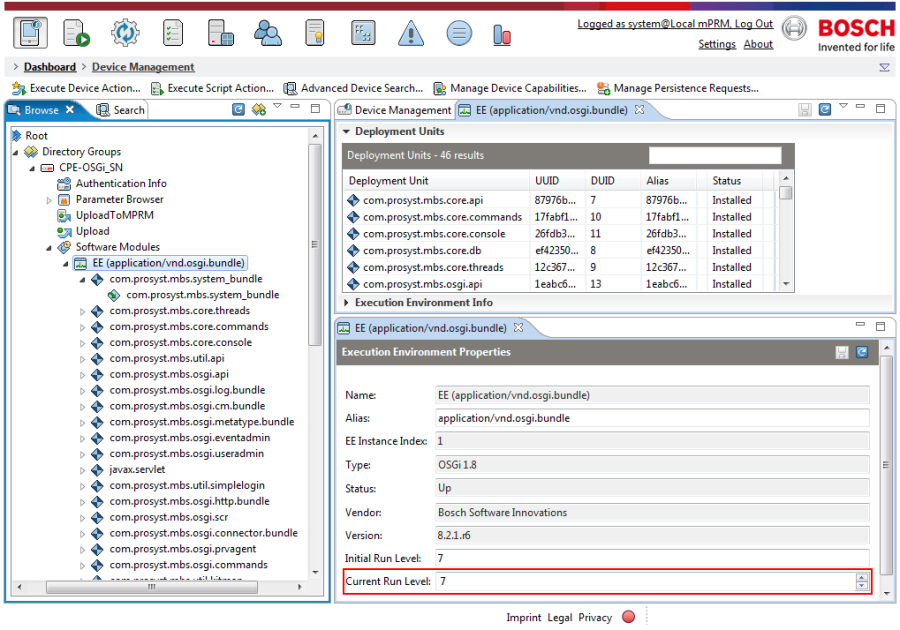
Figure 26: . Defining a new run level of an EE.
Handling Deployment Units
Installing and Uninstalling DUs
There are two options for installing a deployment unit on a CPE:
- from the RM Software Repository or
- from a location on a Web server.
Depending on the offline action mode of the device, the component will be immediately installed and you will be able to see it in the Software Modules tree or you will have to wait to the next time the device connects to the backend. The ACS leaves to the CPE to select on which EE to place the unit.
Installing DUs from the Software Repository
To install a deployment unit you have previously uploaded to the RM Software Repository:
- Right-click on the Software Modules main node or on an EE node and select Install Deployment Unit from SR.
- In the shown dialog, select the component to be installed and click OK. In the case of several modifications of the same component, the user can choose their common content ID and let the RM system choose the most suitable of them for the target device, or the user can directly install a concrete one.
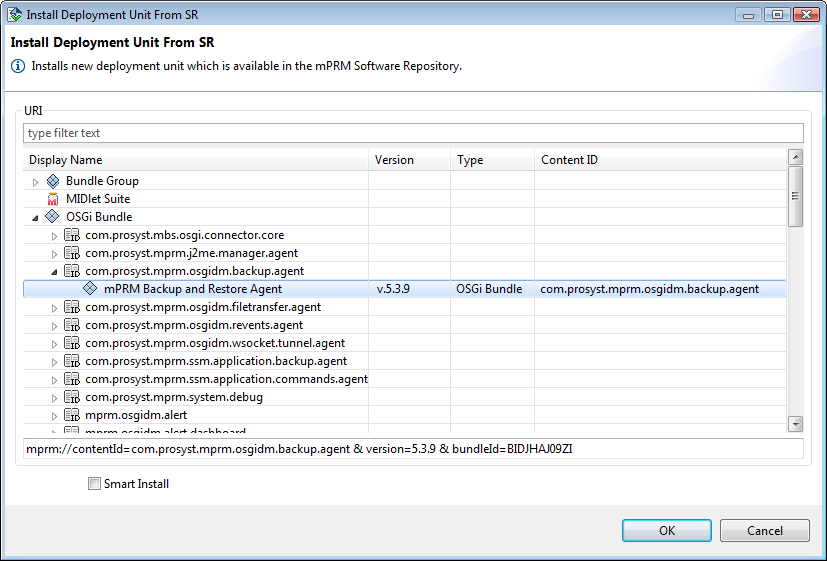
Figure 27: . Selecting a deployment unit from the Software Repository.
Installing a DUs from a Location on a Web Server
To install a deployment unit from a location on a custom Web server:
- Right-click on the Software Modules main node or on an EE node and select Install Deployment Unit.
- In the shown dialog, specify the URL where the unit is published, the UUID of the unit in the EE and the user account for the Web server.
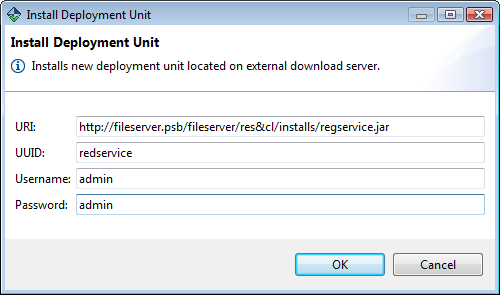
Figure 28: . Specifying the location of a deployment unit on a Web server.
- Click OK to start the deployment.
Uninstalling a DU
To uninstall a deployment unit:
- right-click on it within the Software Modules tree of the device and select Uninstall Deployment Unit or
- select the DU and press the "Delete" shortcut key from the keyboard.
Updating Deployment Units
You can update a deployment unit only with updates residing on a Web server.
Updating Deployment Unit from Software Repository
Right-click on its node within the Software Modules tree of the device and from the popup menu select Update Deployment Unit From SR option.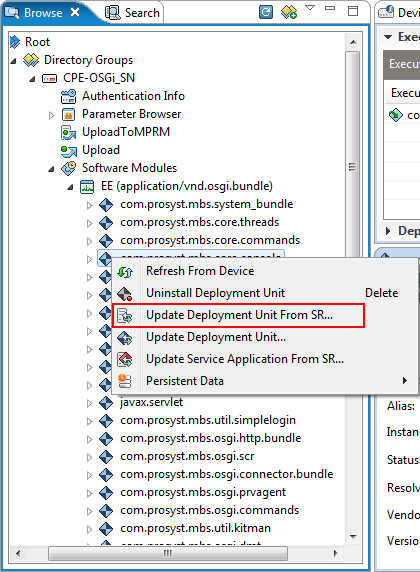
Figure 29: . Updating DU from SR.
In the following dialog box, that appears, specify the location of the unit and click OK to start the update: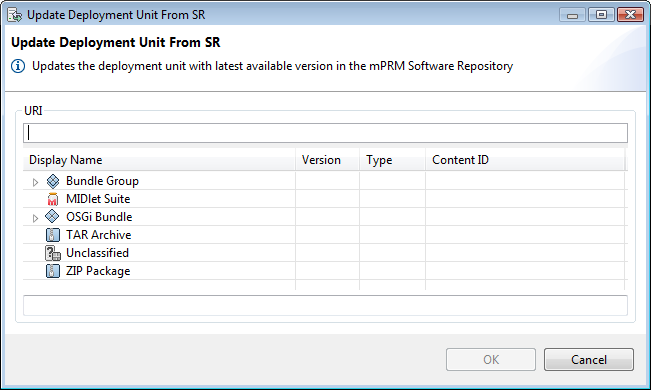
Figure 30: . Updating DU from SR dialog box.
Updating Deployment Unit from a Location on a Web Server
Right-click on the DU node within the Software Modules tree of the device and select Update Deployment Unit from the popup menu.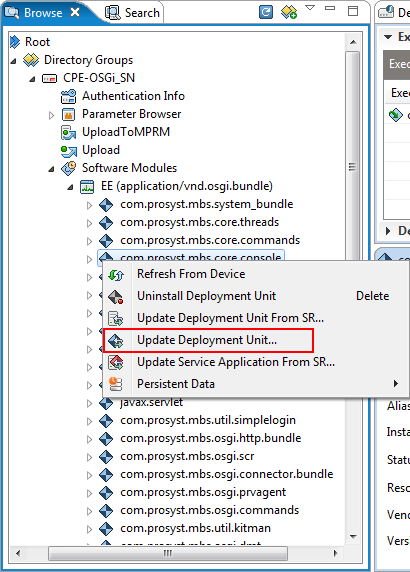
Figure 31: . Update Deployment Unit context menu.
In the following dialog box, that appears, specify the URL of the deployment unit as well as the Username and the Password, used by the CPE to authenticate with the fileserver. To start the update click OK.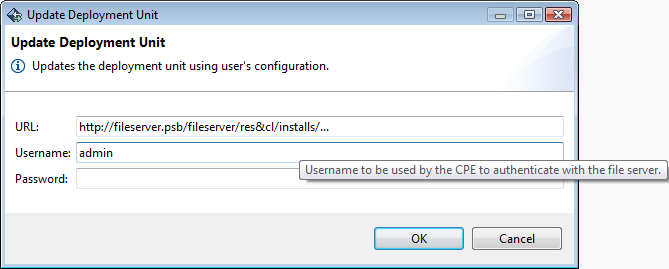
Figure 32: . Update Deployment Unit dialog box.
Managing Execution Units
Activating and Deactivating EUs
To activate an execution unit, select the unit within the Software Modules tree of the device and on the right click the Activate action. The status of the EU will become Active upon success.
Respectively, to deactivate EUs, click Deactivate. The status of the EU will become Idle.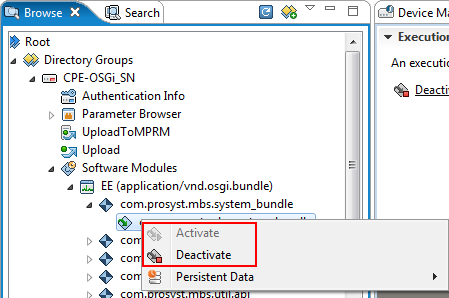
Figure 33: . Deactivating/Activating Execution Unit.
Turning Auto-Start On
To make an execution unit automatically started upon EE startup, you have to set its auto-start property to true. Select the EU's node from the Software Management Modules tree and on the right, select Yes from the Auto Start field: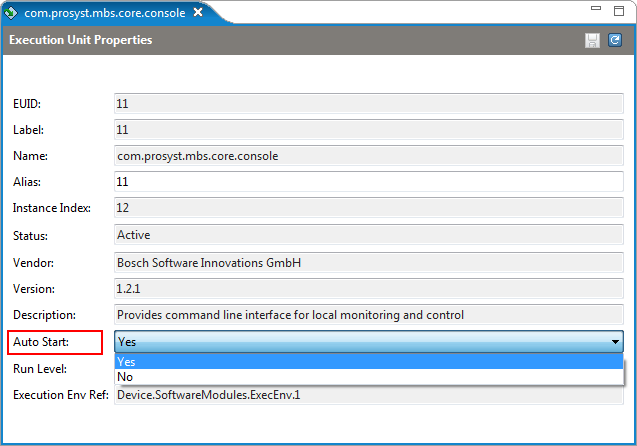
Figure 34: . EU Auto-Start property.
Altering the Run Level of an EU
The run level of an execution unit determines if it will be auto-started upon EE startup in case its auto-start is on - EU's run level should be less than or equal to that of the EE. To change the run level of the EU, select it from the Software Modules tree and modify the Run Level field on the right: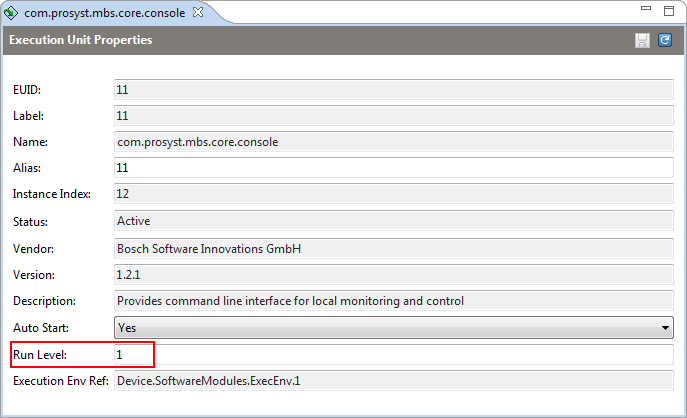
Figure 35: . EU Run Level property.
Managing Service Applications
Enabling the Service Application Management
The RM provides management for Service Applications in RMT.
- Connect the RMT.
- Install the following bundles from the EE (application/vnd.osgi.bundle) within the Software Modules node:
- RM Debug (symbolic name: com.prosyst.mprm.system.debug);
- Application Agent (symbolic name: com.prosyst.mprm.ssm.application.agent);
- SWAdmin Application Agent (symbolic name: com.prosyst.mprm.ssm.application.swadmin.agent);
- OSGi Bundle Plugin for Application Agent (symbolic name: com.prosyst.mprm.ssm.application.plugin.osgibundle.agent);
- HTTP Adapter for Application Agent (symbolic name: com.prosyst.mprm.ssm.application.comm.http.agent).
- Activate them via the Execution Units under every Deployment Unit.
- Refresh the Software Modules and as a result a new execution environment (EE (application/vnd.mprm.service_app)) is created.
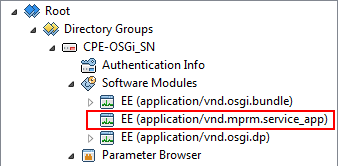
Figure 36: . New EE created - EE (application/vnd.mprm.service_app).
Installing Service Applications
From the EE (application/vnd.mprm.service_app) context menu select Install Service Application from SR action.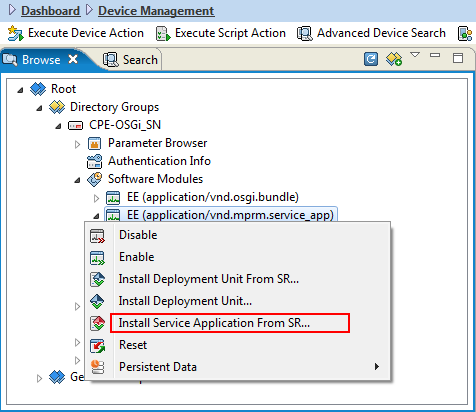
Figure 37: . Installing a new service application from SR.
A dialog box appears with the available new service applications on the SR. Select one or more and confirm its installation with OK.
Shift and Ctrl keys can be used for more convenient selection.
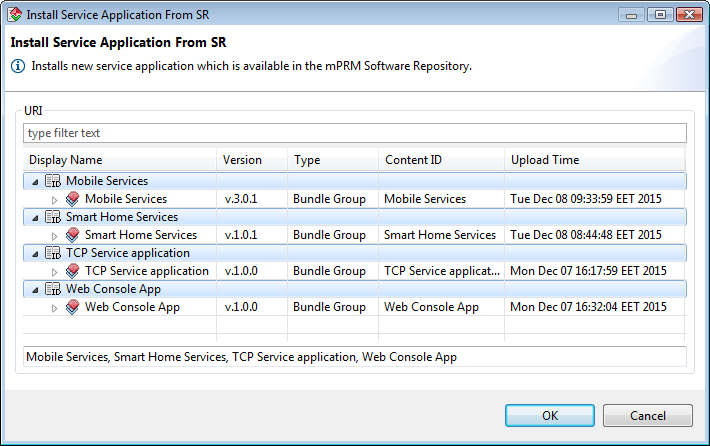
Figure 38: . The list of new service applications available in the RM Software Repository.
The result of the installation is a tree with the added service applications under the Service Application EE node: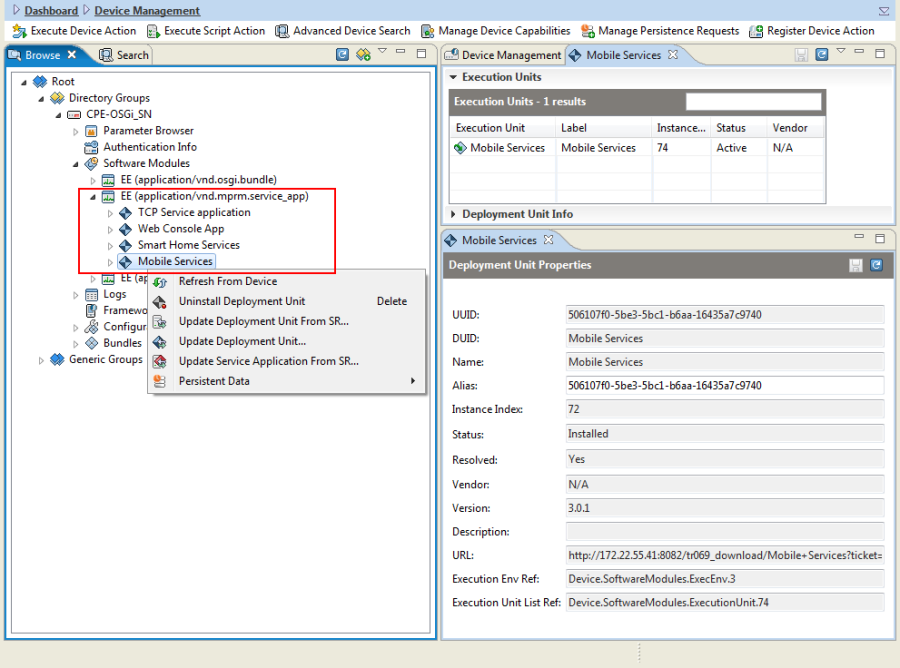
Figure 39: . The Service Application EE tree with newly installed service applications.
Updating a Service Application
To update a service application rightclick on it and select the Update Service Application From SR option from the popup menu.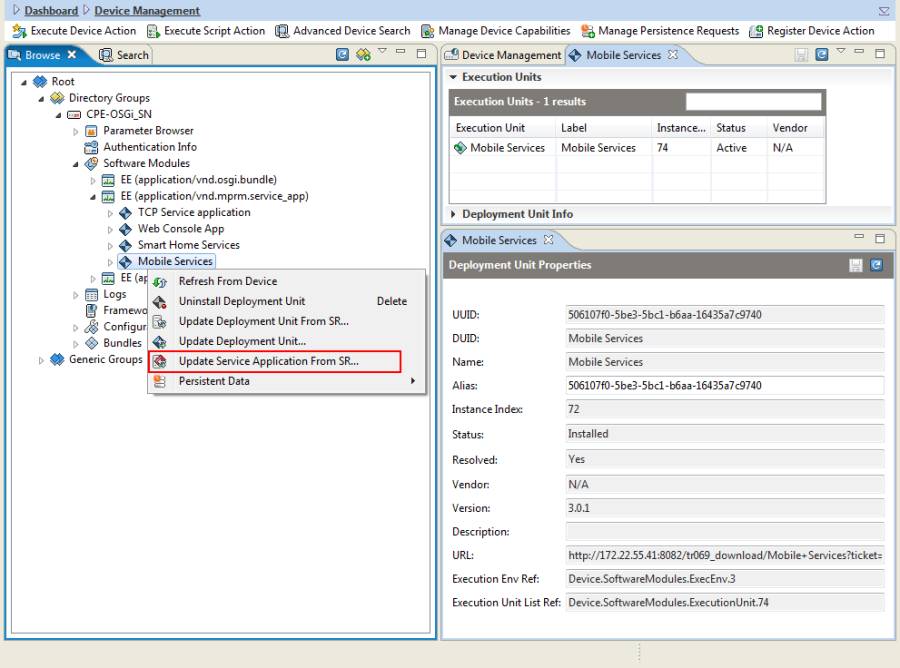
Figure 40: . Update service application from SR within the Service Application EE tree.
In the following dialog box choose the latest available version of the application to update to: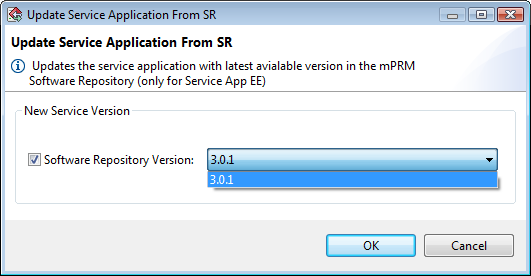
Figure 41: . Updating the selected service application with its latest version in the Software Repository.
The Install/ Update Service Application From SR commands are to be called only on Service Application EE and DU respectively. The default Install and Update commands are NOT be called on Service Application EE and DU either.