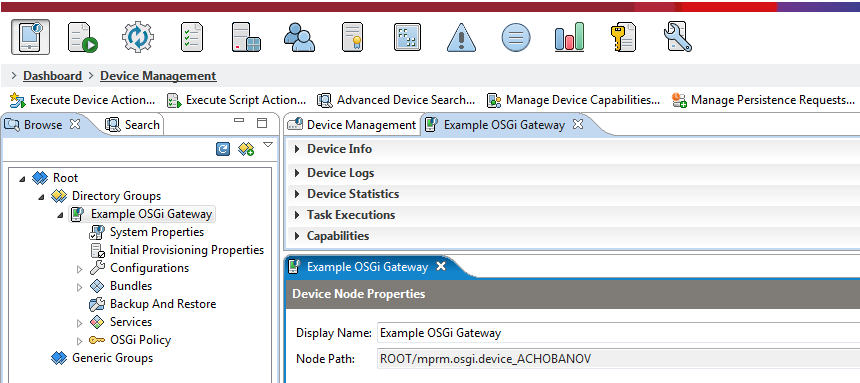
Basic Authentication of OSGi Devices can be enabled by following the steps below:
- Enable basic authentication on the Remote Manager by setting the system property osgidm.client.basic.auth.verifier=true in the default.prs file.
- Alter the OSGi Device Authentication settings in Remote Manager.
Go to Device Node Properties under Device Management and navigate to the OSGi Device option. Under Authentication the Require Device Authentication property needs to have value Yes. Type in the desired values of the username and password properties. 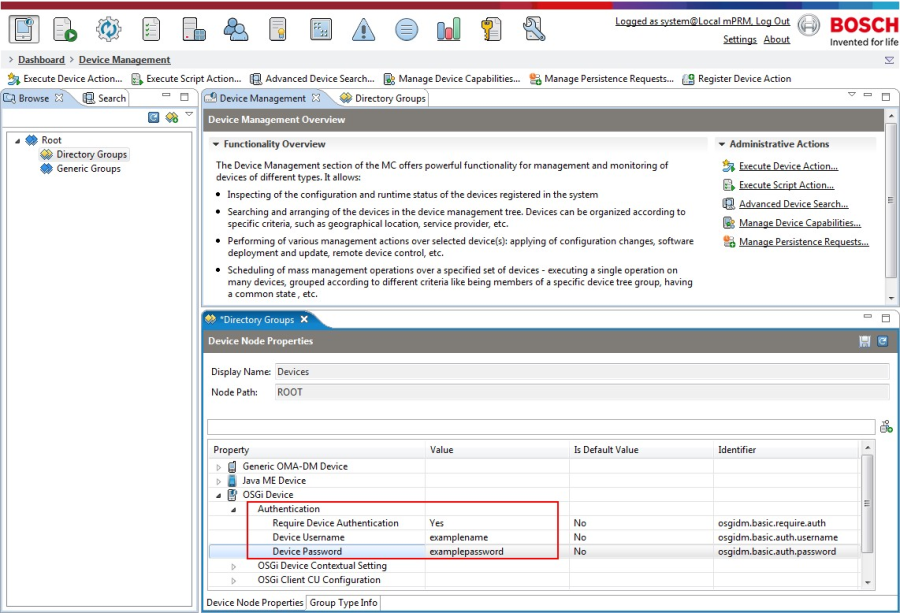
The username and password properties that Remote Manager will require from the OSGi Device can be set per-device or per-group via the corresponding Node settings option.
- Some minor alterations have to be done on the OSGi Gateway/Device side as well. The needed system properties need to be supplied and this can be achieved easily by typing them in the corresponding (e.g. common.prs) file. In our example they will look as follows:
enable.basic.auth=true basic.auth.username=examplename basic.auth.password=examplepassword- Register the OSGi Device as described in the Registering New OSGi Devices page.
Once the OSGi Device is Registered with the correct username and password it will be visible under Directory Groups.