Bosch IoT Remote Manager provides Advanced Device Search capabilities, related to the Control Units concept, that come in handy when crystal-clear filtering is needed. Information on the simpler device search option can be found in Managing Devices.
Performing an Advanced Device Search
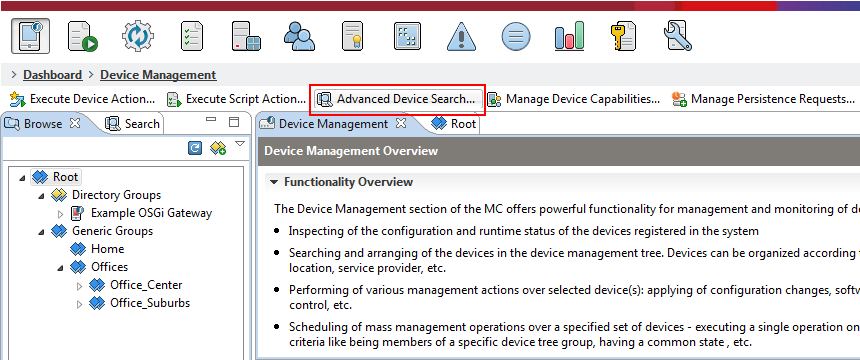
Remote Manager's Management Console allows more complex searching for specific devices or a group of devices that match particular search criteria like ID, display name, date or property value etc. The Advanced Device Search action can be found under the Device Management view, as seen in the screenshot bellow.
Device Type and Tree Node
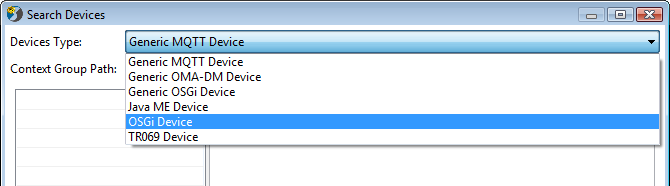
Clicking on the Advanced Device Search button opens the Search Devices dialog. Select the desired type of device from the Device Type drop down menu as shown in the screenshot bellow.
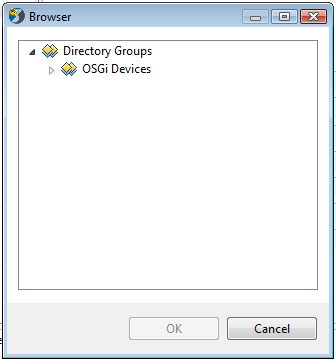
Clicking on the  icon on the right side of the Context Group Path field will open the Group Path browser dialog. Select the target node from the device management tree and click OK.
Creating a Filter
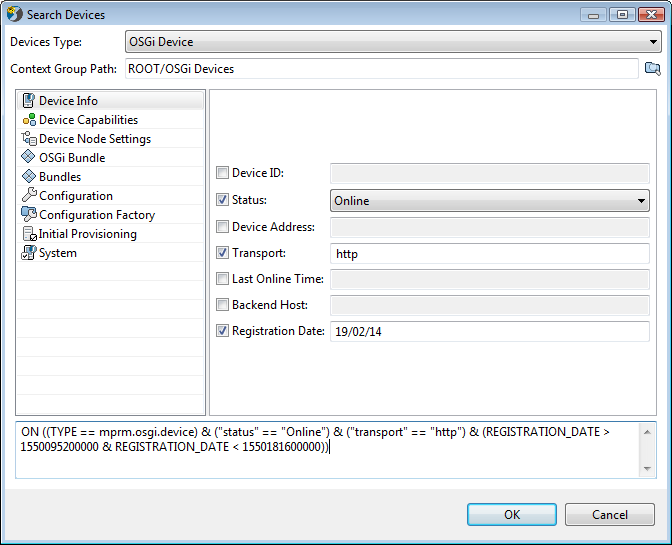
Once the device type is selected the two areas bellow will be populated with specific search criteria options different for every type of device.
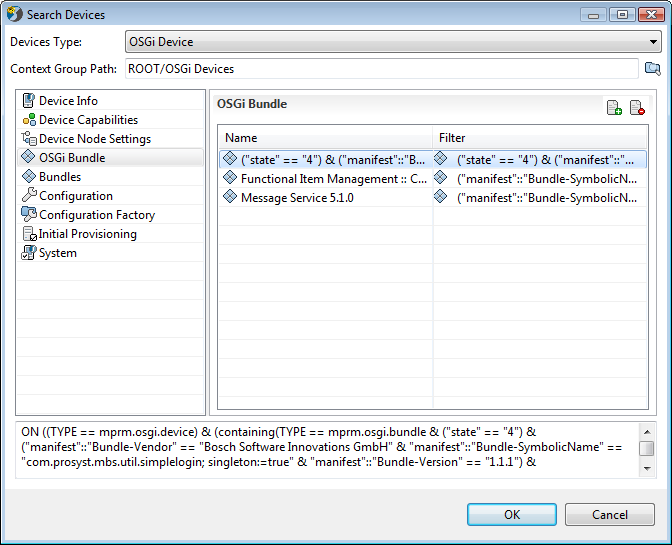
The left side of the window contains the available component types that are specific for every type of device. In this aspect these component types act as search modes. The right side of the window changes in accordance with the selected mode and contains the concrete mode's search criteria. Most of the filters' values have to be either typed in or selected from a drop down menu. Every change on the search criteria is also added automatically to the bottommost general filter.
Some search modes have their criteria organized in a different way. For example the OSGi Bundle mode opens up a two-sided name and filter field that can be populated by adding components.
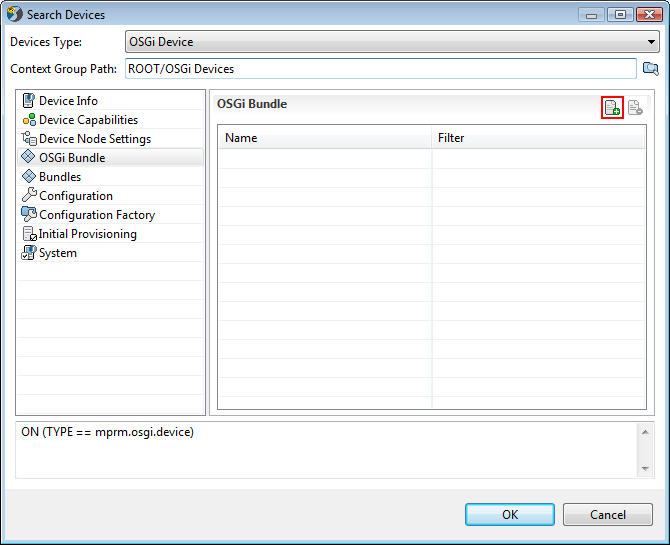
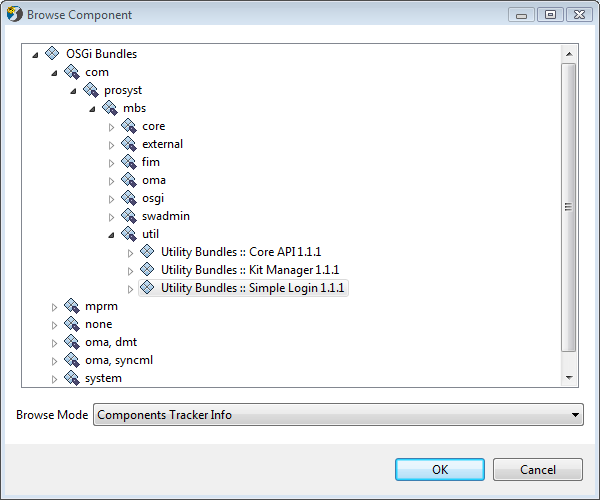
The desired bundle can be selected from the Browse Component window.
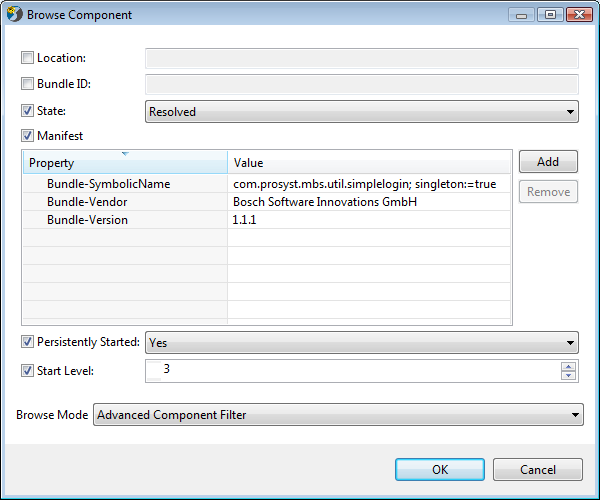
After the bundle is selected the Browse Mode can be changed to Advanced Component Filter for even more specific criteria like State, Bundle ID or Start Level. You can select as much bundles as needed.
Once the criteria is set, all fields will be populated, including the General filter at the bottom.
Ready-to-use Filters
Complex search is also possible through a filter that has been already generated. This field is automatically filled in after every search criteria change but it can be also edited manually. Paste the filter and click OK.

New search criteria have to be written in accordance with the Control Unit filters syntax. For more information refer to Control Unit Filters.