Overview
To access the Task Management dashboard click on the  icon located on the top section of the RM Console.
The Task Management dashboard view has two main areas:
Search Result area on the left side for specifying the task to be seen on the right side area.
Task Management area on the right side for showing the results matching the specified criteria from the Search Result area.
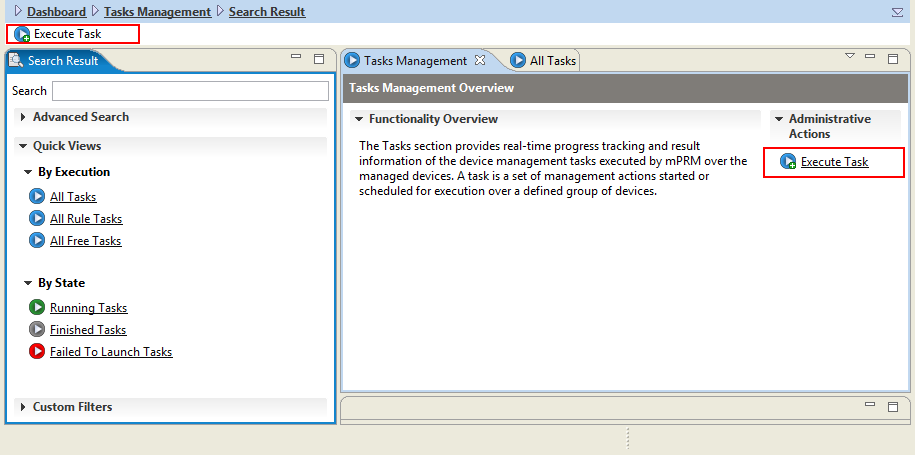
The Search Result part of the Task Management dashboard view contains the following expandable sections for filtering displayed information:
Advanced Search – allows defining a set of criteria to apply on searching Tasks.
Quick Views section – contains ready-to-use shortcuts for listing tasks:
By Execution – the options provided are All Tasks, All Rule Tasks and All Free Tasks.
By State – the search options are Running Tasks, Finished Tasks and Failed To Launched Tasks.
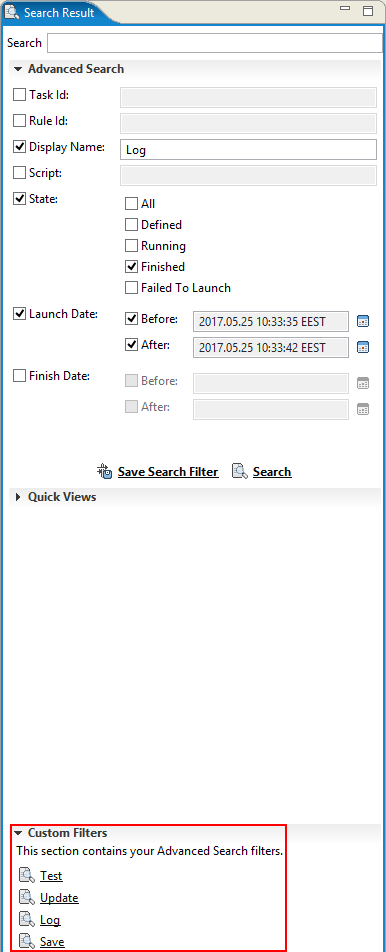
Custom Filters – contains shortcuts to filters created in Advanced Search and saved for further use.
Initially, there are no Tasks shown on the console.
Creating/Executing a Task
The Launch New Task Wizard
The Launch New Task wizard allows you to create and execute your own Tasks, following the next steps:
Click the Tasks Management menu icon
on the top section of the RM Console.Select Execute Task outlined in red in the figure above.
Add the script to be executed, e.g. for installing a bundle on all OSGi devices:
target.installBundle('mprm://contentId=mprm.osgidm.osop',false,true,null);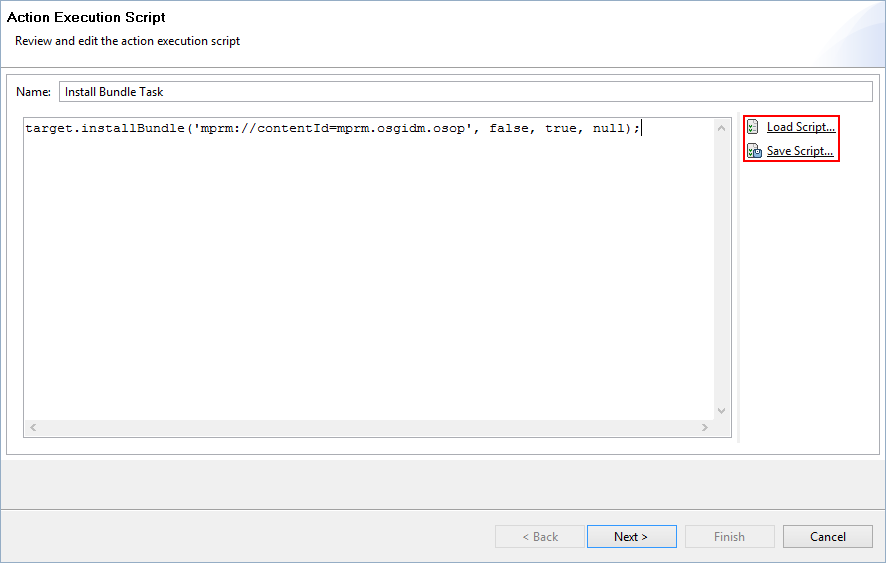 The Load Script and Save Script commands are here provided to allow loading previously saved scripts or saving the script for further usage.
In the next Execution Scope window two types of scope can to be chosen – Device Filter Scope and System Target Scope. According to the script above, select all OSGi devices by choosing Device filter Scope and for Device Type Selection: OSGi Device. Then apply that for the Root.
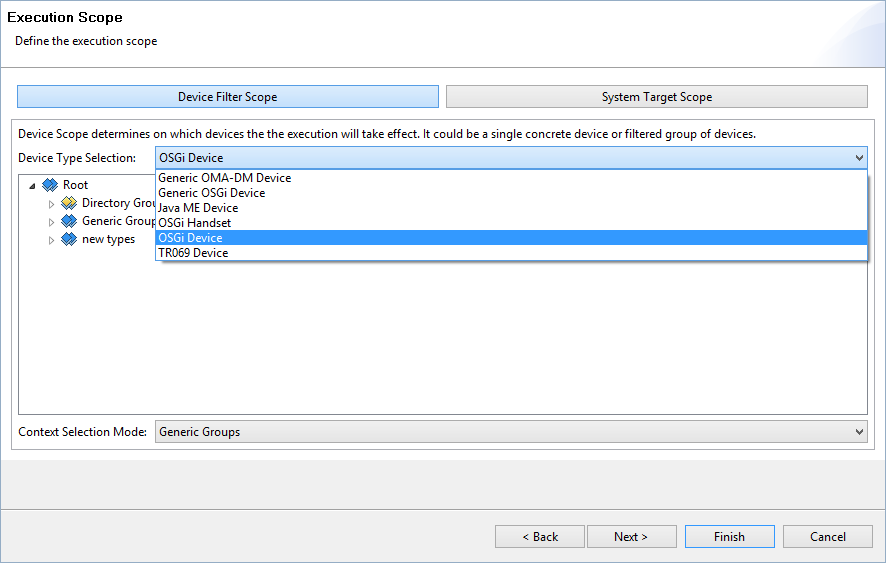
The Contest Selection Mode – the last drop-down menu of the Execution Scope screen, provides selection of a Context Mode among Generic Groups, Custom or Groovy Device Filtering, Groovy Device Listing and Select Saved Custom Device Filter.
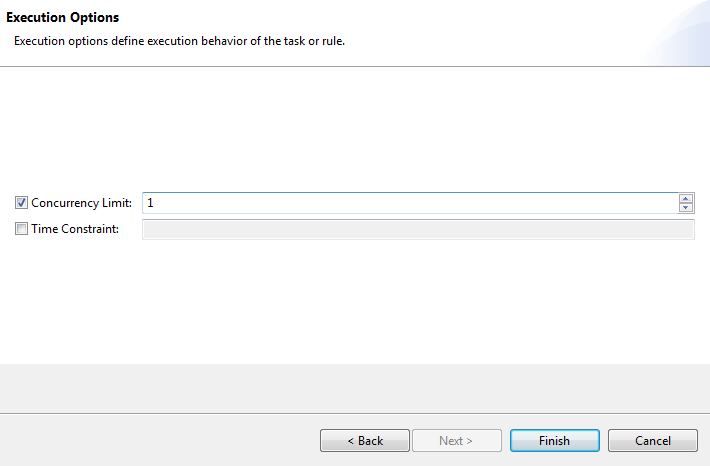
Select the execution options to define the behavior of a task:
Concurrency Limit – any positive number N; indicates that the Rule Engine will launch the task to no more than N (concurrency-limit per host) number of devices simultaneously.
Time Constraint – Crone Expression.
After a click on Finish, the result of the execution is presented in the Overview tab of the Task Details section, which can be later viewed.
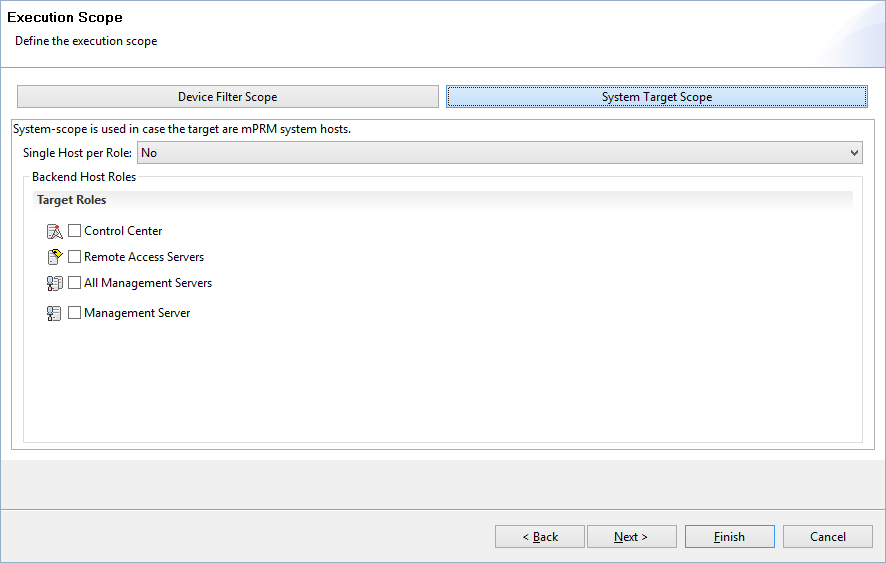
The System Scope defines a set of backend RM hosts that have to execute the task action:
Searching Tasks
The task search is provided by:
Search option from the Search Result tab – allows to quickly find a Task by its name. Entering e.g. "install" in the search field will result in viewing all tasks with "install" string in their name.
Advanced Search option – allows defining a set of criteria to apply on searching tasks, as can be seen from the figure below:
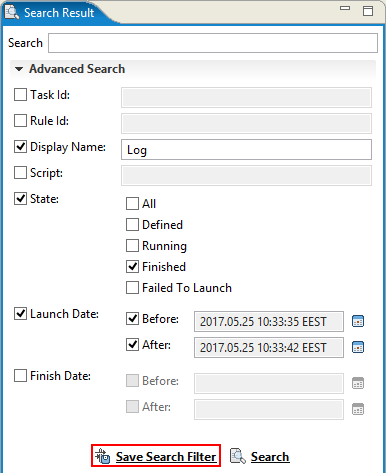
The Save Search Filter option in red above allows saving filters later to be used via Custom Filter option:
Monitoring Tasks
The Quick Views section from the Search Result area allows to quickly filter the tasks to be monitored by ready to use shortcuts as described in the beginning of the section.
To monitor a task go to 'All Tasks' option from the Search Result section and select the task to be monitored.
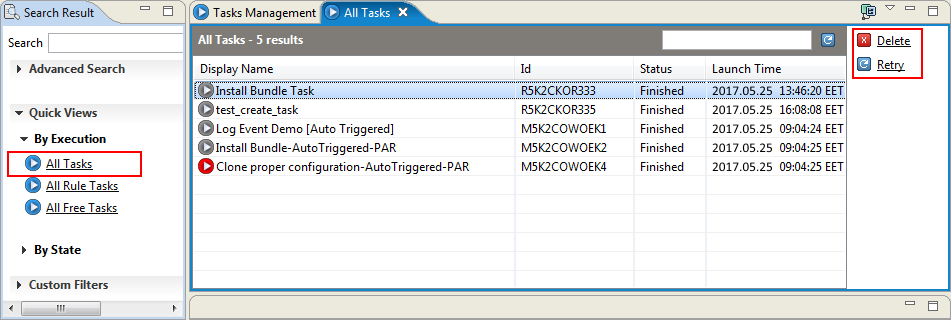
The Task Execution management provides detailed status information about the selected task. It allows monitoring the execution parameters (state, involved devices, times triggered, etc.).
The detailed info is organized in two tabs:
Overview – provides detailed information about the selected Task.
Execution Status Details – provides task filtering by:
execution status or by
device.
The 'Overview' tab provides task details as its Properties, Status, Scope, Execution Options, Details of the Script, Actions in the Task Details window:
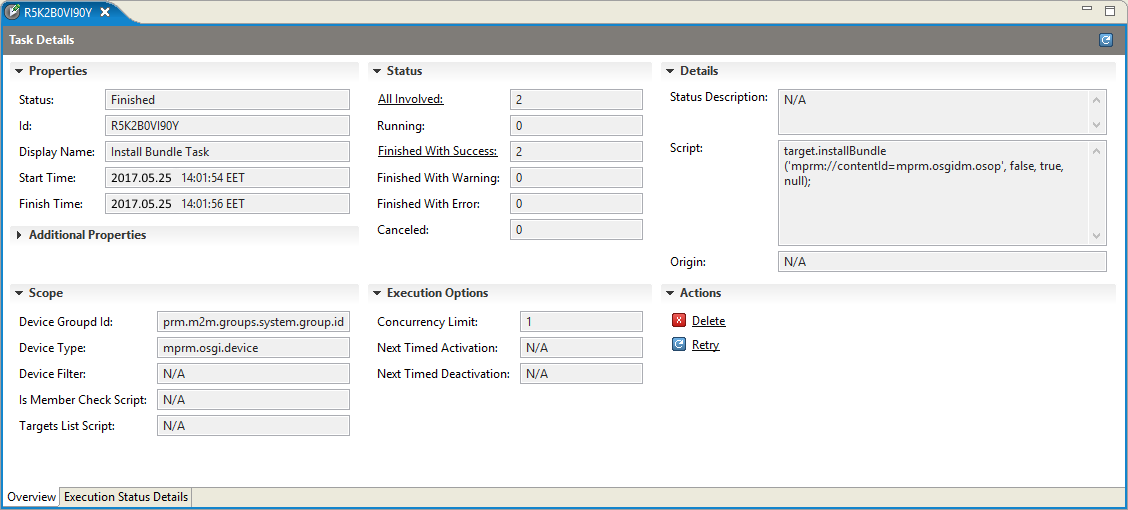
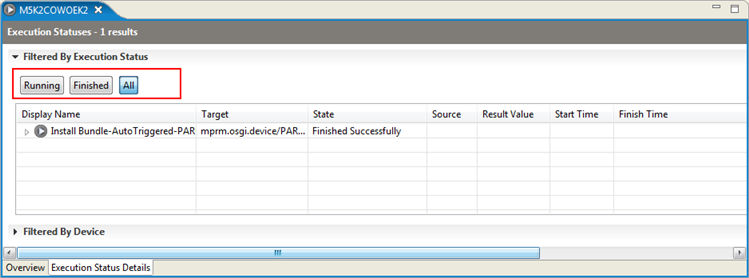
Next to the 'Overview' tab there is the 'Execution Status Details' tab to filter the task executions by status or by device. Below is the result of a task, which is executed twice and the state of both task items is 'Finished Successfully':
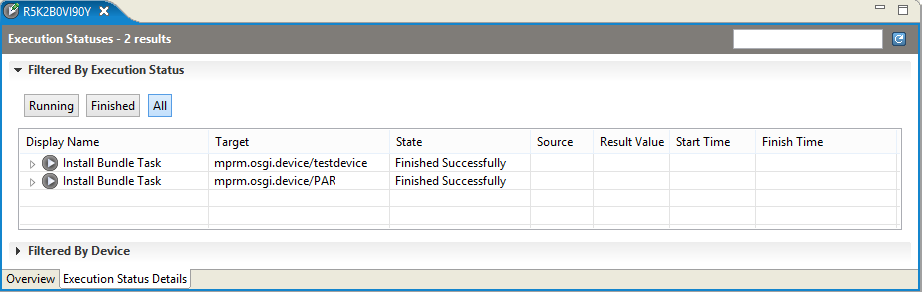
The 'Filtered By Execution Status' pane provides three options to filter the task executions – by the states of Running, Finished and All: