Managing a Device Node
Device Status and Properties
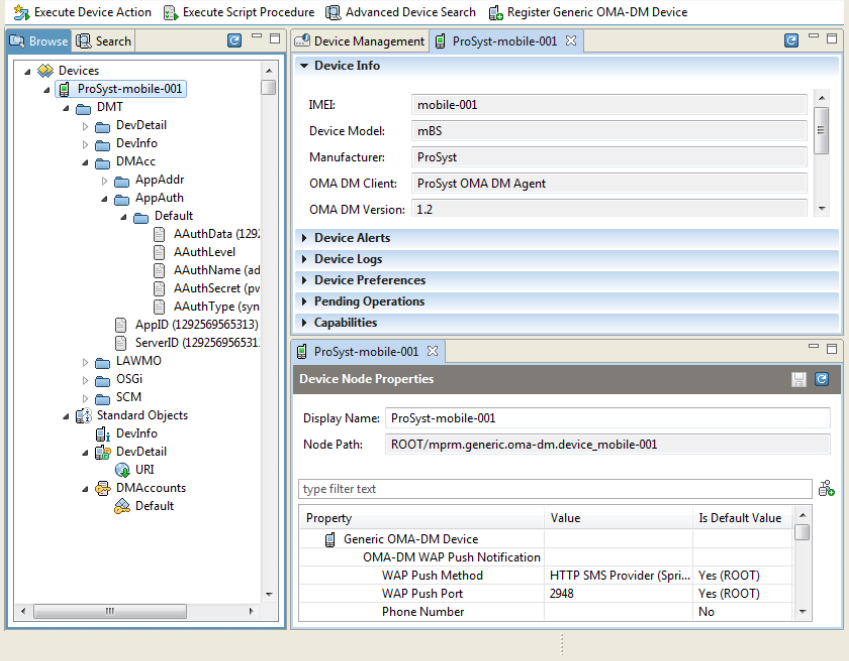
The Management Console shows the device management tree of RM in the Device Management dashboard view - click the  button at the top, or select Dashboard from the navigation bar and open Device Management.
OMA DM devices are labeled with their IMEI if explicitly defined or with their vendor and IMEI if they initially contacted RM, and are represented by special device subtrees including the DMT of the device.
Depending on its connection status, each device is shown as  when it is online and as
  when it is offline.
In general, for a selected device Device Info expandable section shows properties of the device with regard to its communication with the RM. The Device Node Properties pane on the right contains node settings for configuring OMA DM communication, authentication and general behavior (see OMA DM Network Connectivity). The information available in the other sections is generally provided by the RM generic device management system.
Device Info
IMEI - The ID of the device, usually this is its IMEI as set in the ./DevInfo/DevId node of the device's DMT.
Device Model - The model of the device as provided in the ./DevInfo/Mod node of the device ' s DMT.
Manufacturer - The manufacturer of the device as specified in the ./DevInfo/Man node of the device's DMT.
OMA DM Client - The DM client implementation running on the device.
OMA DM Version - The version of the OMA DM client implementation as specified in the ./DevInfo/DmV node of the device's DMT.
Language - The language supported on the device as specified in the ./DevInfo/Lang node of the device's DMT.
Protocol Version - The vesrsion of the OMA DM Protocol in use on the device.
Session Status - The status of the selected mobile device - online or offline.
Device Address - The address of the device. This information is available if the device has connected to RM at least once.
Latest Session Time - The last time when the device has connected to RM.
Device Node Properties
Display Name - The user-friendly name under which the device appears in the devices tree. By default, a device is displayed with its ID. If you have modified the Display Name, click the Save button to save it persistently.
Node Path - The path of the selected device node in the devices tree.
Node Settings - Settings used in the SyncML communication of RM with the device. See the OMA DM Network Connectivity document for more information.
A Device's Node Description
For each device, which has connected to RM at least once, the Management Console provides a user-friendly representation of the device's DMT showing the following basic nodes:
DMT - Represents the actual DMT of the device. Its content and structure can be explored through the Generic DMT Browser.
Standard Objects - Represents OMA standard management objects in a user-friendly way. Mainly by collecting information with common purpose, originally available in several nodes, in one place.
Registering a New Device
To have a mobile device registered in a special group when the device connects to RM for the first time:
Select the group to register the device in.
Call the register command in one of the following ways:
Right-click the mouse over the selected group and from the popup menu select the Generic OMA-DM Device -> Register Device option.
Click Register Generic OMA-DM Device from the toolbar.
In the Register Device dialog that appears, type the ID of the device (usually its IMEI) and confirm with OK.
As a result, the newly defined device will be inserted in the device tree. Initially, it will have only an empty DMT node attached, which allows you to retrieve device's DMT when the device calls RM. The other node, Standard Objects, will become available after the device contacts RM over the OMA DM protocol and the backend is able to retrieve the needed information.
Refreshing Data from the Device
When using persistent DM sessions (see OMA DM Network Connectivity), the RM allows you to explicitly synchronize the data stored in the RM database with the data of a mobile device so as to view in the RM the changes that have occurred on the device in the meantime.
To update the configuration of a selected device in RM, from the Devices tree right-click the root node or some of the subnodes of the device you want to refresh data from and select Refresh from Device from the popup menu.
Deleting a Device from the Device Tree
To unregister a device from RM in order to clear the devices tree from devices which will no longer be used in the system:
From the Devices node of the Management Console Device Management view, right-click the device root node or a subnode from the device's tree.
Call the Delete Device command from the popup menu.
As a result, the device will be removed from the Devices node.
As RM allows devices to automatically register themselves in the system at their initial connection to RM, it is possible that a deleted device reappears again in the devices tree after it was deleted.
Downloading and Updating FUMO Action
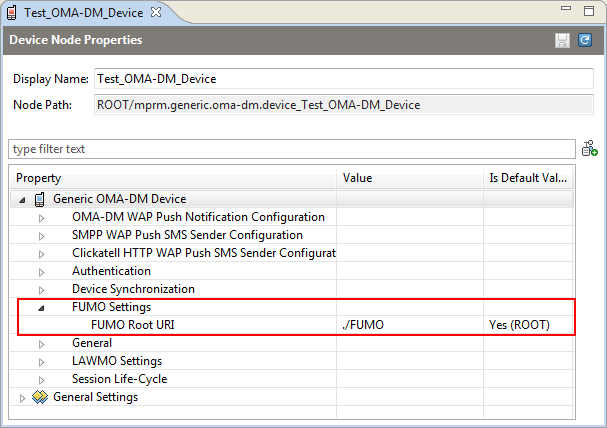
The current supported action of the Firmware Update Management Object (FUMO) support of the Mobile Device Management Package is the DownloadAndUpdate action on existing FUMO node. The FUMO settings of a OMA-DM device can be found in the Device Node Properties pane to the right:
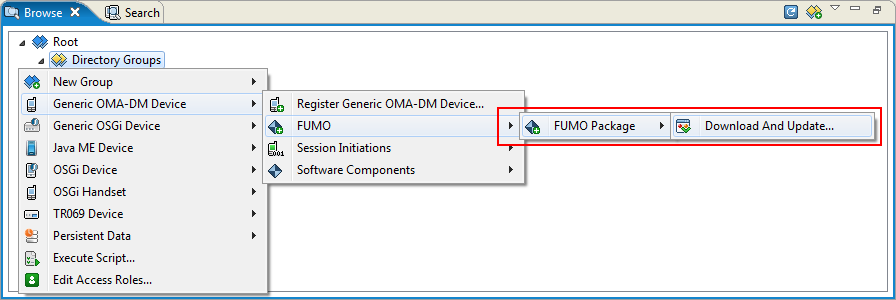
The action can be selected for a single mobile device with the FUMO option from its context menu or for all devices of a device group via the Generic OMA-DM Device option from the group context menu and then selecting the FUMO and FUMO Package options:
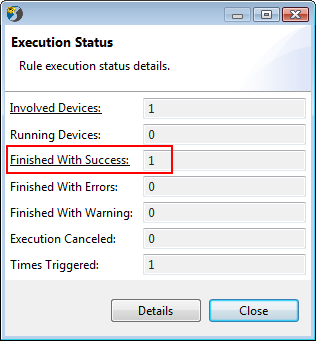
If the Advanced "Download and Update" Execution dialog boxes that appear, are properly populated, then the result will be shown in the Execution Status box:
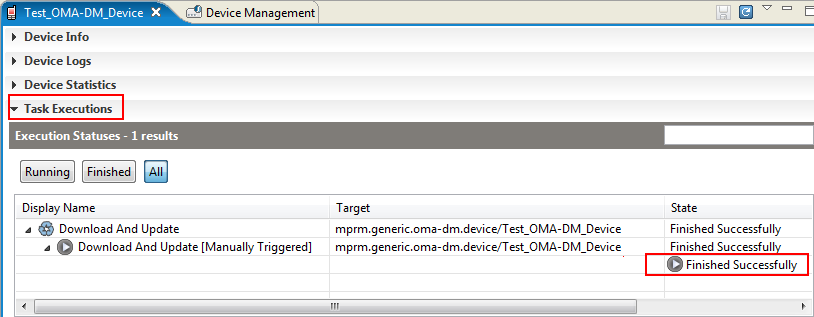
More information about the execution process is provided in the Task Execution expandable section from the right pane of the selected node:
Device Management in Persistent and Transactional Session Modes
If a command is executed on a single online device in persistent session mode, it is immediately sent to the device and the Management Console reflects the change right away.
If a command is executed on a single device which is not connected to RM because the device is communicated in transactional session mode or the device is managed over persistent sessions but is off, the Management Console will inform you that the operation is pending and it will be executed the next the device connects to RM.
Such pending operations can be explorer in the Pending Operations expandable section of the target device and possibly canceled from there. Subsequently, when the device connects, RM will push all pending operations to it.
Starting a Server-Initiated Session
Besides initiating a management session from the device to RM, it is also possible that RM requests the device to open a connection by sending a WAP Push notification message based on the node settings OMA-DM WAP Push Notification Configuration and SMPP WAP Push Sender Configuration in the Device Node Properties on the right (see "Session Initiation" from the OMA DM Network Connectivity conceptual guide).
Before starting a server-initiated session, configure the OMA-DM WAP Push Notification Configuration node settings for the device or for a group it participates in - the settings are available on the right when selecting the device or group.
Right-click the device node and from the popup menu select Session Initiations -> Send Session Initiation Message. A dialog for specifying the user interaction mode on the device for starting the session will appear:
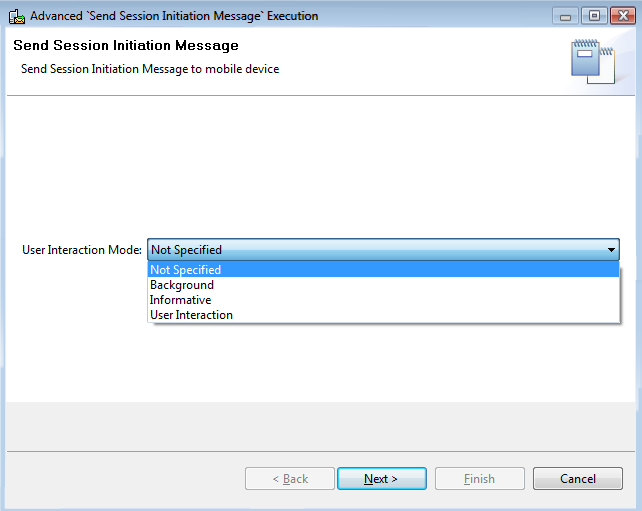
Background – The session will be initiated in the background transparently to the end user.
Informative – The end user will be informed of the OMA DM session launch.
User Interaction – The end user has to confirm the starting of the OMA DM session.
Select Finish to send the notification right away.
If you to want to further check the settings of the resulting operation, such as advanced filtering of target devices, settings of the management operation (schedule the operation, make it periodic, etc.), use the Next button.
Managing the DMT of a Device
The Management Console provides a visual interface to RM's generic browser for device DMTs. Management Console shows the DMT communicated from the device under а node DMT, attached to the device root node (see the top figure).
The Management Console shows the DMT node properties sent by the device the last time it has connected to RM.
The commands available on a node are defined in the OMA DM Protocol specifications. Generally they are Add (adds a new node), Replace (change the value of a leaf node), Delete (remove a node) and Exec (exec an operation represented by the node).
You might not be allowed to execute some commands on specific nodes due to ACL restrictions defined on the device or due to restrictions imposed by the node's metadata.
Executing the Add OMA DM Command
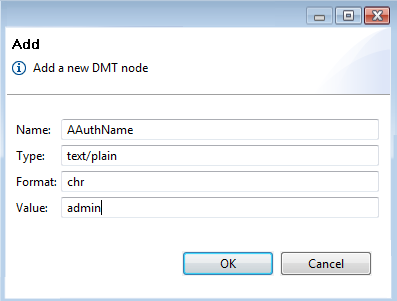
The Add command is available for interior nodes. Right-click an interior node and use Add from the popup menu. Then, enter the required data according to the node's semantics and obeying the format defined by the OMA DM specifications. Click OK to execute the command.
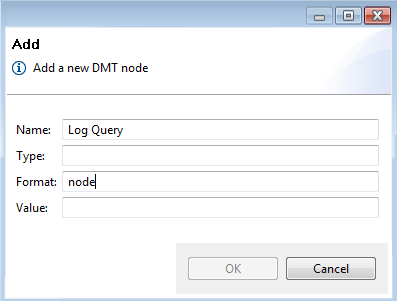
Adding a leaf node, e.g. for a user name:
Executing the Replace OMA DM Command
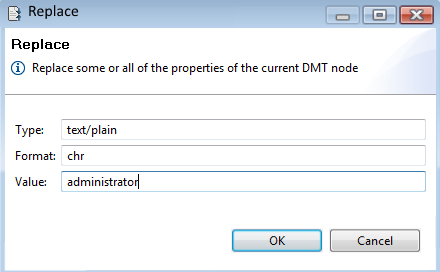
The Replace command changes the data of a specific leaf node. Right-click a leaf node and use Replace from the popup menu. Then, enter the required data according to the node's semantics and obeying the format defined by the OMA DM specifications. Click OK to execute the command.
Executing the Delete OMA DM Command
The Delete command removes a node from the DMT. Right-click a node and call Delete from the popup menu.
Executing the Exec OMA DM Command
The Exec command launches a process on the device using data from specific nodes depending on the concrete case. Right-click the node specially defined for your Exec operation and select Exec from the popup menu, according to the semantics of the Exec operation set needed input data to the required DMT node(s)
Managing Standard Objects
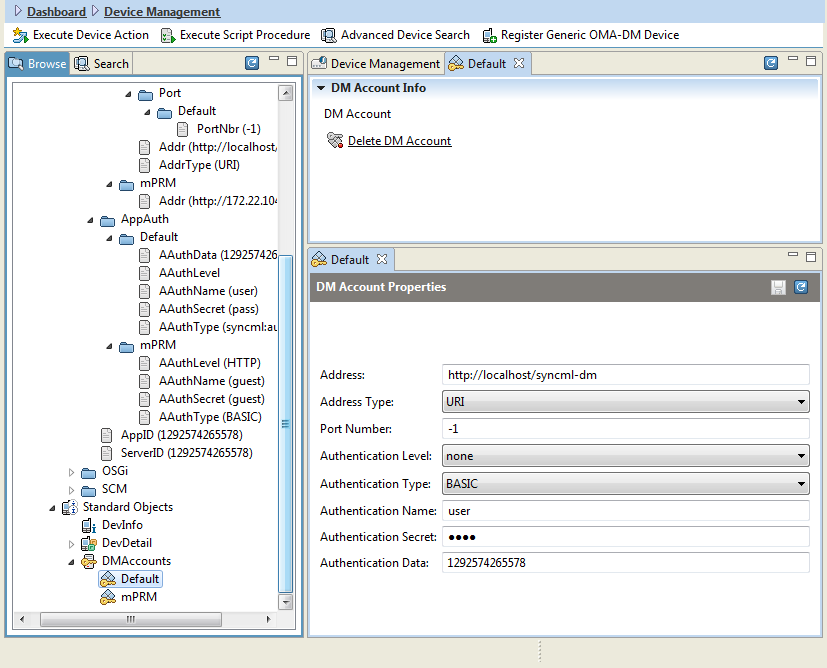
OMA DM standard objects are separated in the Standard Objects sub-node of the mobile device node. This node provides a sub-tree holding the standard objects - DMAccounts stands for ./DMAcc, DevDetail stands for ./DevDetail and DevInfo stands for ./DevInfo. Basically, the improved representation of these nodes is showing on one place information for a single entity (e.g. a management server), originally available in several nodes. In addition, node values can be specified in user-friendly way without the need of executing raw OMA DM commands.
The information contained in DevInfo and DevDetail is not editable, you can change only the data of DMAccounts/<server_name> nodes.