This document contains a user's guide to managing MIDlet suites in the Software Repository through the Management Console.
For further information about the concepts of the Software Repository, refer to the Software Repository package documentation.
Accessing the Contents of the MIDlet Suites in the Software Repository
The Software Repository manages information about OSGi-aware MIDlets. A MIDlet is an application that runs in a MIDP environment. One or more MIDlets packaged together for distribution are called a MIDlet suite. MIDlet suites are represented as client bundles with a concrete type - MIDlet Suite.
Keeping MIDlet Suites in the Software Repository allows device operators and service providers to install software on devices with MIDP support from the RM backend over OMA DM.
You can easily get the MIDlet Suites you have access to in the Software Repository by selecting the MIDlet Suites shortcut in the Quick Views section. Another option is to view all components and sort by Type the list.
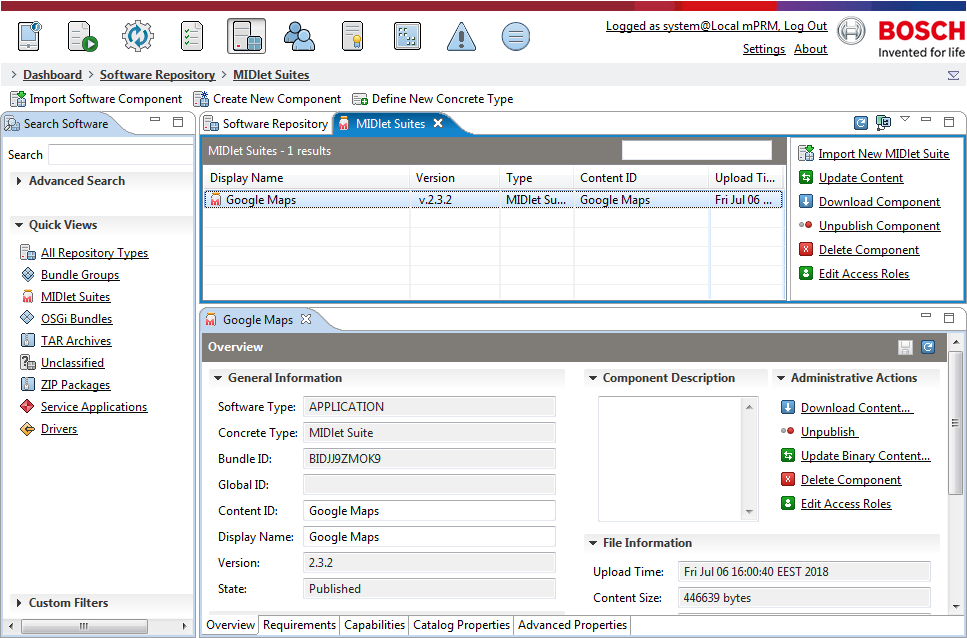
On the right, the Software Repository shows the available MIDlet Suites under the MIDlet Suites list. Select a suite to view and modify if needed its attributes underneath.
MIDlet Suite Attributes
General Characteristics
The common attributes of the MIDlet Suites are displayed in the Management Console and managed as described in the "Software Repository Management through Management Console" document from the User's Guide of the Software Repository package documentation.
Custom Characteristics
The Mobile Device Management package extends the RM Software Repository with additional functionality for management of the specific attributes of MIDlet Suites. The extra features are available in the Advanced Properties tab of the suite's details.
Currently, you can modify the manifest of a MIDlet Suite from the Manifest node of Advanced Properties.
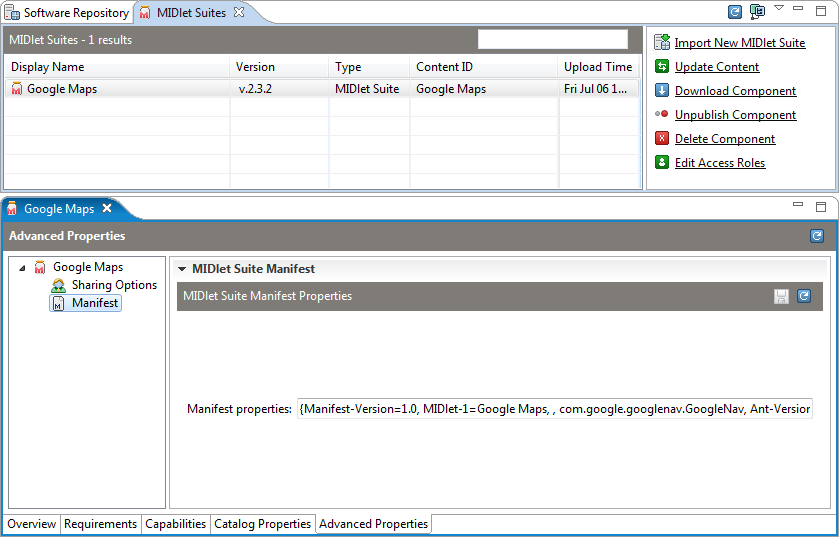
You can change all headers of the manifest. Double-click on a header name or value to make it editable.
To add a new manifest header:
Press the Add button. A row with two fields appears.
Type the header name and value respectively in the Property and Value text fields.
Click Save to make the changes persistent.
To remove a header from the manifest, select the header and click the Remove button.
Managing MIDlet Suites
Adding MIDlet Suites to the Software Repository by Using JADs or JARs
You can import MIDlet Suites, residing on local paths, into the Software Repository by specifying their JAD files or JAR files. In this case, the Software Repository will store only one file for the suite - the JAD one or the JAR one.
To add new MIDlet Suites, execute the following operations:
Select the MIDlet Suites shortcut from the Quick Views section of the Software Repository view.
Use the Import New MIDlet Suite option from actions list on the right. The Import Components wizard appears.
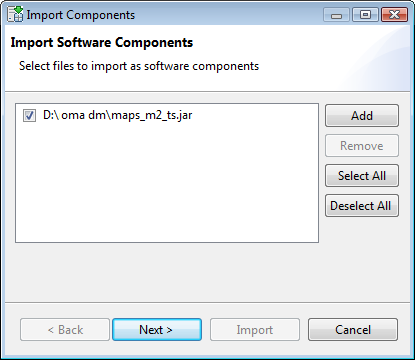
In the Import Software Components screen, use the Add button to specify one or more JAD or JAR files for import. Click Next to process the importing of the MIDlet Suite.
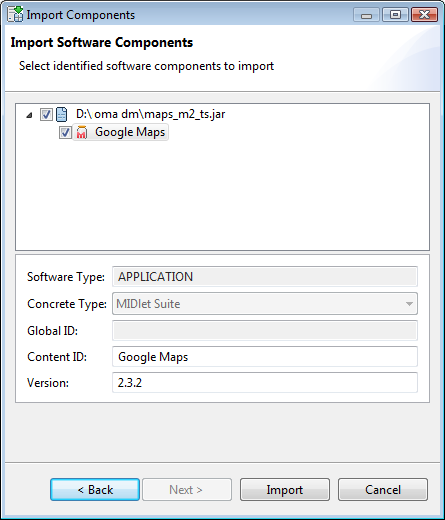
The next screen of the import wizard appears. It shows you the general characteristics identified by the Software Repository during the first stage of the import. (Optional) Change the content ID of the imported package by typing the desired one in the Content ID text field. To apply the changes, click Next.
In the last screen, the wizard informs you of the import result as well as whether there have been any problems during the process.
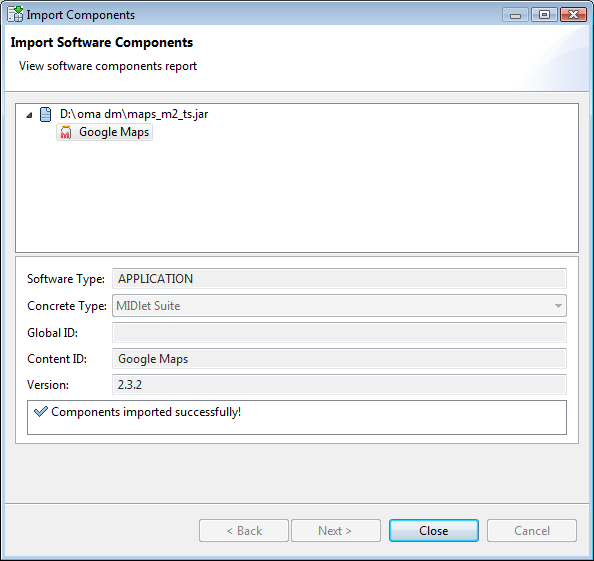
Click Finish to complete the import.
The MIDlet Suite you imported appears as an entry in the MIDlet Suites list in the Software Repository.
Adding MIDlet Suites to the Software Repository by using PAR Files
Besides by adding a MIDlet suite by its descriptor or JAR file, you can add it as a PAR (Provisioning ARchive) file storing the JAD and JAR files of the suite together in the Software Repository. The provisioning descriptor META-INF/provisioning.xml of the PAR file should specify as <bundle-type> APPLICATION and as mime-type of the suite's <descriptor-file> element - text/vnd.sun.j2me.app-descriptor. Following is an example provisioning descriptor describing the JAD file of a MIDlet suite inside the PAR file:
The code snippet bellow shows an example MIDlet suite PAR file.
<?xml version="1.0"?><provisioning-archive xmlns="http://java.sun.com/xml/ns/j2ee-cp" xmlns:xsi="http://www.w3.org/2001/XMLSchema-instance" xsi:schemaLocation="http://java.sun.com/xml/ns/j2ee-cp Provisioning_1_0.xsd"> <client-bundle> <content-id>Monopoly H&N DEMO</content-id> <version>0.53.92</version> <bundle-type>APPLICATION</bundle-type> <descriptor-file mime-type="text/vnd.sun.j2me.app-descriptor">/game-trial-monopolyhn-v142.jad</descriptor-file> <vendor-info> <vendor-name>Electronic Arts Inc.</vendor-name> </vendor-info> </client-bundle></provisioning-archive>The Software Repository will associate the JAD and JAR files with a single suite entry.
To import a MIDlet suite as a PAR file:
Click the Import Software Component button from the view toolbar.
Use the Add button to specify the PAR file(s) for import and click Next.
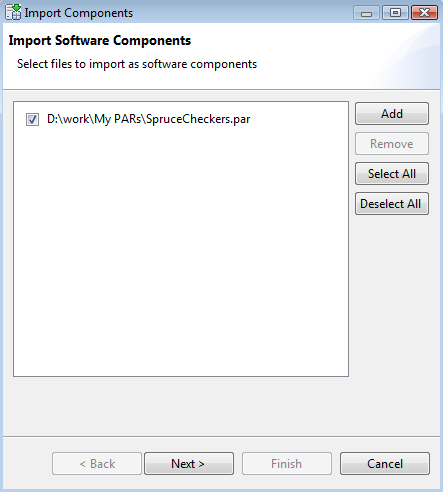
In the next screen, change if needed certain properties of the suite being imported, such as Content ID and Version, and click Next to proceed.
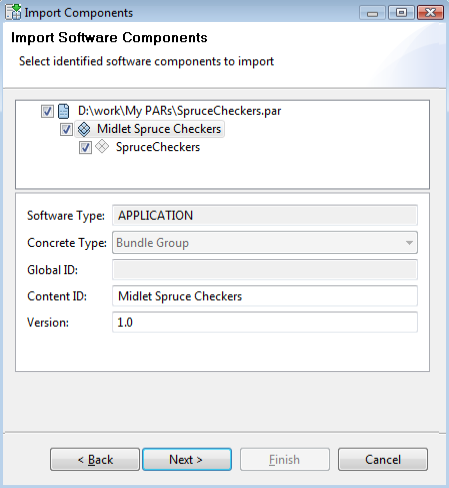
The final screen of the import wizard will show you the result of the import.
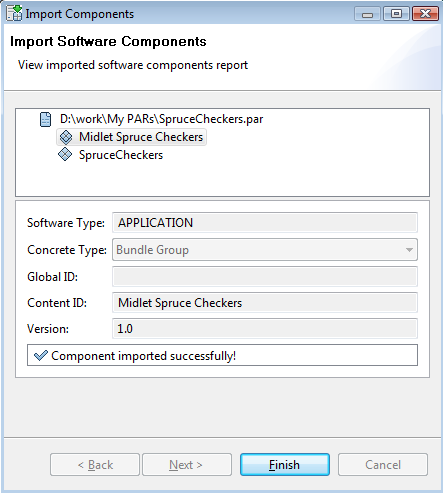
On success the MIDlet suite will appear under MIDlet Suites in the Software Repository. It will also be included in the service defined by the PAR file upon listing service applications with the help of the Service Applications shortcut from Quick Views.
Updating of MIDlet Suites
You can also update a MIDlet Suite, following these instructions:
Select the MIDlet Suite under the MIDlet Suites node and use the Update Content action on the right.
Locate the update in you local file system and click OK.
Removing MIDlet Suites from the Software Repository
To remove a MIDlet Suite from the repository:
Select it from the list under MIDlet Suites and use Delete Component from the actions list on the right.
If the MIDlet Suite participates in a complex package, "force delete" if needed.
Confirm removal.