This document describes how to use the console to create, edit and remove new device groups types, device groups and sub-groups and how to manage their devices.
Group Type Managing
The console allows you to easily create, edit and remove new group types. In this way you determine the actions allowed to be executed on groups of that type, the types of child groups and devices that can be added to the group, etc.
Creating a New Group Type
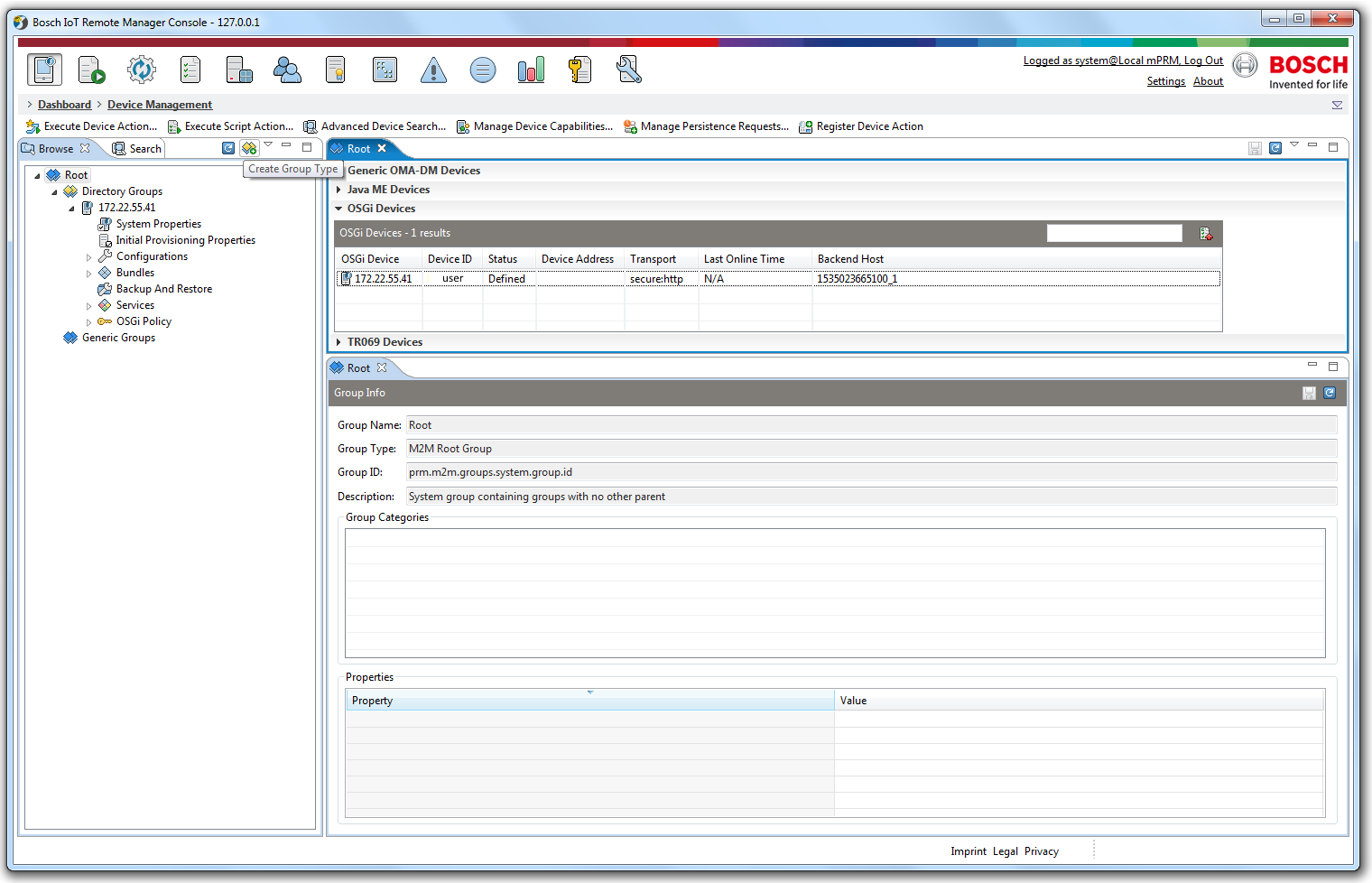
New group types are created by clicking the button outlined in red on the screenshot below.
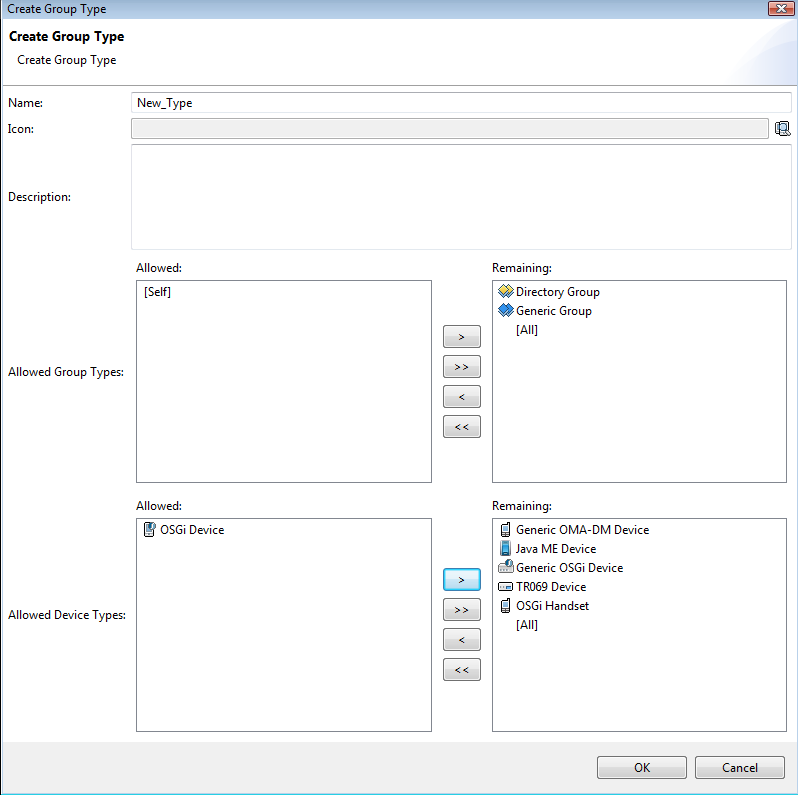
When creating a group type the user can specify name, icon and description of the type. The accepted child group and device types can be specified as well:
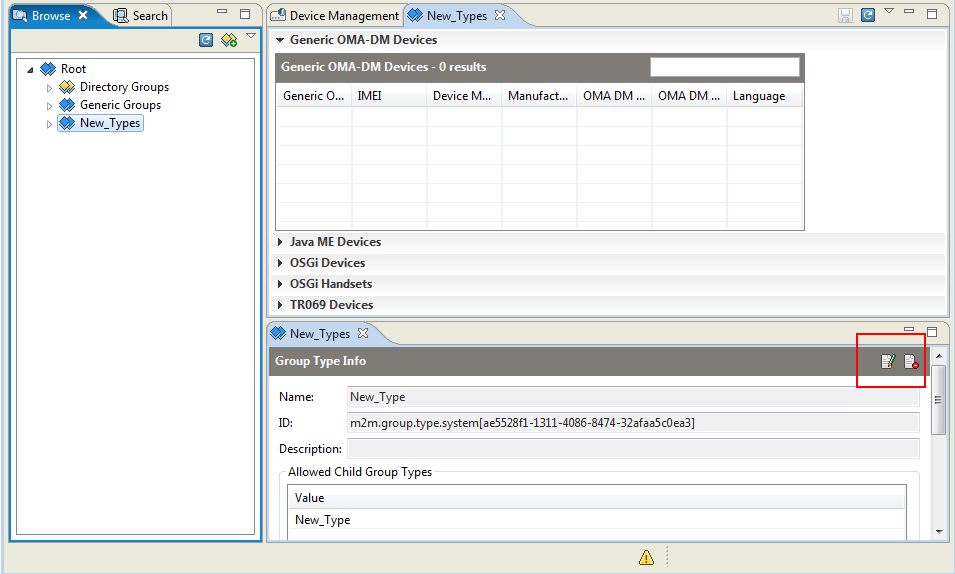
As a result a new node appears in the Root with the user defined group type name in plural. This node will collect all groups of that type with its corresponding icon. The first step to edit or remove it, is to select this node as described further below.
Editing / Removing a New Group Type
To edit or remove a group type, created by the user, select it and then click on the buttons from the Group Type Info pane, outlined in red:
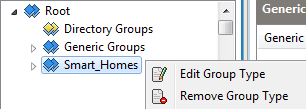
The console allows editing or removing a group type after a right-click on it and selecting one of the options Edit Group Type or Remove Group Type from the context menu.
Now that there are new group types created, the user can add/remove groups of these user defined or predefined types and navigate through their hierarchy as explained below.
Device Groups Managing
The console allows the user to: navigate through the groups hierarchy, add/remove/edit groups and attach/detach devices to/from groups.
Creating a New Device Group
A group is defined by its type, which can be user created or one of the predefined types provided by the system as described in the M2M Device Groups Conceptual Guide.
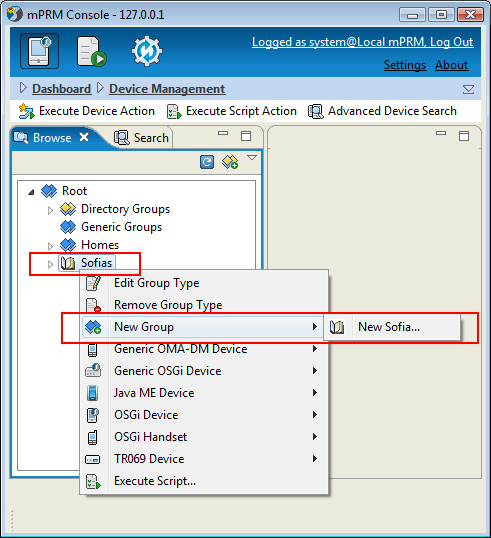
As can be seen from the screenshots below, the steps to create a New Device Group are:
Right-click the group type or the parent group to which a new branch is to be added.
Select New Group from the pop-up menu.
Choose from the list of available groups a New <Selected_Group>.
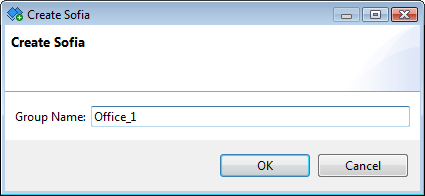
Fill in the Group Name in the Create <Selected_Group> dialog that appears.
Click OK.
Below you can see how to create a new group of the user created Sofia type – context menu and Create Sofia dialog box.
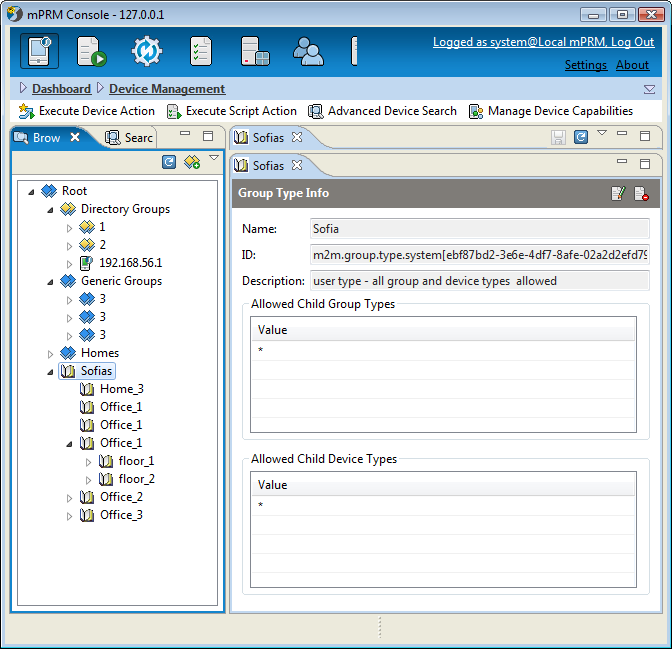
Below is an example of the result of creating several groups and subgroups of different types. It also shows that groups with one and the same name can be created from all types, but Directory.
Editing a Device Group
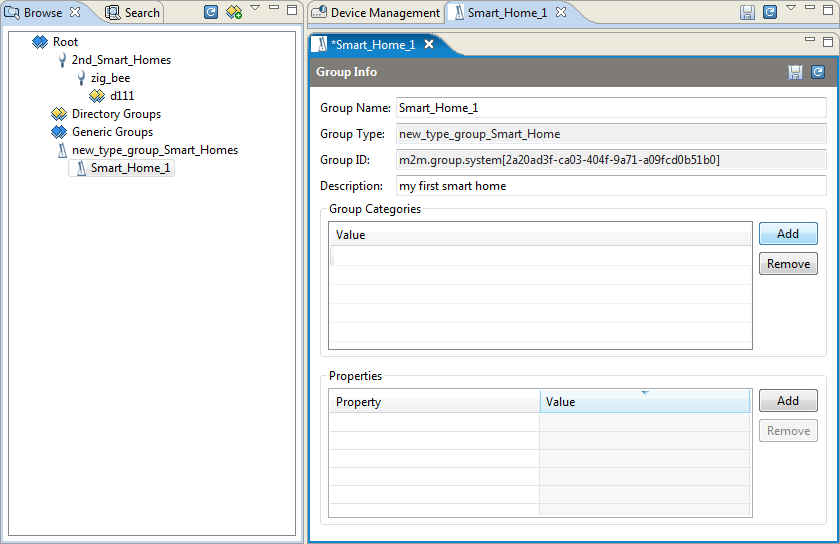
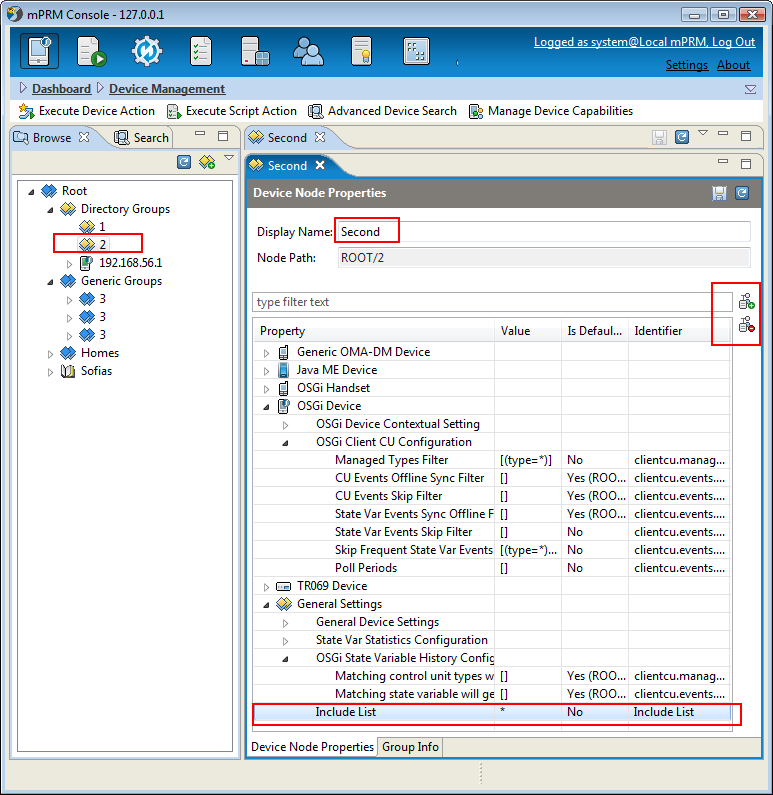
By using the console and its Group Info Pane to the right, it is possible to change Group Name and Description, to add/remove Group Categories and Property values.
Removing a Device Group
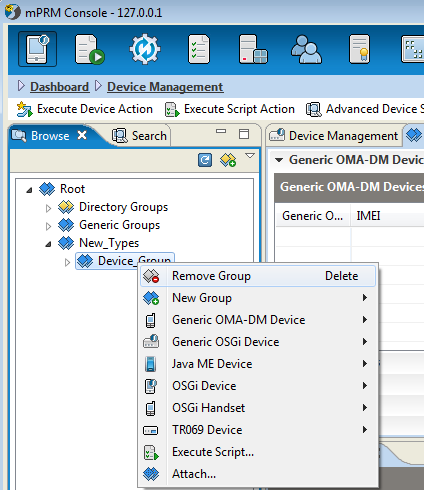
To remove a Device Group from the tree, right-click the group and select the Remove Group option from the context menu or simply press the shortcut key Delete. The removal of the Device Group should be confirmed.
Attach / Detach Device Groups and Devices
Once a group is created, it can be attached to a parent group, if its type is one of the listed Allowed Group Types of the parent group type – see the "Creating a New Group Type" section above.
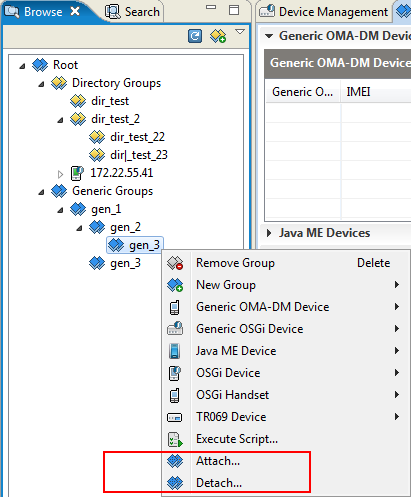
By choosing an option from the context menu after a right-click on a group, the console allows the group to be Detach-ed (if it is not a Directory group) from the parent or Attach-ed to other groups.
Before attaching/detaching a device it should be registered successfully under a Directory Group type as explained in the next topic.
Registering Devices
A device can be Register-ed only under the Directory Groups nodes. The first step is to select the directory group of the device from the Root and then select the type of the device to be registered from the context menu of its group.
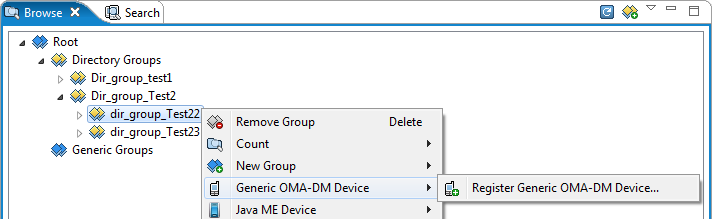
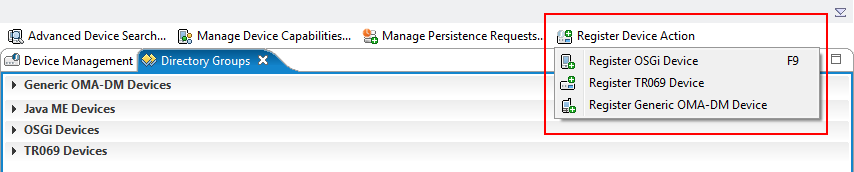
Another way to register a device is to use the Register Device Action from the tool bar:

The devices, that can be registered in the RM are OSGi devices (with the functional key F9 as a shortcut for this action), TR-069 devices, Generic OMA-DM devices and OSGi Handset devices.
The device appears in the tree and after a right-click on it the device can be Delete-d (unregistered from the system), Move-d to another Directory Group or Attach-ed to only one parent from Directory type or to multiple parents from other group types. This will be possible if the device type is one of their Allowed Device Types – see "Creating a New Group Type" section above. If the parent is of Directory Group Type, then you can not Detach its devices.
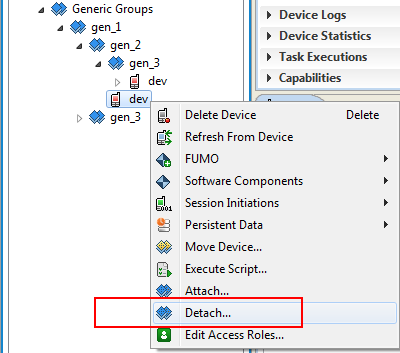
If a device is Detach-ed from its other group types parents, it will be available only under its parent from Directory type.