Executing an action from the Management Console will always fire an instant action. For non-queue mode clients it means that the request will be sent directly, whereas for queue mode clients they are forbidden (you will get an error).
Create Operation
To create a new Object Instance Node, right click on an Object Node upon which you will see a menu with the option "Create New [Object’s name] Instance".
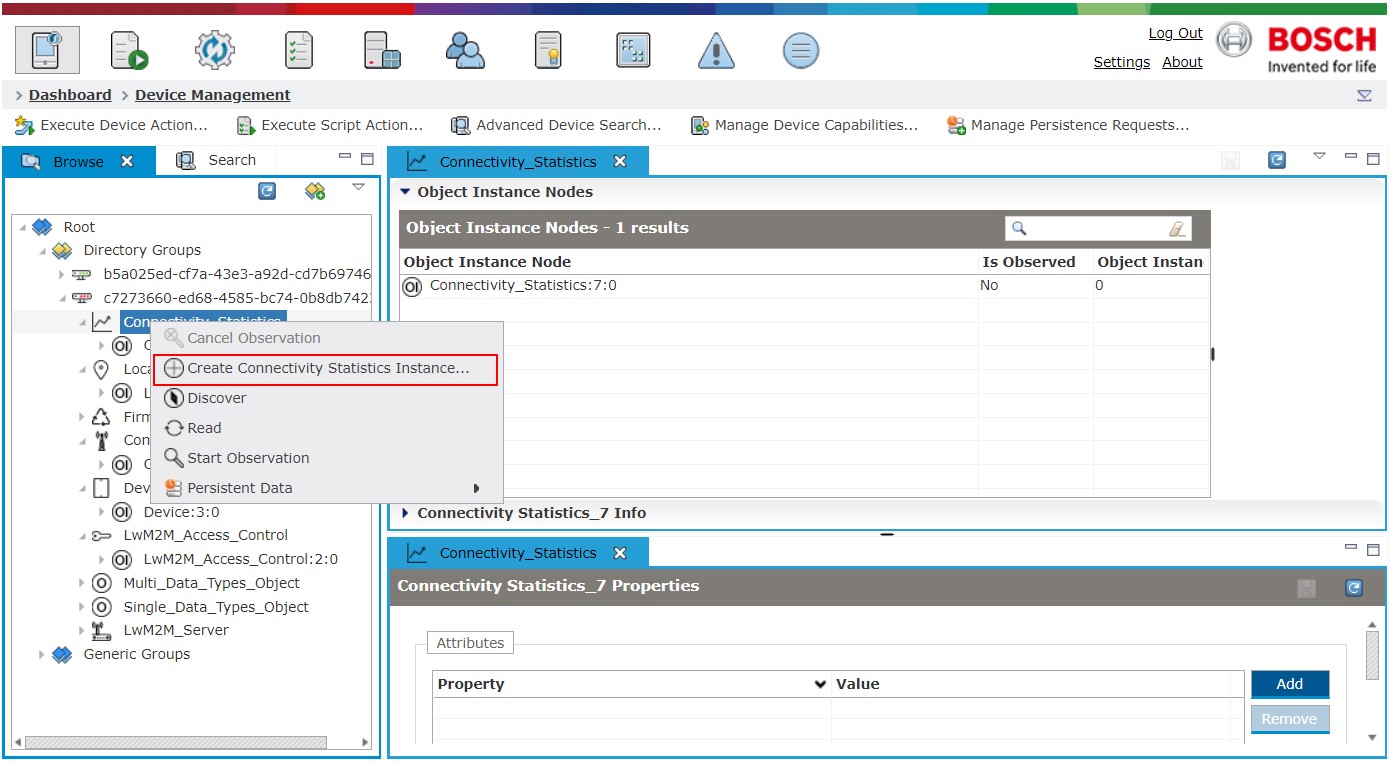
Selecting this option will display the Create Instance Menu with the whole resource model of the object.
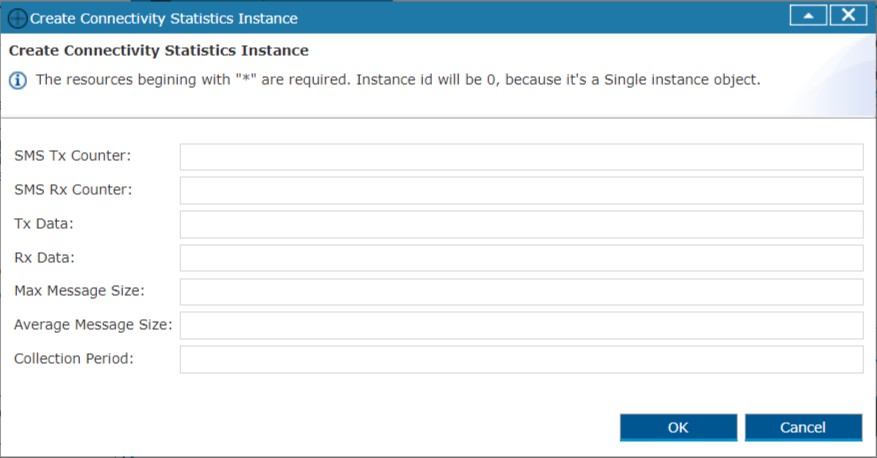
Some constraints to be considered when creating a new Object Instance from the Management Console are:
Mandatory resource names start with "*" and if you skip one of these, an error will be thrown.
Integer-type Resources which have Range Enumerations in the format minRange-maxRange will be recognized and validated by Remote Manager.
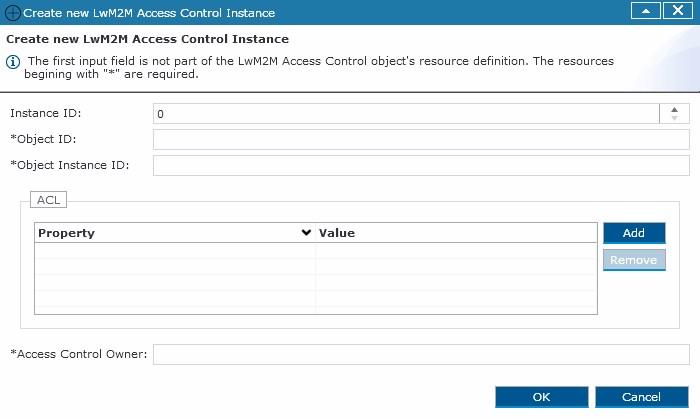
After valid input values are entered, Remote Manager will send a Create Request to the LwM2M client. If any errors occur, nothing will be created either on the LwM2M client or in Remote Manager. If the operation is successful, the new Object Instance will appear under the LwM2M client as a Control Unit.
To create a new Resource Instance Node, right click on the relevant Resource Node and select "Create New [Resource’s type] Node". The Create Instance menu with input fields for the new Instance ID and value will be displayed.
Creation of Single-Instance Objects is possible, even though most likely the LwM2M client implementation will reject such an operation.
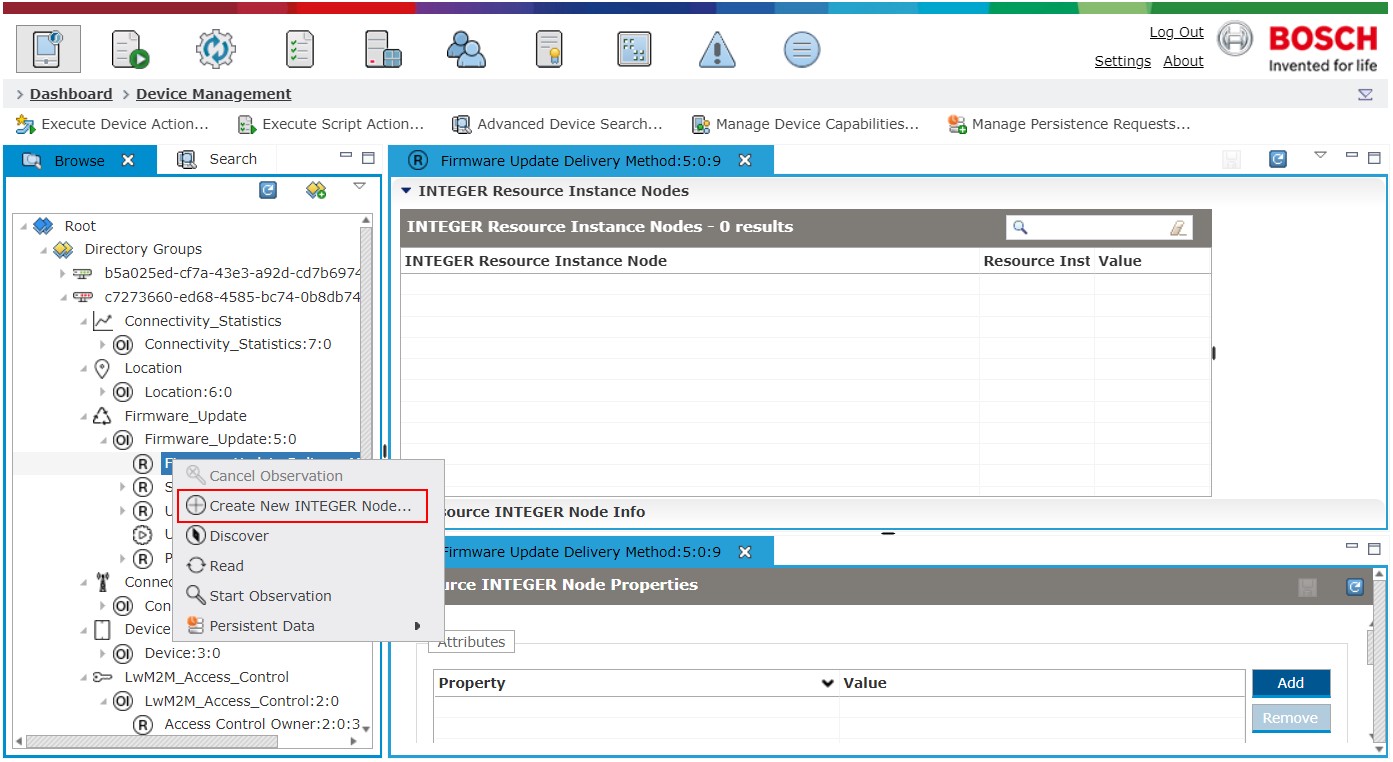
The Management Console currently does not allow inputting multiple Opaque-data-type Resources in one field. The solution is that only one input field will be shown and it will be created as a Resource Instance Node. If more instances have to be created, then you should use the "Create a new [Resource’s type] Node" action.
Read Operation
Read operation is pretty straightforward. Initiating a Read operation will read the values from the LwM2M client and will update the Resource Node values in Remote Manager.
Delete Operation
Delete operation is also straightforward. Right click on the Object Instance Node gives you the option to "Delete Instance Node". A confirmation pop-up will be shown before the deletion.
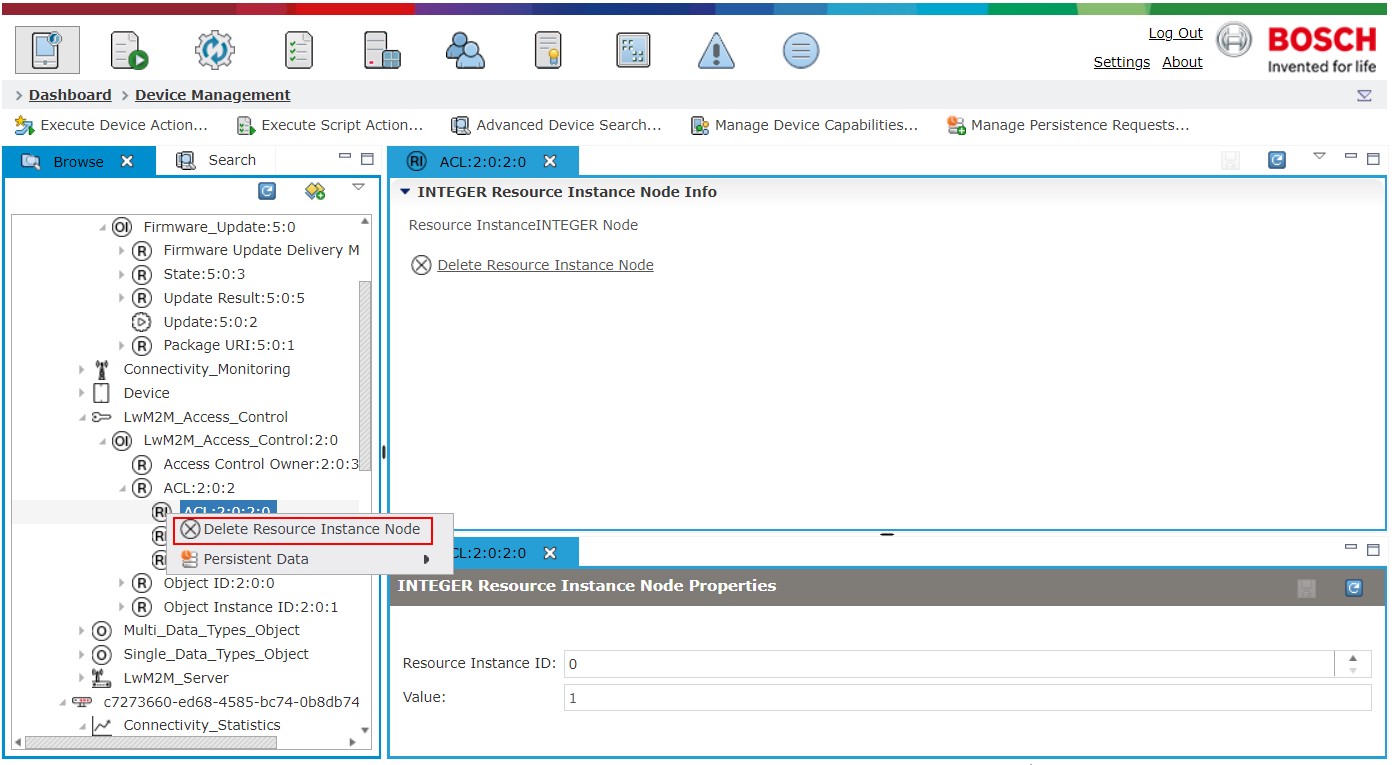
Deletion of Resource Instance Nodes is also possible. Right click on the Resource Instance Node gives you the option to Delete Resource Instance Node. A confirmation pop-up will be shown before the deletion.
Write Operation
All Resource Nodes have a "Value" field. To initiate a Write operation you need to edit that field and click on the Save icon.
java.util.Date.toString() and clears the milliseconds of the time value.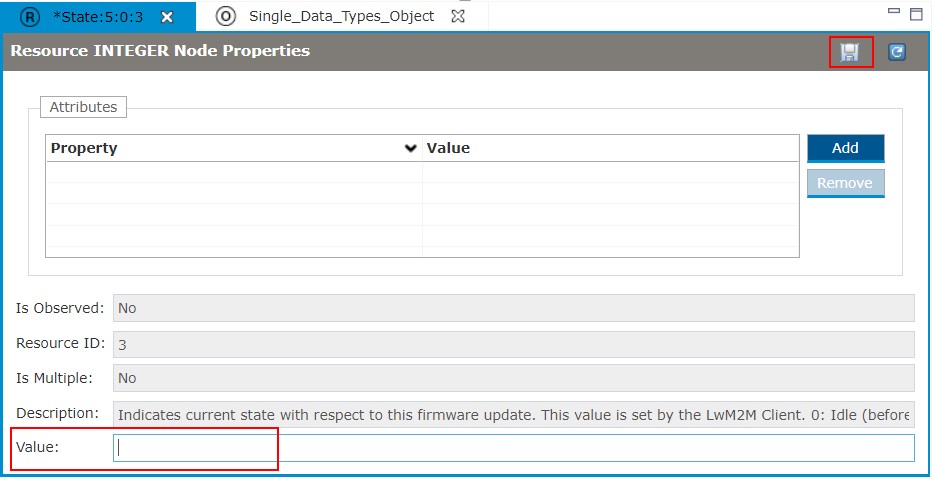
Execute Operation
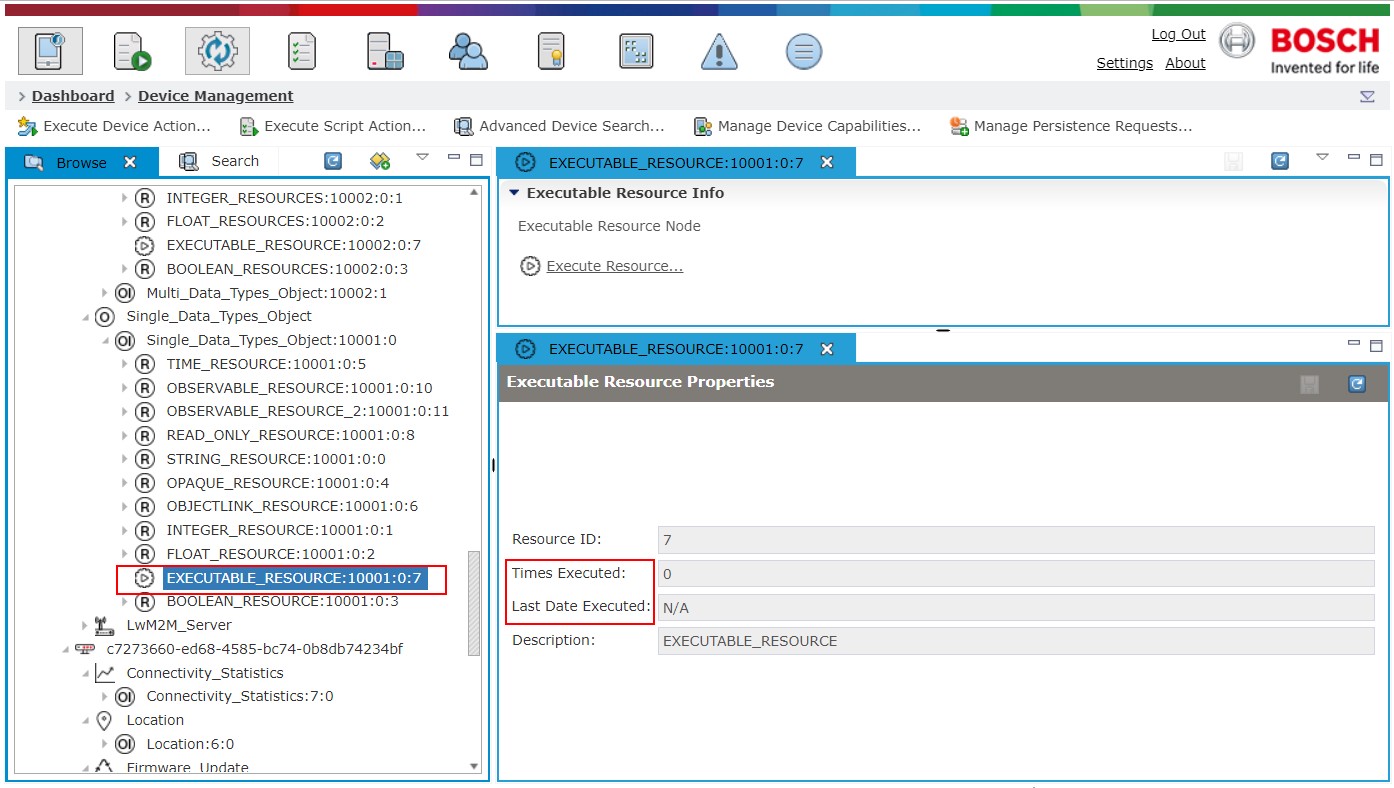
Executable Resource Nodes have different icons from the other resources and have only one action - "Execute".
In Remote Manager there are two additional state variables which are not part of the LwM2M specification - "Times Executed" and "Last Date Executed".
Discover & Write-Attributes operations
Discover and Write-Attributes operations can be triggered on Object, Object Instance, or Resource Node levels with their "Discover" and "Write-Attributes" actions.
A Discover action can be invoked by a right click on the relevant node and selecting the action from the pop-up menu that will appear.
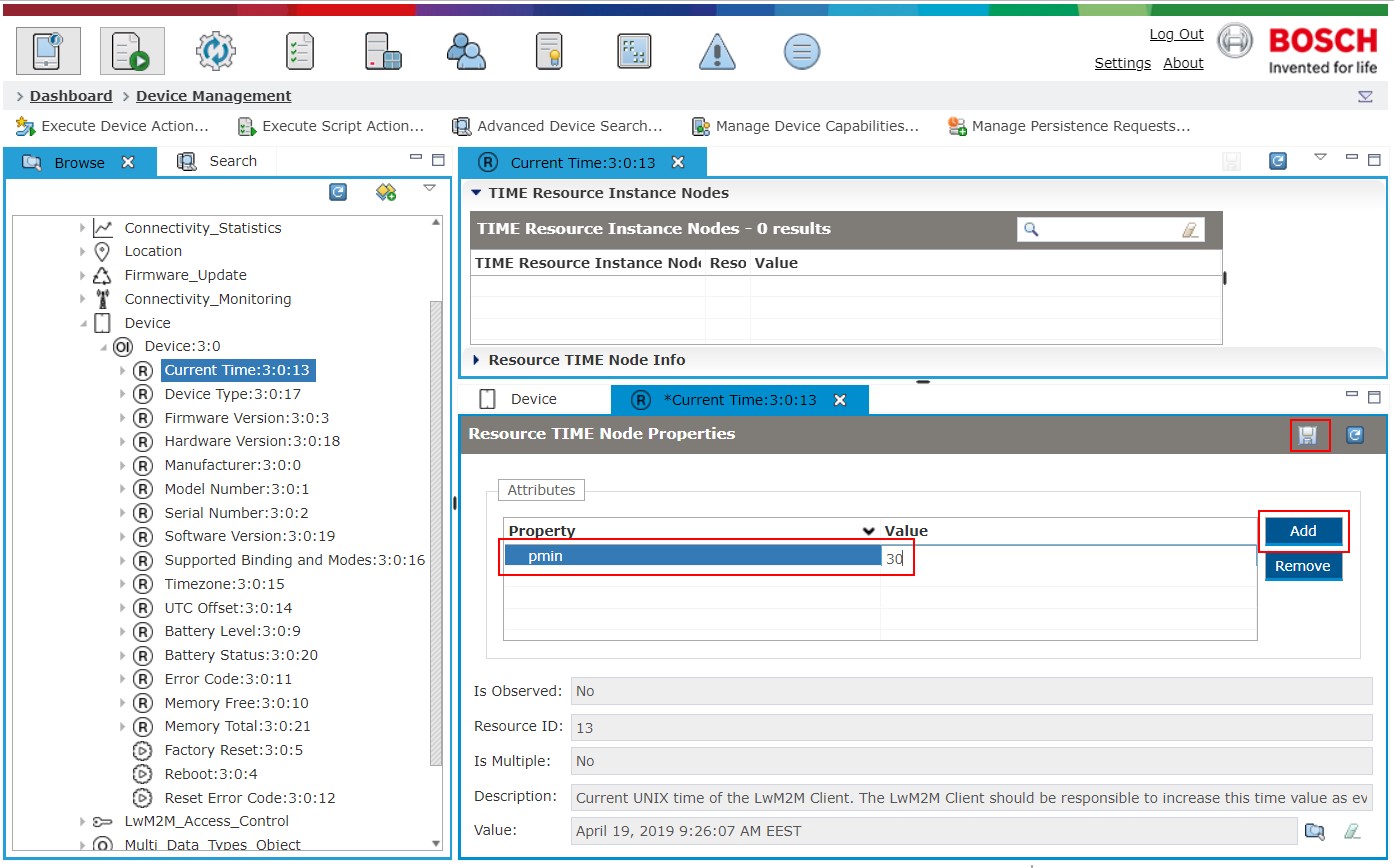
The Write-Attributes process is illustrated on the screenshot below.