Service Applications in the Software Repository
Viewing Service Applications on the Backend
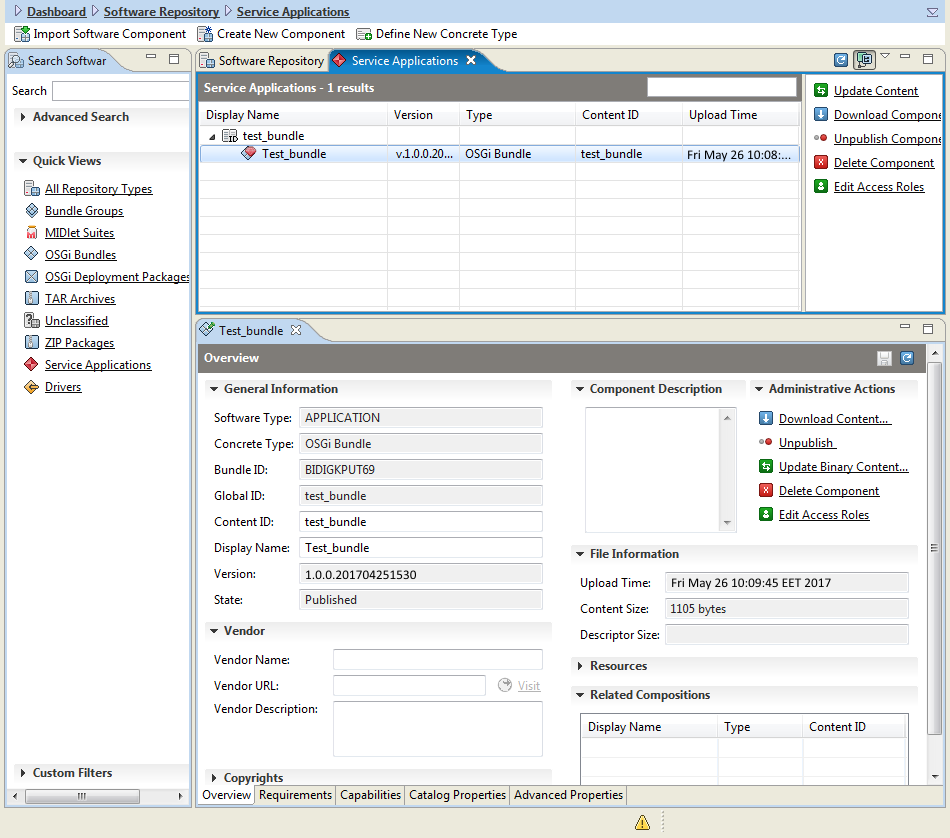
Service applications can be differentiated by the rest of the software components available in the Software Repository management tree through the  overlay icon.
To access the Software Repository, click the  button at the top of the console. Then, you can easily view all service applications by selecting Service Applications from Quick Views.
Client bundles with equal content identifiers are managed as different variants of one service application and when such service is installed on a specific device, the most suitable from them is delivered.
Creating a Service Application
To create a service application in the console:
Select the client bundle (OSGi bundle, MIDlet Suite, etc.) which you will transform into a service application.
Underneath, go to the Advanced Properties tab.
Right-click the client bundle root node and use Create Service Application from the popup menu.
As a result, a Service Application node appears in Advanced Properties. The selected client bundle becomes a service application and can be used on end-user devices.
Removing a Service Application
To delete a service application:
Select Service Applications from Quick Views and locate the client bundle of the service.
Go to the Advanced Properties tab.
Right-click the Service Application subnode of the desired client bundle and select the Destroy Service Application option from the context menu.
On success, the selected client bundle is no longer treated as a service application.
Managing Service Applications on a Device
Note: Viewing and managing service applications on devices is only possible for devices that have the Application Management Agent running. Appropriate components adapters should also be running on the device. For more information on activating the service application management on an OSGi device, refer to the Service Application Management Model Overview.
RM provides support for managing service applications on devices. The system operator can install, uninstall, activate and deactivate a service application on the connected device.
Installing and Uninstalling a Service Application
To install to a service application:
Log into RM through the console with the correct user name and password.
To go to the device management tree of RM, click the
 button at the top of the console.The Device Management dashboard view will open.
Locate the device to install the service application on.
Right-click and from the contextual menu select Service Application>Install Service Application. An Install Service Application dialog appears.
Select the service application by pointing the desired client bundle content ID . and click OK
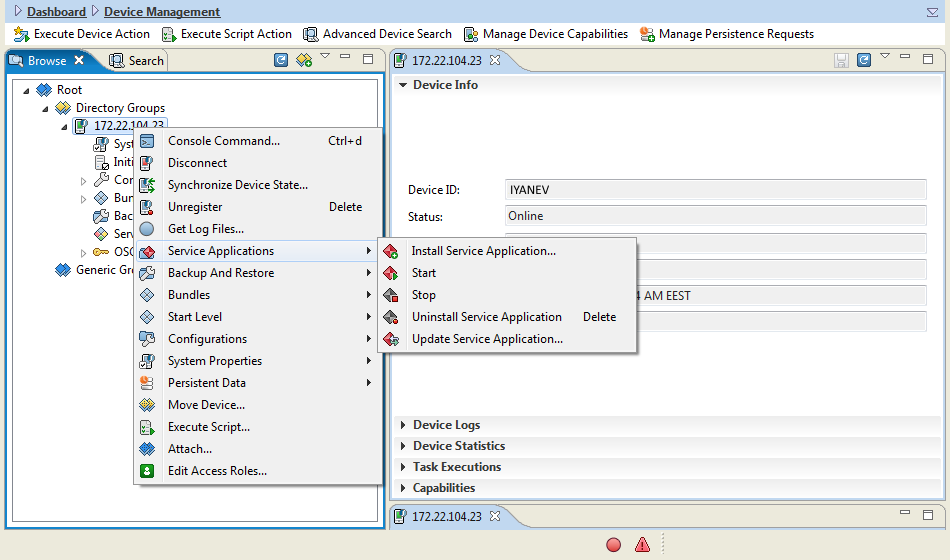
To remove an installed service application from a device:
From the contextual menu select Service Application>Uninstall Service Application. The Advanced "Uninstall Service Application" Execution window will appear
From the Target Service Application Set select the desiered Service Application.
Click Finish.
Activating and Deactivating a Service Application
After installing a service application on a specific device, you can activate it to use the provided functionality and deactivate it when it is no longer needed.
To activate an installed service application on a specific device:
From the contextual menu go to Service Application>Start.
From the Advanced "Start" Execution select the desired Target Service Application Set.
Click Finish
As a result the application is activated on the device and its state changes to started.
To stop a running service application on a specific device:
From the contextual menu go to Service Application>Stop.
From the Advanced "Stop" Execution select the desired Target Service Application Set.
Click Finish.
After the operation is executed successfully, the selected application is deactivated and its state becomes stopped.
Handling Service Applications on a Group of Devices
You can execute mass operations on a service application on a group of devices with a single command. Simply right-click on the group of device in the device management tree and select the relevant option from the <device_type> -> Service Applications sub-menu of the popup menu.